Deleting a Company from ReadyPay Online
Before deleting a company from your platform, think carefully about the reason you are doing it.
- If the purpose is because of a bad setup/conversion, then it is okay to do, to facilitate setting up the client again.
- If the company was set up and was a non-starter, then it is okay to do.
- If it is because the company has simply terminated service, then you should not. There is log change data that does not present the same way on the ReadyPay side. This information may be required for legal purposes in the future. Also, a large number of companies are now participating in the Equifax TWN program. It is important to retain the information (specifically on ReadyPay Online) should they be included in an Equifax quarterly audit.
The steps below should be followed when deleting a company from ReadyPay Online.
ReadyPay Synchronization
The company should first be removed from the ReadyPay Online (RPO) downstream site in ReadyPay. Navigate to System > Synchronization > Downstream Sites and select your RPO site. In the Companies sub-tab, click on the company to be deleted from RPO and click the Delete button (X). This will disconnect the company during the next scheduled sync from RPO; you will see confirmation of this in the next SyncUp progress log on RPO.

Deletion Steps
-
Log into ReadyPay on either the web server or a process server on the back end of RPO.
-
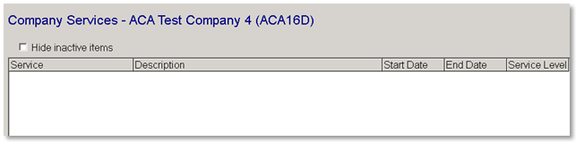
Navigate to Master Company Setup > Services and delete all services on the company. Make sure to toggle the Hide inactive items box to ensure that you have deleted ALL services.
-
Navigate to Master Company Setup > Status and select Nolog in the Status pull-down.
-
Navigate to System > Conversions > Delete Company. In the Company pull-down, select the company you want to delete. In Notes, you must enter something; it could be why the company is being deleted, for instance, but anything is okay. Enter your ReadyPay user id in the Delete Company Authorization field. Click the Request Delete Company button at the bottom of the page.
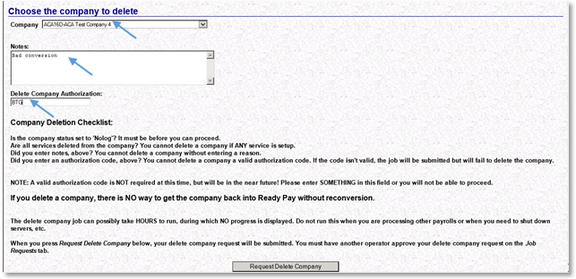
Lastly, you'll need to approve the deletion in System > Operations > Job Requests in order for the DeleteCompany job to run. Watch for the job to complete and the company will then be deleted.
Following this deletion process will still leave orphaned records in the RPO database tied to this company.
Questions?
Contact your Payroll Service Provider.