Enabling Password Complexity in ReadyPay Online
Turning on password complexity in ReadyPay
The password complexity check is turned on in the database. The first
value is always PwdComplex, and the second argument (below, it's an
8) is the minimum length the password can be. If you set it to 0,
no complexity check is done.
INSERT INTO dbflags (label, i1)
VALUES ('PwdComplex', 8)
Changing the password under Help > Change Password will not require you to change it on next login.
Password complexity
If the password policy complexity flag is found on any given database, passwords must meet or exceed the specified length and contain 3 of the 4 categories of characters:
- Upper-case letters
- Lower-case letters
- Numbers
- Special characters (for example,
!@#$%&*)
The dbflags table does not sync back and forth. Password complexity
is enforced within the code in ReadyPay Online. If the PwdComplex
flag exists on a ReadyPay Online database it will be ignored.
Password complexity in ReadyPay Online
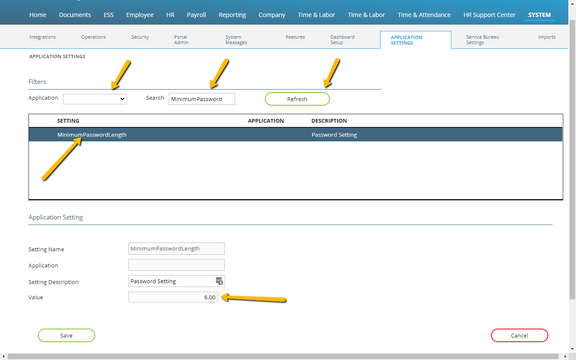
Password complexity in ReadyPay Online is hard-coded. The password requirements are that it must include at least one number and one special character; there is no requirement on lower- or upper-case letters. However, you can determine the length of the password by altering the SettingValue in AppSettings for the MinimumPasswordLength setting name (as shown below).

This is also accessible via System > Application Settings. Make
sure the Application field is blank (this is the default for
ReadyPay Online application settings). Enter MinimumPassword in the
search to limit the results you see on the page. Select
MinimumPasswordLength in the pane and alter the value to your
liking at the bottom.
Questions?
Contact your Payroll Service Provider.