Report Writer Overview
ReadyPay Online provides access to two versions of Report Writer: Basic and Advanced.
The version you use will be determined by the requirements of your report. Typically, most reports can be created in either version.
The following are some of the circumstances that will force you to one version or the other.
-
Basic Report Writer supports more output formats than Advanced Report Writer.
These are the output formats available in Basic Report Writer.
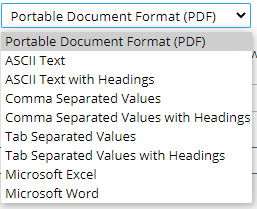
These are the output formats available in Advanced Report Writer.

-
If you need to combine fields into one piece of data or perform advanced mathematical equations, you will use Basic Report Writer.
-
Advanced Report Writer only provides Report Level totals. If your report requires sorts and totals at each change in the sort, you must use Basic Report Writer.
Navigation
Access to the Report Writer is found by selecting the Reporting Module from the main Tool Bar.

Next, select the Report Writer sub tab.

At the bottom of the screen you will see two buttons. Use the Green button to add a new Report Writer setup.
Use the Red button to choose which Report Writer version you wish to use.


Use the Red button to switch to the Report Writer version you wish to use. If the Red button reads "Advanced Report Writer", you are using the Basic Report Writer version.
If the Red button reads "Basic Report Writer", any reports added will use the Advanced Report Writer.
After deciding which option to use, click the green "Add Report Writer Report" button to begin.
Building Your Report Writer Report
Regardless of the Report Writer version you use, there is a recommended approach to building Report Writer reports. Following this approach will minimize the time it takes to create the report you need.
-
Based on the report requirements, review the company setup and address any items that may need to be added. This will eliminate the need to exit the report setup to add the missing features.
-
Add the data fields needed for your report. When complete, use the Preview function to see how the report displays.
Review the column headers to eliminate wasted space on the report. The headings are often too long in relation to the data they contain. Shortening them will free up space.
noteThe default display of Column Headings is different between the two versions. In Basic, the headings are one line.

In Advanced, if the heading is more than one word, the heading is multiple lines, one line for each word in the heading.

-
Review the report and identify data you want removed. Use the Filter function to remove unwanted employees or data. Reports that contain hours, earnings, deductions and tax amounts typically have a number of lines where the amounts are zero. This is because certain employees have no data for those particular items. Use the filters to exclude them as needed.
-
Review the order in which the data is displayed. If changes are needed, use the Sort functions to achieve this.
tipIf your report is sorted and you need totals at each change in the sort, you must use Basic Report Writer.
-
Review the report and determine if any fields need to be totaled. Advanced Report Writer automatically adds report-level totals to all numeric fields. In Basic, you must set the field to provide report-level totals.
-
Preview the report often while building it to facilitate the process.
Additional Information
The initial entry screen is the same for both Report Writer versions.
The following applies to both Basic and Advanced Report Writers.

If Report Writers already exist, they will be listed on this screen. Report Title, Report ID and Output Format are displayed.
There are three functions available on the initial entry screen as well.

- Printer: Runs the report with the saved options.
- Pencil: Use to edit an existing Report Writer report setup and/or the reporting options assigned to the report.
- X: Deletes the Report Writer setup.
Hover over each field with your mouse to see an explanation of each function.

A company can have both Advanced and Basic Report Writer setups.
When you are in Advanced Report Writer, only Advanced Report Writer setups are displayed. The same is true for Basic Report Writer.
To see all the Report Writers on file for a client, you must toggle between Advanced and Basic Report Writer.
Previewed Reports can be found under My Completed Reports.
Use the following links to access documentation on the setup and use of both Report Writer types:
Questions?
Contact your Payroll Service Provider.