Multi-Company Reporting
One feature of Reporting on ReadyPay Online is the ability to run reports for multiple companies at a time. This article explains the setup of reports to handle this feature, provides a listing of reports with this feature currently available, and instructions for running reports for multiple companies.
Report Setup
Reports must be set to allow for multiple company reporting. The Allow Multi Company option is found in the Master Report List found in ReadyPay Desktop under System / Setup / RPF Editor on the Misc Report Props sub-tab of each report.
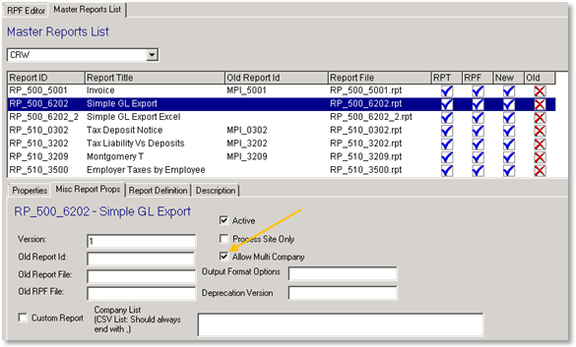
Not all reports, as they are written, will work for multiple company reporting; they may either be too company specific or laid out in a way that leads to confusion of the data provided. The below list of reports are currently approved for use with the feature:
| Report ID | Report Title |
|---|---|
| OP_420_2112 | Payroll Entry Audit |
| RP_390_2500 | Employee Insurance Cost vs Setup |
| RP_390_2502 | Employee Insurance Variance |
| RP_500_6202 | Simple GL Export |
| RP_530_0210 | Employee Payroll Deductions |
| RP_600_4103 | Multiple Worksite Report |
| RP_820_0200 | Direct Deposit Audits |
| RP_820_0300 | Inactive Employees Paid Audit |
| RP_830_0200 | Negative Wages or Taxes per Quarter |
Running Reports for Multiple Companies
On ReadyPay Online, running reports for multiple companies is performed through the Company Filter Options section of the report properties page. While this section will appear for all standard reports, the options for All Companies and Selected Companies will be grayed out for those not on the list above.
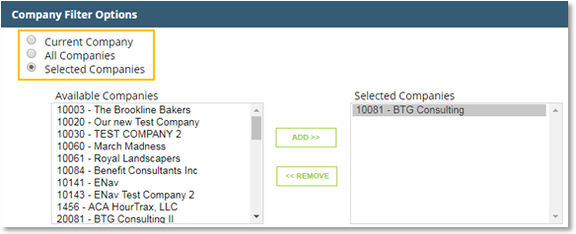
By choosing to run a report for All Companies, the report will generate for all companies the user running the report has access to via their security. The listing of Selected Companies will also be limited to the companies a user can access via their security. Companies from the Available Companies listing may be highlighted and moved to Selected Companies through the use of the ADD>> button. Conversely, companies may be removed from the report by highlighting them in the Selected Companies listing and using the <<REMOVE button.
While the function is limited to a handful of reports, a service bureau may test other reports for validity in using this function. Testing should be performed in a non-client environment to prevent issues with clients running reports that are being altered.
Questions?
Contact your Payroll Service Provider.