Employee: Personal | Emergency Contacts
The Emergency Contacts Tab is used to store information about whom to contact in the event of an emergency with the employee.
Use of this tab is optional.
Most fields are free form text fields.
The Home, Work and Cell Phone fields, however, are formatted as phone numbers
The State field is a system provided Drop List.
Adding a new Emergency Contact
Click the Add Button in the lower section of the tab to add a new Emergency Contact.

Move the cursor to the Name field and populate the tab as needed.
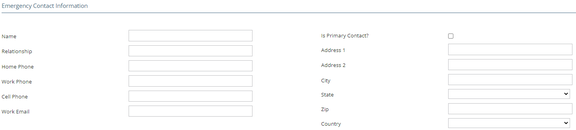
Name: The name of the Emergency contact.
Relationship: The relationship of the emergency contact to the employee.
Home Phone: Home Phone of the Emergency Contact.
Work Phone: Work Phone of the Emergency Contact.
Cell Phone: Cell Phone of the Emergency Contact.
Work Email: Email Address of the Emergency Contact
Is Primary Contact: Check if this contact should be contacted first in the case of an emergency.
Address 1: Address of the Emergency Contact. Use the blank field below for additional address information.
Address 2: Use to input additional address information (Apt #, Building #, etc.).
City: City of residence for the Emergency Contact.
State: Stat of residence for the Emergency Contact.
Zip: Zip Code of residence for the Emergency Contact.
Country: County of residence for the Emergency Contact.
Additional Information
Updating existing Emergency Contact Information
Select the Emergency Contact to update from the upper section of the tab

Make the necessary changes.

After entering the necessary data, select the Save Button to record the record.
Use the Save/Add New button if entering multiple new Emergency Contacts.
The Save/Add New buttonshould not be used when editing existing Emergency Contacts

Use the cancel button to undo any entered data that has not been saved.

Use the Delete button to remove an existing Emergency Contact.
The following Dialogue Box will appear at the top of the page after clicking the Delete (X) Button.

Click OK to complete the deletion.
Reporting
There are two ways to produce reporting for Emergency Contacts.
Use the on-board Emergency Contact report found under the Reporting Section.

Use the Employee Emergency Contacts Report Type in Report Writer to report the data in Emergency Contacts.
