Employee: Personal | Compliance

The Compliance Tab is located under the Personal section in the Employee section The tab is home to a variety of data related to the employee's employment within an organization. This includes various information the employer has collected as part of the hiring process. Periodically, employers must provide documentation to various government agencies to prove they are following various guidelines in the hiring process. The information on this tab is critical to that process.
Using the Compliance Tab
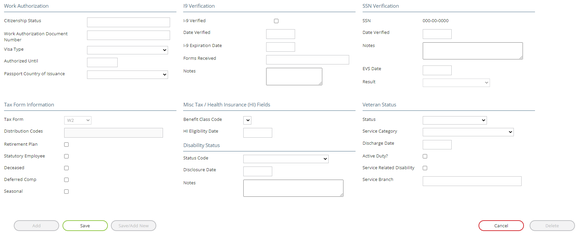
When creating a new employee in the system, some of the data entered in that process is used to populate the Compliance Tab. The amount of data entered varies from company to company and by the methods used to add a new employee. Employees can be added using the RPO Onboarding system or by using the New Hire Wizard. The configuration of each of these items determines how much data is applied to the Compliance Tab.
The Compliance Tab is divided into several sections that organize the data by like category. All fields except Tax Form are optional from a software requirement.
Work Authorization Section
Typically used with employees working on Visas.

Citizenship Status: Enter citizenship information
Work Authorization Document Number: Work Authorization Document Number
Visa Type: Use the provided Drop List to select the appropriate Visa Type
Authorized Until: Expiration Date of the Visa
Passport Country of Issuance: Use the Drop List to assign the issuing country
Tax Form Information
Used to varying degrees with every employee.

Tax Form: Tax Form is typically selected when adding the employee to the system. Each choice controls the tax setup of the employee. Tax Form can only be changed if the employee has no payroll history. Changing the Tax Form Type after the initial employee creation can cause issues. Exercise caution.
Distribution Codes: Used specifically with Tax Form 1099-R
Retirement Plan: If an employee contributes to a Retirement Plan, the system will automatically check this box on Form W2.
Manually check this box if the employer provided a retirement plan and the employee is eligible to participate.
Typical retirement plans are:
-
A simplified employee pension (SEP) plan described in section 408(k).
-
A SIMPLE retirement account described in section 408(p).
-
A trust described in section 501(c)(18).
-
A plan for federal, state, or local government employees or by an agency or instrumentality thereof (other than a section 457(b) plan).
Statutory Employee: Check this box for statutory employees whose earnings are subject to social security and Medicare taxes but not subject to federal income tax withholding.
Deceased: Individual is deceased
Deferred Comp: Individual receives Deferred Comp
Seasonal: Marks W2 as Seasonal
I9 Verification Section
Use this section to record various I-9 Information

I-9 Verified: Check if I-9 has been verified.
Date Verified: Date I-9 was reverified.
I-9 Expiration Date: Date I-9 Form expires.
Forms Received: Free form text field to record form types received from employee.
Notes: Free form text field used to record additional information regarding the I9.
SSN Verification Section
Use this section to record information regarding the verification of the employee's Social Security Number.

SSN: Displays employee SSN from the Demographics tab.
Date Verified: Enter the Date where the SSN was manually verified.
Notes: Free From text field used to record additional information about the verification.
The company must subscribe to the Employment Verification Service (EVS) under Master Company Setup > Services in order for the following fields to be automatically populated.
EVS Date: The SSN Verification date obtained by using the EVS Service
Result: Code reported by the EVS Service
For information about the setup and use of the Employment Verification Service, click here.
Misc Tax / Health Insurance (HI) Fields Section
Works with a custom Benefits Integration

Benefit Class Code: Select the Class Code Drop List. The Benefits Class Code option are created using options on the Benefit Class Code option found on the Misc Tab in Company Setup.
HI Eligibility Date: The Health Insurance Eligibility Date.
Disability Status Section
Use to record information regarding any employee disability.

Status Code: Select the code from the system provided options.
Disclosure Date: Date advised of the disability
Notes: Free form text box to record additional information about the reported disability.
SSN Verification Section
Use this section to record information regarding the verification of the employee's Social Security Number.
SSN: Displays employee SSN from the Demographics tab.
Date Verified: Enter the Date where the SSN was manually verified.
Notes: Free From text field used to record additional information about the verification.
The company must subscribe to the Employment Verification Service (EVS) under Master Company Setup > Services in order for the following fields to be automatically populated.
EVS Date: The SSN Verification date obtained by using the EVS Service
Result: Code reported by the EVS Service
For information about the setup and use of the Employment Verification Service, click here
Veteran Status Section
Use to record information on employees who are veterans.

Status: Use the Drop List to select the appropriate status. The entries in the Drop List are found in the Veteran Codes option housed under System > Setup > Misc tab.
Service Category: Use the Drop List to select the appropriate status. The entries in the Drop List are found in the Veteran Service Categories option housed under System > Setup > Misc tab.
Discharge Date: Date of Discharge from the branch of service
Active Duty?: Check if still Active Duty.
Service Related Disability: Check if employee has a Service-related disability
Service Branch: Name of the Service Branch.