Employee: Personal | Change History
Change History is housed in the Personal Section of the Employee Module.

Change History provides the user with the ability to view changes made to an individual employee.
The user can view data from the various employee type tables in ReadyPay Online.
A date range option allows for a historical review of the changes.
The data on this tab is gathered automatically by the system.
All information is view only.

Using the Change History Function
To display Change History data, enter data for the following fields:
Start Date: System default is current date minus three (3).
End Date ; System default is today's date.
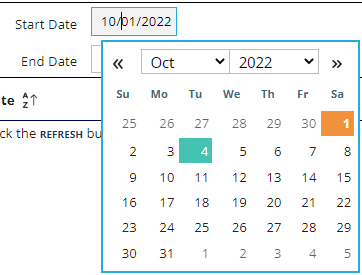
You can change the Start and/or End dates in two ways:
-
Click on the date field to display the Calendar option. Select the desired date using the calendar functionality
-
Highlight the date field and manually enter the date in "mm/dd/yyyy" format. Tab off the field when finished.
Log Source: Use the Drop List to select the desired Data Source. The Default is Employee. The Drop List entries refer to various tabs within the Employee Section. Only one Log Source can be chosen at a time.

Change Types: Use the Check Boxes to control the types of Changes to be displayed.

Insert: An entry newly added to the Log Source.
Update: A change to an existing entry in the Log Source.
Delete: Deletion of an existing entry in the Log Source.
After completing your selections, click the Refresh button to display the results.

You must use the refresh option any time you change any of the dates and/or field values.
The results are for research purposes only. They cannot be printed or exported from this tab.