Employee: Payroll Data | Direct Deposit
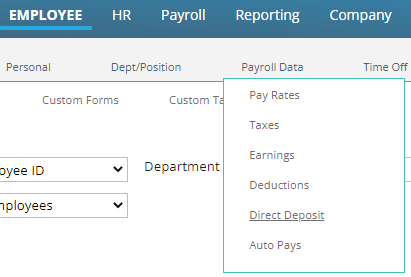
Use the Direct Deposits Tab to manage the direct deposits for the employee. The tab is found under the Payroll Data section in the Employee Module.
There are a number of options available in the setup of Direct Deposits that provide the employee the ability to direct funds from their pay to a number of bank accounts. When setting up direct deposits, obtain the needed information from a VOIDED check for the account. Do not use deposit slips as the information found there may be inconsistent with the setup of a Direct Deposit.
Description of Terms
ABA Routing: A n ABA routing transit number is a nine-digit code printed on the bottom of checks to identify the financial institution on which it was drawn. The American Bankers Association developed the system in 1910 to facilitate the sorting, bundling, and delivering of paper checks to the drawer's bank for debit to the drawer's account.
Full Deposit: Either the entire Net of the employee's pay or the remaining net after all partial deposits have been made. See "Primary Direct Deposit Account".
International Bank Account Number (IBAN): An IBAN, or international bank account number, is a standard international numbering system developed to identify an overseas bank account. The number starts with a two-digit country code, then two numbers, followed by several more alphanumeric characters. Note that an IBAN does not replace a bank's own account numbering, as it's only meant to provide additional information that helps in identifying overseas payments.
Net: Amount of the employee's pay after taxes and deductions.
Partial Deposit: Refers to when part of the employee net is paid via direct deposit. One net pay may be sent out as multiple partial deposits. See "Secondary Direct Deposit Account".
Prenote: Prenote stands for "pre-notification." A prenote is a zero-dollar (or other currency) test . It is done to validate the banking information that was submitted by the employee. Before a Direct Deposit request can be fully authorized, a prenote must be sent and verified.
Primary Direct Deposit Account: Refers to an employee's active direct deposit account with the highest sequence number that uses the Amount Code "%" and the Amount field is "100.00".
Remaining Net: A function of the system for dealing with multiple direct deposits on an employee. As direct deposits are deducted, the system reduces the net by the amount of the first direct deposit to determine Remaining Net.
The Remaining Net is then considered when calculating the next direct deposit. Based on the settings on the direct deposit being processed, the system uses remaining net to determine if sufficient funds exist to create the direct deposit. If so, the system continues on to the next direct deposit. If there is insufficient funds for a direct deposit to be taken, any remaining direct deposits are bypassed.
Secondary Direct Deposit Account: Refers to when part of the employee's net pay is paid via direct deposit. Secondary direct deposit accounts can either be a flat amount or a percentage of their net pay. When an employee has multiple secondary direct deposit accounts, they must all use the same amount code. An employee's Primary and Secondary direct deposit accounts can use different amount codes.
Tab Layout

The upper section of the tab displays any active Direct Deposits setup on the employee.
To see all Direct Deposits, including inactive, click the "Show all direct deposits" box.

The lower section contains the details of the Direct Deposit selected in the upper section.
The lower section has two Sub Tabs. These are the Direct Deposit and International Account Info Sub Tabs.
Note: An FAQ section has been added to the bottom of this article, and covers answers to many common questions.
Adding a New Direct Deposit
There are two Sub Tabs on the Direct Deposit tab.
Click the Add (*) Button at the bottom left of the screen to initiate the process.
Direct Deposit Sub Tab
Note: Several fields on the Sub Tab have an Information Bubble associated with them.

Hover the mouse over the Information Bubble to see information explaining the field.
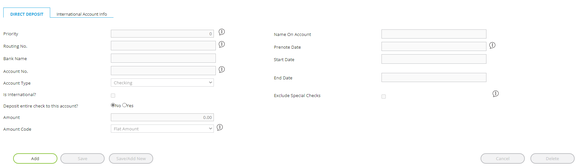
The Priority Field is populated with a default value of 99

Priority: A one- or two-digit number that determines the order in which Direct Deposits are taken. An entry of 0 (zero) will happen first. Subsequent direct deposits should be numbered in ascending priority order. Best practices recommend the use of 99 when the direct deposit is for the entire net or is the last in a sequence of multiple partial direct deposits.
Routing No: The ABA Routing Number from the voided check.
Bank Name: There is a table of Banks Routing numbers and bank names stored in the system. If the entered Routing Number is not in that list, the field will read "Bank not on file". If the entered ABA Routing Number matches an entry on the Banks tab, the name of the bank will be displayed in that field. This happens after the record is saved into the system.

Additionally, the Bank Name is displayed at the top of the Direct Deposits sub tab.

Account No: The account number from the voided check.
Re-enter Acct No.: Re-enter the account number from the voided check.
Account Type: Select the correct Account Type from the provided Drop List.

Is International?: Check if the bank account is from a foreign country.
Deposit entire check to this account: Select the No or Yes Radio button.
Amount: Enter an amount that is proper to the setting in the Amount Code field.
Amount Code: Select the appropriate option from the Drop List to define the type of Direct Deposit.

Use blank or Flat if the Direct Deposit is a flat amount
Use % if the Direct Deposit is a Percentage of Net. Remember the difference between Net and Remaining Net.
Flat- Option: Uses the value in the amount field as a direct deposit and any remaining net goes to a paper check.
Amount: Enter an amount that is proper to the setting in the amount code field.
Name on Account: Auto-populated with the employee's name.
Prenote Date ; Leave this field blank if you want the new direct deposit to go through the prenote process. If left blank, the date will be populated during payroll processing with the check date of that processing. To bypass the Prenote process, enter a date that is in the past more days than the number of days setup in the Employee Prenote Days field in the Defaults Tab in Master Company Setup.
Start Date: Defaults to the check date in Payroll. Chande as appropriate
End Date: Default is 12/31/2100. Change as appropriate.
Exclude Special Checks: This direct deposit will be excluded on Paycheck Types (Company Setup > Paycheck Attributes) where the Special Payment Flag is checked.
International Account Info Sub Tab
Use this Sub Tab if the Direct Deposit account is for a foreign bank.

Foreign Account ID Type: Select the appropriate type from the provided Drop List
Foreign Account Identifier (Routing): Typically, the IBAN for the account.
Foreign Bank Name: Name of the bank housing the account.
After populating all of the needed data, click the Save button at the bottom of the screen.
If you need to add additional Direct Deposits, you can use the Save/Add New button. This will save the record just completed and launch the creation of another Direct Deposit.
Use the Cancel button at the bottom right of the screen in cases where you no longer need the entry being worked on.

Additional Information
When adding additional direct deposit setups, the priority number is automatically populated with the next available Priority number. If there is one direct deposit with a Priority of 99, the next direct deposit will be assigned a Priority of 1. The next direct deposit will be assigned a Priority of 2. Remember: direct deposits are calculated in priority number order. Changing the Priority Numbers may be necessary to ensure the direct deposits are calculated in the desired order.
There cannot be multiple Direct Deposits with the same Priority number.

Use a Priority of 99 on the Direct Deposit that will be for entire net, or in cases of multiple direct deposits, the direct deposit for the Remaining Net. See definition of Remaining Net. Use an amount code of % and an amount of 100.00.
If an employee wants 50% of their net to go to one account and 50% to go to another, the setup is as follows:
Assume a Net of $1000.00
Dir Dep 1: Priority of 01. Amount Code = %. Amount = 50.00.
Dir Dep 2: Priority of 99. Amount Code = %. Amount = 100.00.
In Dir Dep 1, we take 50% of net or $500.00. Remaining Net is recalculated and now is $500.00.
In Dir Dep2, we take 100% of the new Remaining Net, or $500.00.
If the remaining net is such that the Direct Deposit cannot be created, the system stops creating direct deposits for the employee. This typically happens in cases where the direct deposit is setup with a flat amount.
Example: Direct Deposit 1 is a for flat $500.00. Direct Deposit 2 is for 100% of remaining net.
The employee is paid a $250.00 Bonus. The net is $175.00.
As the remaining net is less than the flat amount of $500.00 from Direct Deposit 1, the system stops and creates no direct deposits. It does not skip Direct Deposit 1 and attempt Direct Deposit 2.
Maintaining obsolete Direct Deposits
There are two ways to address obsolete Direct Deposits

- Remove using the Delete Button: Select the Direct Deposit to be removed and click the Delete Button found in the lower right corner, A dialogue box will be displayed to confirm the deletion.

Click OK to complete the deletion.
- End Date the Direct Deposit (Recommended): Update the End Date field with the date the item is no longer in use. Click the Save Button.
The Direct Deposit will no longer be displayed, unless the "Show all direct deposits" button at the top of the page is selected.
Reporting on Direct Deposit Setup Data
Use the following options to display data on the employee Direct Deposit setup:
1: Direct Deposit Setup report;

2: Basic Report Writer: Use the EmployeeDirectDeposit Report type to build a custom report writer report.
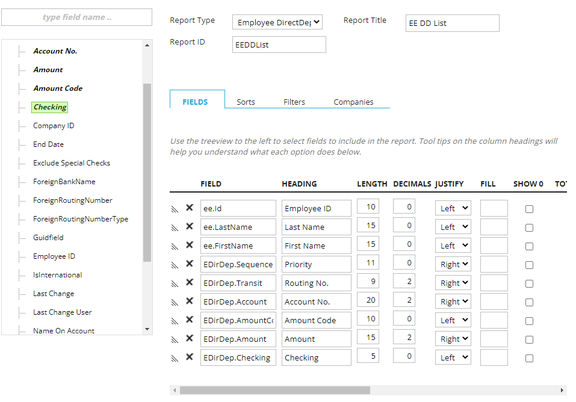
3: Advanced Report Writer: Use the options found in the Direct Deposit collection in the Employee Dat section of Advanced Report Writer.

New: FAQ
-
I have an employee with a Primary Account, but the priority isn't 99. Do I have to change the priority? No. An employee's Primary Account is defined as their active direct deposit account with the highest sequence number that uses the Amount Code "%", and the Amount field is "100.00".
-
I have an employee with a Primary Account and Secondary Account(s). The Primary Account's priority isn't 99. Do I have to change it? Although we recommend changing the priority to 99, it's not required.
-
I have an employee who already has multiple Secondary Accounts. The first one has a flat $100 direct deposited to their Vacation savings account, and the second one has 5% going to their IRA. Do I have to change the Amount Code settings now? No, the direct deposit records will still work with their existing settings. However, you will be required to make the Amount Code the same for all Secondary Accounts when they want to change any one of them.
-
I have a new employee who wants to have a flat $150 direct deposited to their IRA and 100% of the rest of their check direct deposited to their checking account. Can I still do that? Yes. The employee's Primary Account can use a different Amount Code than their Secondary Account. Their Primary Account will use the "%" Amount Code (enter 100 in the Amount field). Their Secondary Account will use the "Flat" Amount Code" (enter 150.00 in the Amount field).
-
My end client called to say they cannot change an employee's direct deposit record on RPO. The employee has a new bank account, and they need to change the routing and/or account number. Once an employee's bank account is tied to one or more paychecks, the routing and account numbers become read-only. Your end client must end-date the employee's current direct deposit record and add a new one.