Employee: Dept/Position | Department
The Department Tab is located in the Dept/Position area of the Employee Module.
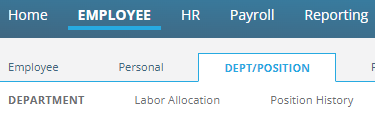
The Department Tab is divided into five sections. (Cost Centers, Pay, Transfers. Position and Union)
Use these sections to establish the home location of the employee within the company structure. Additionally, use them to associate the employee with various payroll calculations, Human Resouces functions, and reporting.
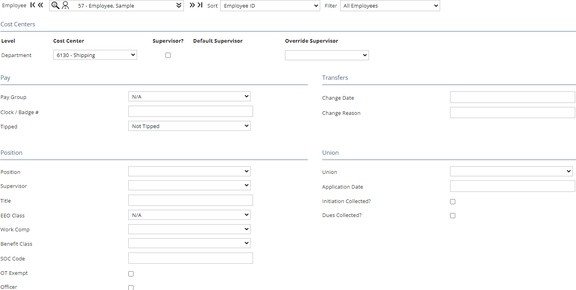
Cost Centers
Use to record the employee's Home Location and Supervisor information.

Level

Level: The entries under level are based on the settings in the Dept Setup Tab under Departments & Labor in the Company Section. Levels cannot be added from this tab.
A company can have up to five levels. Each level will have a Drop List.
For more information on the setup of the levels, click here.
Cost Center: Use the Drop List to assign the employee's home location. If multiple Levels are available, use to Drop List for each level to assign accordingly.

Supervisor? Indicates the employee is identified as a supervisor in the system.
Default Supervisor: The name of the supervisor for this level is displayed is setup at the company level.

Override Supervisor: Use the Drop List to manually assign the supervisor for the employee.
Use the link to Levels (noted above) for setting up Supervisors.
Pay Section
All fields in this section are optional.
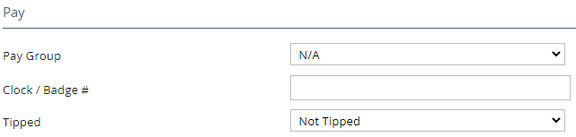
Pay Group: Use the Drop List to assign the appropriate Pay Group (if any).
Clock / Badge #: Enter the Clocl/Badge # information if the client uses a Time and Attendance system.
Tipped: For clients using Tip Allocations, use the Drop List to assign the employee's status for Tip Allocation calculations.
Transfers Section
Use of this section is optional. Use the provided fields to record an employee moving from one location to another.

Change Date: Use the calendar function to select the date of the employee's movement to a different location.
Change Reason: Free form text field to house reason for the change.
Position Section
Use of this section is optional.
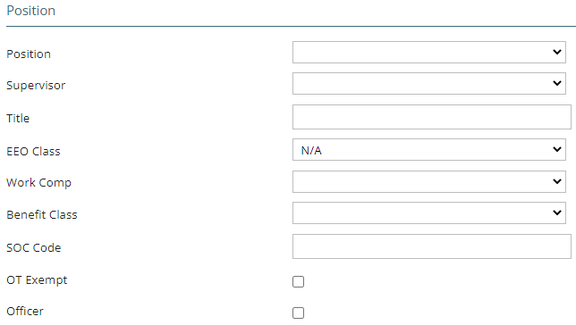
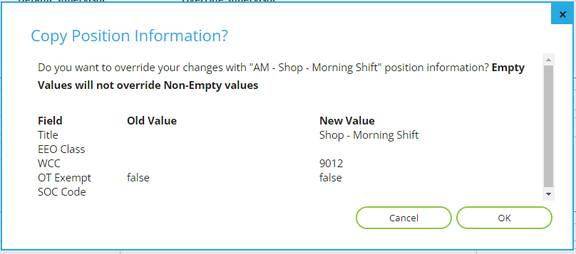
Position: Use the Drop List to assign the employee's position. The Positions Drop List is populated by data on the Positions Tab in the Departments & Labor area of the Company module. When a Position is selected, the Copy Position Information box is displayed. 
Clicking Yes will populate the fields noted in the box having New Value information
Supervisor: If needed, assign the Supervisor using the Drop List. This Supervisor option associates the employee to a position within the company (Acct Mgr) as opposed to a person (Jane Smith)
Title: Will be populated with the Title value of the Company level Position if any.
EEO Class: Select the appropriate EEO Class from the Drop List.
Work Comp: Select the appropriate Work Comp code from the Drop List.
Benefit Class: Select the appropriate Benefit Class (if any) from the Drop List.
SOC Code: Enter the employee's Standard Occupational Classification code.
OT Exempt: Used for various reporting purposes. Check if applicable.
Officer: Check if the employee is an officer of the company.
Union Section
Use of this section is optional.
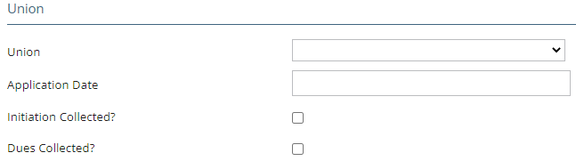
Union: Select the applicable union code from the Drop List.
Application Date: Date on employee's Union application
Initiation Collected?: Check to indicate union initiation fees have been collected.
Dues Collected?: Check to indicate union dues have been collected.