The Hartford Integration Setup
This document provides the necessary steps to follow to implement The Hartford integration within ReadyPay Online (RPO). Prior to adding the Integration for any companies, you will need to get partner account information from The Hartford in order to sync to them. Specifically, you will need:
- Partner Name as set up with The Hartford
- Partner ID assigned by The Hartford
- Username and Password for connection to The Hartford via ExactPay sync
The Hartford integration was updated recently and now sends one payroll file containing all companies that have processed payroll since the last run of the integration schedule.
First Time Using The Hartford Integration?
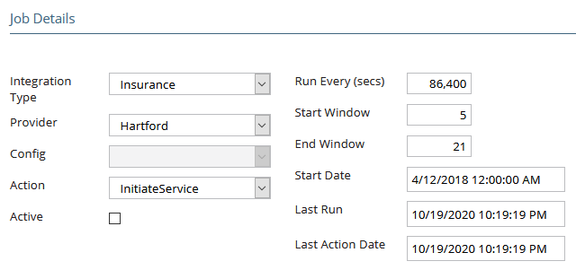
An Integration Schedule will need to be created in the System menu of RPO. Go to the System > Integrations > Integration Schedule page and try to find a schedule for The Hartford. If one does not exist, then you will need to click ADD and complete the following fields:
| Field Name | Information |
|---|---|
| Integration Type | Select Insurance. |
| Provider | Select Hartford. |
| Action | Select Initiate Service. |
| Active | Leave marked to begin the Integration once saved. If unmarked, the sync will not work. |
| Run Every (secs) | Enter how often to push data to The Hartford in seconds; typically done once daily so 86,400 seconds. |
| Start Date | Select the date and time to begin the Integration Schedule. This will be the same time used in conjunction with the Run Every (secs) field. |
| Start Window | Enter number in whole hour format that The Hartford can begin sending data, i.e., 5 = 5am. |
| End Window | Enter number in whole hour format that The Hartford will no longer send data, i.e., 21 = 9pm. |
Once the fields have been completed, click SAVE. The push of data to The Hartford will begin based on this schedule. It is wise to use the Start Window and End Window as we have been advised The Hartford rejects files that are sent in the middle of the night.
Do not ever set up an integration schedule on the company level for The Hartford. It is all controlled by this system level schedule.
Hartford Integration — Database Setup
RPO supports integration with The Hartford that allows for sending
applicable insurance data to their product. Before these capabilities
can be used, web services connection information needs to be
established in the dbo.SIntegrationProvider table. This table
contains external system settings that apply to all companies that
utilize integration capabilities from within RPO.
| Field Name | Value | Description |
|---|---|---|
| Provider | Hartford | |
| IntegrationType | Insurance | |
| Description | Integration with the Hartford Xactpay web services | |
| MultipleConfigs | 0 | |
| ProviderSpec1 | <Partner Name> | This value is provided by Hartford (sample value: "SBName") |
| ProviderSpec2 | <Partner Number> | This value is provided by Hartford (sample value: "1234") |
| ProviderSpec3 | <Webservice Username> | This value is provided by Hartford (sample value: "SBUser") |
| ProviderSpec4 | <Webservice Password> | This value is provided by Hartford (sample value: "SBPass123") |
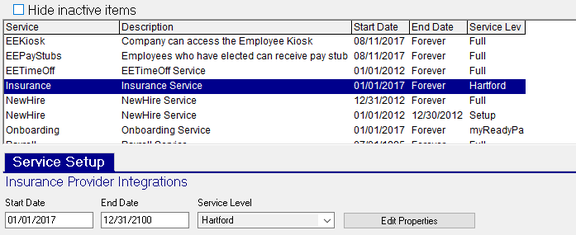
Adding the Service
In ReadyPay add the Insurance Service with a Service Level of Hartford.
Emp Filter Setup
When initially adding a company to The Hartford, a setup or consent file is generated. During this process it grabs a list of all employees to send over. It looks for a company emp filter called HartfordWC — it is wise to create an emp filter with the same name and an appropriate filter SQL, or it will just grab ALL employees. This could include employees that have long since been terminated, deceased or on extended leave. This may sometimes result in errors if that employee data is missing key information like address data.
Integration Setup
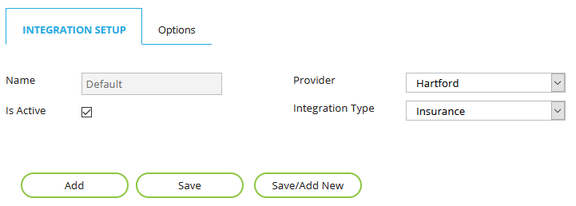
Lastly, proceed to RPO and select the company you need to add the integration on. In the Company Module, go to Integrations and you will be on the Integration Setup page. Click ADD and create a record called Default and select Hartford from the Provider pull-down menu and Insurance as the Integration Type. Then SAVE.
We recommend not marking this setup as Active until The Hartford is ready to receive its first consent file.
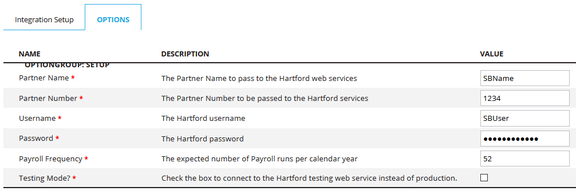
Next, access the Options sub-tab of the newly added integration and enter your partner information provided by The Hartford in the applicable fields. The only field that pertains to the actual client is the PayrollFreq field that should be completed based on the company's main payroll frequency. Then click SAVE to complete the setup.
Code Group Setup
Several code groups are required to accurately submit payroll data to The Hartford. They are assigned a code group name and description exactly as appears in the list below. The code groups themselves get automatically created when the integration setup is added to the company. Your requirement is to add the appropriate DET codes to each one on the company level.
| Code | Description |
|---|---|
| HIG_1 | WAGE |
| HIG_2 | COMMISSION |
| HIG_3 | BONUS |
| HIG_5 | SHIFT_DIFFERENTIAL_PREMIUM |
| HIG_6 | HOLIDAY |
| HIG_7 | SICK |
| HIG_8 | VACATION |
| HIG_14 | HOUSING |
| HIG_15 | MEAL_ALLOWANCE_REGULAR |
| HIG_16 | MEAL_ALLOWANCE_OVERTIME |
| HIG_18 | SECTION125_EMPLOYEE_PAID |
| HIG_19 | DAVIS_BACON_TO_EMPLOYEE |
| HIG_20 | EXPENSE_REIMBURSE_NONBUSINESS |
| HIG_21 | EXPENSE_REIMBURSE_BUSINESS |
| HIG_22 | ANNUITY_PLAN |
| HIG_23 | TIP |
| HIG_24 | SEVERANCE |
| HIG_25 | MILITARY |
| HIG_26 | EMPLOYEE_DISCOUNT |
| HIG_27 | UNIFORM_REIMBURSE |
| HIG_28 | SICK_TPA |
| HIG_29 | DAVIS_BACON_THIRD_PARTY_TRUST |
| HIG_30 | EMPLOYER_CONTRIBUTION_GROUP_INSUR_GROUP_PENSION |
| HIG_31 | EMPLOYER_CONTRIBUTION_SALARY_REDUCTION |
| HIG_32 | EMPLOYER_CONTRIBUTION_EMPLOYEE_SAVINGS |
| HIG_33 | EMPLOYER_CONTRIBUTION_RETIREMENT |
| HIG_34 | EMPLOYER_CONTRIBUTION_CAFETERIA |
| HIG_35 | EMPLOYER_CONTRIBUTION_STOCK_PURCHASE |
| HIG_36 | EMPLOYER_CONTRIBUTION_DEFERRED_COMPENSATION |
| HIG_37 | FRINGE_BENEFIT |
| HIG_38 | TRAVEL_TIME |
| HIG_40 | OVERTIME1.5X |
| HIG_41 | OVERTIME2.0X |
Once you have established permanent credentials with The Hartford, you
can also set them as default values to speed up company setup by
entering them into SIntegrationProviderOption. A SQL statement
similar to this with your appropriate values would achieve this (you
would have to change the defaultValue items to reflect what The
Hartford provides you):
UPDATE SIntegrationProviderOption SET defaultValue = 'ServiceBureau' WHERE provider = 'Hartford' and optionName = 'PartnerName';
UPDATE SIntegrationProviderOption SET defaultValue = '9999' WHERE provider = 'Hartford' and optionName = 'PartnerNum';
UPDATE SIntegrationProviderOption SET defaultValue = 'SBPa55Word' WHERE provider = 'Hartford' and optionName = 'Password';
UPDATE SIntegrationProviderOption SET defaultValue = 'SBUSER' WHERE provider = 'Hartford' and optionName = 'Username';
Do not ever set up an integration schedule on the company level for The Hartford. It is all controlled by the system level schedule you configured earlier.
Questions?
Contact your Payroll Service Provider.