Local API Integrations
Once you have your Local API set up, you can use it to create your own 3rd party integrations. Make sure you have read the Local API Setup article before proceeding with this article. The information contained in this article is intended to assist you with creating your own 3rd party integrations.
The Local API is provided as-is. Support is available for questions about how to access the API or any errors it generates while using it. It is your responsibility to determine if the Local API is suitable for any custom 3rd party integration you wish to create. You also assume all responsibility for development, testing, troubleshooting, and supporting any custom 3rd party integration you wish to create.
Local API Integrations
There are custom API controllers for providers and there is a general API that is not specific to any provider — it simply provides access to data. The Generic Local API can be used by any 3rd party provider allowed by the service bureau to retrieve/update data. Use of the data in this API requires no Development or Support intervention and can be used freely with 3rd party providers.
Generic Local API
The Generic Local API refers to a number of endpoints that are currently available that offer raw access to data without mapping features. The Generic API currently provides access to:
- Company (Get)
- Company Contacts (Get/Add/Update)
- Company Deductions (Get)
- Company Earning (Get)
- Company Rate (Get)
- Company Tax (Get)
- Employee / Pending Employee (Get/Add/Update)
- Employee Accruals (Get/Add/Update)
- Employee Deductions (Get/Add/Update)
- Employee Dependents (Get/Add/Update)
- Employee Direct Deposit (Get/Add/Update)
- Employee Paycheck (Get)
- Employee Rate (Get/Add/Update)
- Employee Tax (Get/Add/Update)
- Workers Comp (Get) — Also allows Get/Update of Rates, Codes, and Plans
Add the PayrollAPI to a Company
In order to allow the generic API to be used, the company needs to have some information configured.
-
Add the PayrollAPI service to the company.
-
Use the Service Level Generic.
-
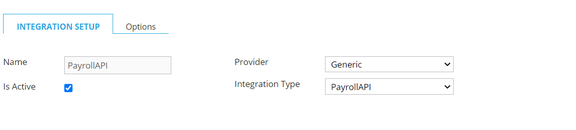
On the company's Integration Setup page > Integration Setup subtab, add a new record. We recommend you make the Name value the name of the 3rd party provider.
noteYou can add additional integrations with separate account information for different providers.
- Provider =
Generic - Integration Type =
PayrollAPI
- Provider =
-
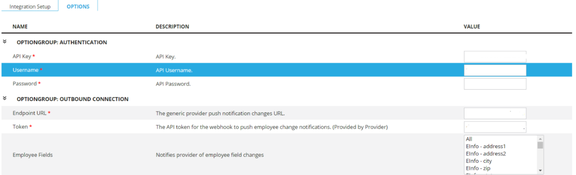
Options subtab
Authentication
- API Key – This should be a long string value that is not easily replicated. Typically, a unique identifier is used. This is for incoming authorizations.
- Username – A username to be used by the incoming connections.
- Password – A password to be used by incoming connections.
Outbound Connection
- Endpoint URL – If this is used for an outgoing connection, provide the endpoint URL here from the 3rd party provider.
- Token – Token provided by the 3rd party provider.
- Employee Fields – These fields are used by the RPO integrations service to monitor changes on these fields that should be sent to the 3rd party. By default, all fields are used.
OptionGroup: ReadyPay - Company Endpoints
The list displays available security control over company endpoints. Choosing the Add option will allow new records to be created. Update will allow changes to existing records. Get allows the data to be retrieved.
OptionGroup: ReadyPay - Employee Endpoints
The list displays available security control over company endpoints. Choosing the Add option will allow new records to be created. Update will allow changes to existing records. Get allows the data to be retrieved.


When the integration is saved, the provider can then see the Swagger
documentation and use the Authenticate (/auth) endpoint to
authenticate and gain access to your data. Simply provide them with the
link to your Swagger documentation page and the credentials (API Key,
Username, Password) you created.
If at any time access needs to be removed for a provider, you can disable the integration by unchecking the Is Active flag on the setup tab. The integration can also be deleted if completely and permanently removing access.
Questions?
Contact your Payroll Service Provider.