Equifax Integration Setup
Equifax integration for income verification.
Equifax's "The Work Number" program provides employment and income verification data from the service bureau to Equifax. Read this guide in its entirety before beginning any setup.
This article is divided into three sections:
- The Getting Started at the Service Bureau section reviews what needs to be done before you implement the service.
- The Set Up Your End Clients section reviews how to set up your end client companies to participate in the program.
- The Best Practices section reviews how to handle several common end client scenarios.
Key Terminology
- TWN — Equifax's program called "The Work Number".
- Employer — A service bureau's end client company.
Getting Started at the Service Bureau
Follow these steps when you first add the integration at your service bureau.
Step 1: Add the Equifax Integration record to ReadyPay Online
API Security Credentials & Identifier
EarnIn will provide your service bureau with an SQL script containing the information required to allow TWN to connect to your API. The script contains three pieces of security information and the TWN identifier. EarnIn will provide the same information to Equifax on your behalf so they can prepare to enable the service at the appropriate time. This information is required for both parties to establish a successful connection.
Any changes to this information must be provided to Equifax so they can update their records. Failure to do so will cause the integration to stop working for all enabled end employers.
Data exchange with TWN does not require an Integration Schedule (company or system) or Integration Code Mapping in ReadyPay Online. It is controlled entirely through the Equifax service.
Step 2: Add the required ReadyPay Online data for your service bureau
EarnIn Contact
The employer's information that is sent to TWN includes a partner
contact. This partner contact name is "EarnIn Integrations" and must
not be changed unless explicitly instructed by EarnIn to do so. You
must add these values to your API Resource server's appSettings.config
file. The email address must be a valid address. This email receives a
single email for each new client onboarded to the work number service,
with introductory information and the employer code. It also goes to
the employer contact designated for Equifax.
<add key="EquifaxPartnerContact.FirstName" value="EarnIn" />
<add key="EquifaxPartnerContact.LastName" value="Integrations" />
<add key="EquifaxPartnerContact.Email" value="integrations@servicebureau.com" />
<add key="EquifaxPartnerContact.Phone" value="555-555-5555" />
Set Up Your End Clients
This section covers the steps you must take for each end client you want to add to the service. Specific company and employee data is required to exchange information with Equifax successfully.
Step 1: Add / Verify the Company Contact
When someone uses TWN to make an information request, the integration will send an employer contact record when the data is pulled for the employee. When an end client company is first added to TWN, the contact will receive a welcome email. This welcome email will instruct the contact to create an account in Equifax's webManager. webManager also gives the end client a way to contact TWN's support team if they need help. The contact information required includes:
- First Name
- Last Name
- Email Address
- Phone Number
Contact information will be used from one of the following sources:
- A Company Contact record where the contact has a value of
1in Custom Field 1 for the attribute Equifax. If none exists, then: - A Company Contact record which is identified as the Primary Contact. If none exists, then:
- The Contact1, Contact1 Phone, and Contact1 Email from Company Demographics.
Step 2: Verify the Required Company Data
TWN requires that the following data be available for every employer using the service. This information must be completed and verified for accuracy by the service bureau or employer. Failure to do so will result in the employer and employee information not being transmitted to Equifax.
Address information sent with the employment information data is
determined based on the employer's Primary Work Location value
(CInfo.PrimaryWorkLocation). Depending on which CC level is set as the
primary work location, the CC Level 1 — CC Level 5 address will be used.
If the address information is missing from that record, the Company
Demographics address will be used.
Company information (CInfo and related Cxxxxxx database tables):
- Name
- EIN
- Address1
- Address2 (optional)
- City
- State
- Zip
- Country
- Contact1 (if not using CompanyContacts)
- Contact1Email
- Contact1Phone
- DefaultPayFrequency
- PrimaryWorkLocation
Primary Work Location defined on the company — fields to be defined on CC set as primary work location:
- Address Line 1
- City
- State
- Zip
- Country
- EIN on FITW taxes
CC Level 1 – CC Level 5:
- Address1
- Address2
- City
- State
- Zip
- Country
Company Contacts:
- FirstName
- LastName
- WorkEmail
- WorkPhone
How the Integration Exchanges Data with Equifax
Get Employees Payroll endpoint — This part of the API returns all the payroll data for a specific employer/employee combination using the same process as the Get Employers Payroll endpoint. EarnIn and Equifax use this for debugging purposes.
Get Employers Payroll endpoint — This part of the API returns the payroll records for all employees with pay data in the period requested. Typically, this will be pulled based on the payroll frequency and only contain a single check. It can be used to pull a wide range of data (e.g., when "New" employers get their initial pull).
What Employee Information is sent to Equifax
The list below contains all the information exchanged with Equifax. Unless otherwise marked (optional), all fields are required.
- SSN
- First Name
- Middle Name (optional)
- Last Name
- Suffix (optional)
- Birth Date
- Address 1
- Address 2 (optional)
- City
- State
- Zip Code
- Country (optional)
- Hire Date
- Termination Date (required if termed) *
- Job Title (optional)
- Employment Status
- Pay Frequency on EInfo
* If the Term Date field is blank, the integration will use a termed employee's last check date as their term date.
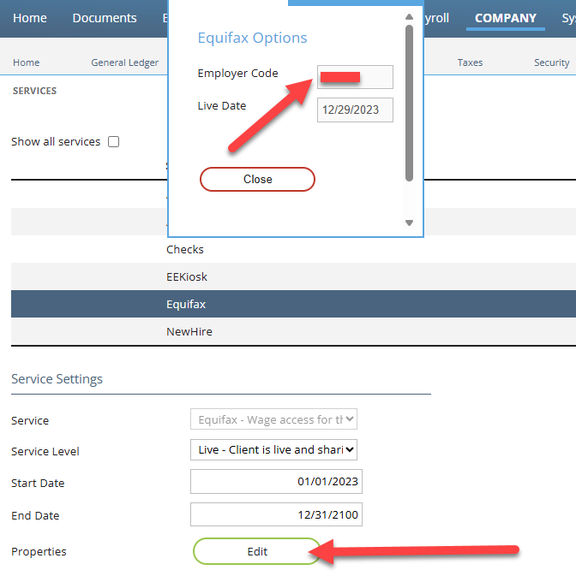
Step 3: Add the Equifax service to a company
You must add the Equifax service to each company so they can participate in the program.
The start date of the service must be the date you are adding the service (today's date). The Equifax service requires data for W2 employees. End clients who do not have any paid W2 employees are not to be set up with the Equifax service. Do not add the Equifax service to any template companies that you will use to create other companies. Doing so will create a conflict with the Equifax assigned employer number.
Parent/child companies are set up in the same way as single-company end clients. Employees of a parent/child group who move between company codes will have their Equifax YTD pay data combined across all locations as long as each company's FEIN is the same, just as it would be on the employee's W-2.
The service uses one of the following three service levels:
- None – The participant is not participating in the program. Use this service level to indicate that the employer opted out of (or is not ready to participate in) the program.
- New – When all audits have been completed on the company, and it has pay history, it is ready to be included in the program. Set the service to New. This indicates to the TWN API that the company is available for the initial data exchange.
- Live – After TWN successfully "pulls" the company, the Equifax company code will be posted back to RPO, and then the service level will be automatically changed to Live.
Data Exchange Process
TWN will first attempt to pull up to 3 years of employee pay history. Part of the data they receive is the employer's pay frequency, which they will use to establish a schedule for when to pull new data.
Best Practices
This section covers recommendations for handling several common end client situations.
New End Clients
EarnIn recommends waiting until each new end client is fully set up and has processed at least one live payroll before setting the Equifax service's service level to New. Doing so will avoid data errors when Equifax attempts to pull the end client's data.
Equifax displays up to 3 years of historical payroll data. When you load a new end client's pay history by quarter, this can lead to unclear results in an employee's income verification. The end client contact, who is the webManager account holder, should contact TWN and indicate which dates reflect quarterly pay history. Equifax can add a disclaimer indicating which periods are quarterly totals.
End Clients with Irregular Pay Cycles
End clients with irregular pay cycles are defined as those who do not
process at least one payroll for their W2 employees every 30 days.
Equifax flags these end clients and adds them to its "Late Load Log"
for reconciliation by your service bureau. You can prevent these end
clients from appearing on this log by emailing the following
information to Equifax at solutionssupport@theworknumber.com. You can
also call Equifax at 877-664-8778.
-
Full company name as it appears in RPO.
-
The EFX Employer Code. ReadyPay stores this value as the
EquifaxCompanyCodein the ReadyPay database. You can use the following SQL to get that information:SELECT options FROM CServiceWHERE service = 'Equifax'AND co = 'ABC'
EarnIn recommends contacting Equifax once the end client has gone live on the Equifax service. The "Late Load Log" is provided to EarnIn regularly. Each service bureau must then assist EarnIn with the reconciliation process for all of their end clients contained in the log.
Terminating End Clients
Set the Equifax service to None within 30 days of their last check
date. This will deactivate the integration, so Equifax can no longer
pull employee information. You also need to email
alliances@theworknumber.com with the following information:
- Full company name (and DBA name if present) as it appears in RPO.
- The EFX Employer Code. This can now be retrieved within RPO by clicking Edit on the Equifax service.
Your email must explicitly state whether you wish all collected data to be purged for the client on the Equifax side or not.
If you do not notify Equifax of the end client's termination, that end client will show in the "Late Load Log" 30 days after they stopped processing. Each service bureau must then assist EarnIn with the reconciliation process for all of their end clients contained in the log.
Questions?
Contact your Payroll Service Provider.