BambooHR Integration Setup
BambooHR Webhook Creation
Before you can create webhooks, you will need to contact BambooHR to enable webhooks on your account.
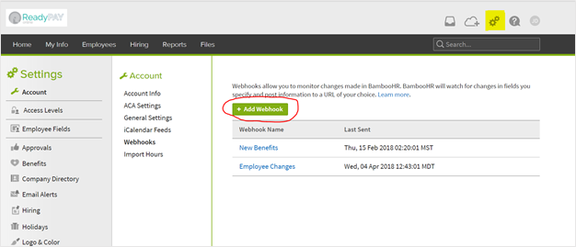
Once this is complete you can then create a webhook. This will require you to login to your BambooHR account. Click on the gear icon at the upper right of the screen. From there, click the Webhooks link under the Account section. Then click the + Add Webhook button.
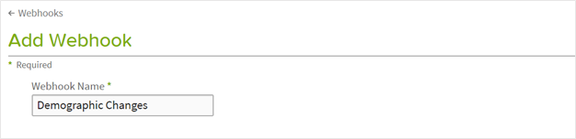
Give the Webhook a descriptive name.
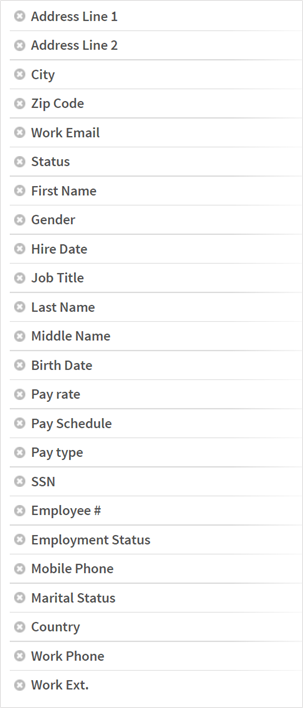
Choose the fields in BambooHR which should be monitored for changes. A change in any of these fields will send the employee information to RPO.

The following is a suggested list of fields to monitor for changes. If you do not wish to have a change to a particular field sent to RPO, simply keep it off this list.
Determine which fields should be sent to RPO from BambooHR.
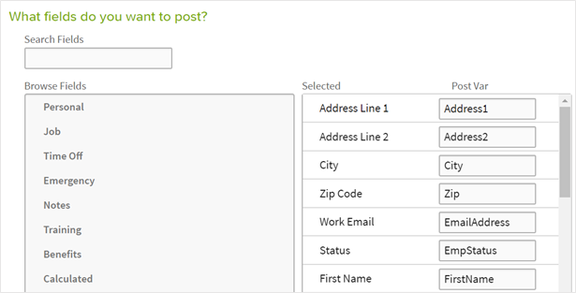
If you do not wish to receive the information, then simply ensure it is not included in your list. The currently accepted list of fields in RPO is displayed here in its entirety with the correct mappings to RPO. The Post Var field names must match what is displayed below.
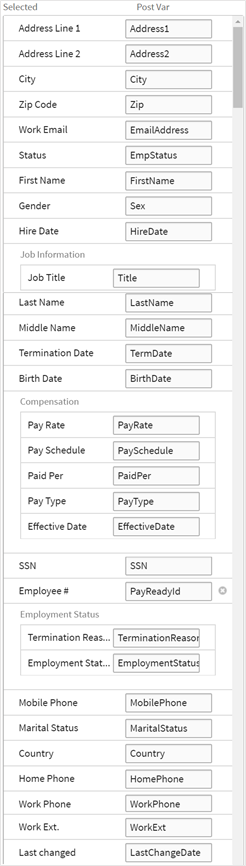
The integration requires that you choose for the data to be posted in JSON format. Also select an option for how often the data is sent to RPO.
The Post to URL must be in the following format. Each parameter is
separated with the _ character. Simply replace the placeholder values
with the actual information:
https://[API_URL]/BambooHR/company/[RPO_COMPANY_ID]/employee/postemployeechanges?access_token=username=[USERNAME]_password=[PASSWORD]_apikey=[API_KEY]_companyid=[RPO_COMPANY_ID]
Placeholder values:
[API_URL]is the full URL of your API end point (e.g.,api.MySBrpoDomain.com).[RPO_COMPANY_ID]gets replaced with the RPO Company ID.[USERNAME]gets replaced with the username set up in the integration.[PASSWORD]gets replaced with the password from the integration.[API_KEY]gets replaced with the API Key the service bureau generates. It is the same value stored in ReadyPay Online's Authentication section of the integration Setup for BambooHR.
Adding Employees in BambooHR
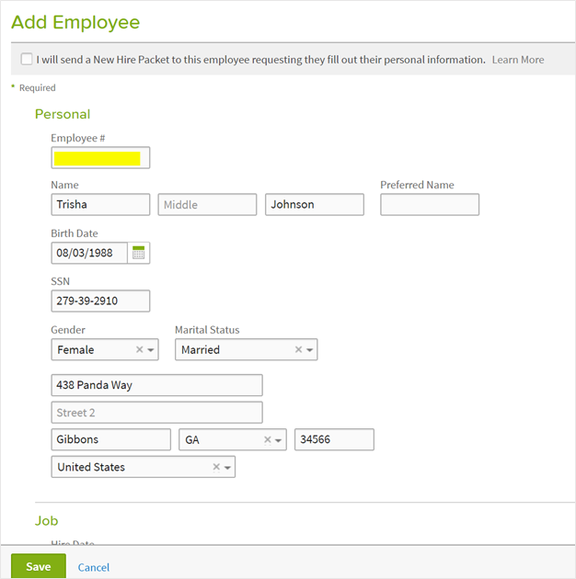
When adding employees to BambooHR, fill out the form with all the necessary information. For a NEW employee to sync from BambooHR to RPO, the Employee # field must be left empty. This will be added by RPO when it becomes a pending employee.
RPO Settings
Demographic exchange with BambooHR is two-way. The integration will need to be set up in RPO to handle both the incoming and outgoing changes. This is accomplished on the Company Integrations page. Set up an Integration with a Provider of BambooHR and Integration Type of PayrollAPI. Save and go to the Options tab to complete the setup by providing a Username, Password, and API Key.
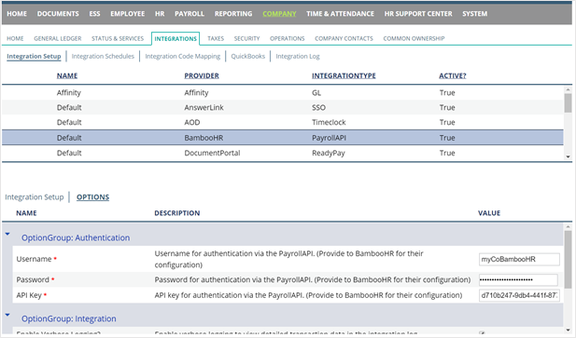
In order to send data from RPO to BambooHR, an API Key needs to be established in the BambooHR account. When that API Key is generated, enter it into the Outgoing Token field. The BambooHR company ID will also need to be entered in the BambooHR Company Id field.

After the BambooHR integration is saved successfully, go to the Integration Schedules menu and add a schedule with the following:
- Integration Type = PayrollAPI
- Provider = BambooHR
- Action = AddOrUpdateEmployees
Then set the schedule as desired.
Questions?
Contact your Payroll Service Provider.