Workers Compensation
Overview
Workers' compensation is a form of insurance providing wage replacement and medical benefits to employees injured in the course of employment.
ReadyPay provides the ability to calculate, report upon, and pay Workers Compensation premiums for your organization. The provided functionality is flexible enough to accommodate the variety of calculations needed to comply with the Workers Compensation guidelines of the various states.
The amount an employer pays for Workers Compensation is mostly dependent on the work performed by their employees. Jobs with little risk for personal injury (clerical, sales) usually have very low Workers Compensation rates. Those with a higher risk for injury (tree pruning service, construction) have a higher rate.
Each state has a list of Workers Compensation codes and the associated rate. While the codes are usually consistent across the states, the rates vary from state to state and may change from year to year. The rates for each Workers Compensation code are consistent for all employers within a state. However, the amount an individual employer pays is based on the number of Workers Compensation claims they submit within the year. The number of claims affects an item called Modification Factor. The base Modification Factor is one. If an employer has a large number of Workers Compensation claims, they may have a Modification Factor higher than one and will pay more in Workers Compensation premiums. Those who have no or limited claims may have a Modification Factor below one. Consequently, their Workers Compensation premiums are lower.
Workers Comp premiums are calculated at the employee detail level. This allows the system to determine the correct premium for employees being paid to different workers comp codes within the pay period. Typically, premiums are calculated by dividing the Workers Comp Subject Wages by 100. The result is then multiplied by the appropriate Workers Comp rate giving the Workers Comp premium.
Configuring a Client Not Requiring Workers Comp Reporting
- Do not set up any company level Workers Comp information.
- Go to Master Company Setup > Services. Select the Active Payroll Service. Click Properties.
Click the check box for Suppress Workers Comp Warnings.

This eliminates any warnings in the ProcessBatch job concerning Workers Comp.
Configuring a Client Requiring Workers Comp Reporting
Before proceeding with the setup, you must obtain documentation of the Workers Compensation Codes and Rates from the client. The client receives this information from the state(s) or their Workers Compensation insurance broker. This document provides the Codes, Descriptions, Rate, and a Modification Factor. If the client is multi-state, you must obtain this information for each state.
The client needs to provide you with this information each year.
Company Level Setup
Navigate to Company Setup > Workers Comp tab.
Add a new Workers Comp code by clicking the New (*) button at the top right of the Workers Comp tab.
Enter the code in the Enter new workers comp code box.

Click OK. This takes you to the Edit Workers Comp Code sub tab. Enter the description of the Workers Comp code.
Advanced Option section: Unless there is reason to consider Secondary Workers Comp codes, ignore this section.
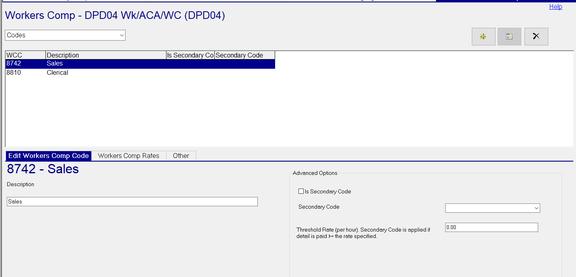
Next, select the Workers Comp Rates sub tab. Click the new (*) button at the far right of the Workers Comp Rates sub tab.
A new row is added to the screen.

There are a number of fields in the Workers Comp Rate grid not shown in the above snip. They are, however, described below.
Populate the fields in the new row as appropriate. Not all fields are required.
- State: Enter the two-digit postal code for the state (in CAPS). If the Workers Comp code is used by multiple states, you must create a line for each state associated with the code.
- Start Date: The date this Workers Comp Rate goes into effect.
- End Date: The date this Workers Comp rate ends.
- Fiscal Start: (optional) The beginning date of the client's fiscal year.
- Wage Limit: (optional) Enter the dollar value when there is a limit to the amount of earnings considered for Workers Comp calculations. Wage limits must be in place at the beginning of the plan year (as defined by Start Date or Fiscal Start).
- Rate: The Workers Comp rate for this code provided by the state.
- Exp Rate: If the client has a modification factor, enter it here. Otherwise, enter 1.0.
- Code Grp: (optional) If Workers Comp calculations are based on a specific group of earnings or earnings/deductions, enter it here.
- ER Code: (Optional — For Washington L&I only.) Enter the employer memo earnings code.
- EE Code: (Optional — For Washington L&I only.) Enter the deduction code if WA L&I is being withheld from the employee.
- Hours?: (optional) Is Workers Comp calculated based on hours worked?
- EE Rate: (Optional — For Washington L&I only.) Enter the rate for the employee deduction.
- F3 Desc/Factor 3 > F7 Desc/Factor 7: (Optional — Informational Fields Only.) For each of these column pairs, enter a Description and the associated factor. Used for states having additional Rate Modifiers for Workers Comp. Otherwise, leave the Descriptions blank and the rates at zero.
- Impound?: (optional) Check this box if you wish to impound the calculated Workers Comp premiums.
- Default?: (optional) When there is no SUI code, use the default SITW code instead.
- OT Premium Subject?: (optional) Most states calculate Workers Comp excluding the premium portion of overtime. In a case of overtime at 1.50 of the employee's rate, the calculation is based on the straight time portion of the earnings (rate x 1.0). Check this box if the overtime premium is subject to Workers Comp calculations.
- By Pd End?: (optional) Is the Workers Comp premium based on the period end date and not the check date?
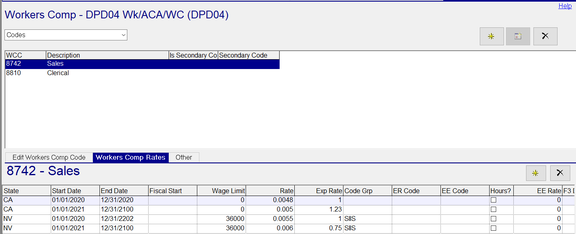
Other Sub Tab
The Recalculate Workers Comp Premium function on this subtab is used to update historical records when there has been a rate change in one or more workers comp codes. When you use this function, rates and amounts are updated in employee workers comp data on a check date by check date basis.
The recalculate function requires that employees have workers comp records to begin with. The recalculate function will not add records for employees who don't have them. For example, employees will not have workers comp records for check dates when:
- They were not paid.
- They did not have an assigned workers comp code when the check date was processed.
- There was no valid Workers Comp Rate when the check date was processed.
Step 1: Click the ... button, and the Workers Comp Recalculation Wizard opens in a new window. The wizard allows you to go back and make changes or cancel if you need to start over.

Step 2: Enter the Effective Date of the change. The Effective Date usually matches the start date of one or more rate records on the Workers Comp Rates sub-tab.
Step 3: Click the Next button.

Step 4: Enter the Thru Date. This field defaults to the company's current check date. Change if necessary.
Step 5: Click the Next button.

Step 6: Select the Workers Comp Code you want to recalculate.
Step 7: Click the Next button.

Step 8: Review the summary. If your selections are correct, click the Next button. When the process is finished, you will see the following message:

This process adds one or more GenWorkersComp jobs to your job queue.
Using the Secondary Code in Advanced Options on the Edit Workers Comp Code Sub Tab
Overview
Some states' Workers Comp policies offer secondary Workers Comp codes. Known as Second Injury Funds, they were designed to encourage employers to hire employees with disabilities and pre-existing conditions by offering cost relief should the employee experience an injury that aggravates the existing condition. For example, an employee with prior back surgery, diabetes, or carpal tunnel syndrome may pose greater risk for an additional injury than an employee who has no such condition.
Setup
Add the Secondary Workers Comp code using the steps described above. Click the box called Is Secondary Code.
Enter the Workers Comp rates for the Secondary code using the steps described above for adding the Workers Comp rate information.
Each secondary code is related to another Workers Comp code. Select that code and go to Advanced Options.
DO NOT SELECT IS SECONDARY CODE.
Select the appropriate Secondary code from the drop-list in the Secondary Code field.
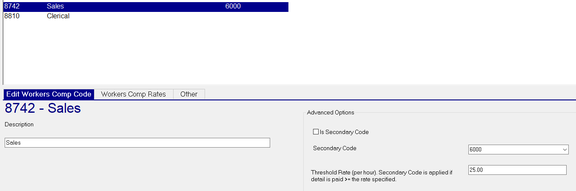
Enter a rate in the Threshold Rate (per hour) Secondary Code is applied if detail is paid >= the rate specified. In our example, the rate entered on the primary Workers Comp code is $25.00.
Assume we have two employees set up with Workers Comp code 8742.
Employee 1 earns $20.00 per hour. The Workers Comp premium is calculated using the rates associated with the company level code of 8742 for the active unemployment state of the employee (Employee Taxes tab).
Employee 2 earns $26.00 per hour. As their rate is greater than $25.00, the Workers Comp premium is calculated using the Secondary Workers Comp code rate for the hours paid at $26.00 to code 8742. If the employee is paid to another Workers Comp code or is paid at an hourly rate less than $26.00 per hour, the secondary rate is not applied and the premium is calculated using code 8742.
Employee Level Setup
The employee level workers comp code is found in Employee Maintenance > Dept/Position tab.
The field can be populated when initially adding the new employee. This can be done in the Add New Employees process in both ReadyPay and ReadyPay Online.
The employee Workers Comp field can also be populated at any time after an employee is entered into the system. In all three places, the field is a drop-list based on the Company Level Workers Comp setup.

Making Workers Comp a required field in the new employee setup functions eliminates issues caused by omitted Workers Comp codes.
When choosing a Workers Comp code for an employee, that code must have an entry in the Workers Comp Rates tab that matches the work state of the employee. If there is no match, there will be no Workers Comp calculated for the employee. See the section on managing Workers Comp in the Job Queue for more information.
Managing Workers Comp in the Job Queue
In order to ensure Workers Comp premiums are accurately calculated, you must actively review the Job Queue throughout the business day. You must look for ProcessBatch jobs that end in a Warning state. ProcessBatch jobs can end in Warnings for reasons other than Workers Comp issues, so you will need to review all of them.
On the System > Job Queue tab, set the options as follows:
- Job Filter — Today
- Job Class — ProcessBatch
- Select the Warn option. Turn off all other options.

Review each entry in the grid and take the appropriate action.
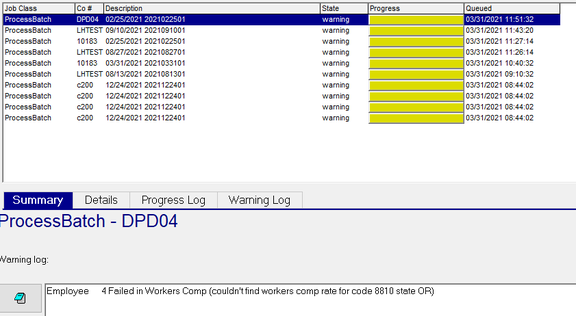
In our example, employee 4 is an OR employee assigned to WC Code 8810 (WC Code of 8810 and Work State of OR). This code does not have an entry for OR in the Workers Comp Rates tab. As a consequence, no workers comp premium is calculated for employee 4.
To correct, you must do a DeleteProcess of the payroll. After the delete is complete, make the needed company and/or employee level changes. After this, submit the payroll for processing.
Timing is critical when doing a Delete Process. There are concerns with ACH and distributed printed output, so exercise caution when proceeding.
Impounding Workers Comp Premiums
If you wish to impound the client's Workers Comp premiums, you must set up the appropriate Company Transfer.
Go to Master Company Setup > Transfers. Select the WC transfer.
- Source Account: The account to be debited for the Workers Comp premiums.
- Destination Account: The account to where the Workers Comp premium should be transferred (deposited).
- Method: Set to ACH.
- Day: Select the appropriate day value for the transfer to occur.
- WC Code: (Optional) Allows you to transfer Workers Comp premiums based on Workers Comp codes. When using this feature, you need a WC transfer for each Workers Comp code PLUS a default WC transfer with no entry in the WC Code field.
If the override options are used, there must be a version of the Transfer Type with no overrides. This version acts as a catchall for omissions in the transfer override logic.
The impounded funds are based on the Workers Comp settings at the company and employee level as each payroll runs. Consequently, the amounts impounded may be incorrect if employees are not set up properly or company rates are wrong. A final reconciliation of the funds impounded versus the final amount paid is necessary to ensure they are in balance. Manual debits (or credits) may be needed to address these discrepancies.
Workers Comp Reporting
There are two Workers Comp reports available in ReadyPay Desktop and ReadyPay Online.
They are RP_560_0601 and RP_560_0602.
Both have options to control sorting, totaling, detail vs. summary, etc.

RP_560_0601: This is a Crystal Report. It is typically used when a client needs to receive a Workers Comp report as part of their payroll processing. Most often it is set up in one of the frequency driven folders under Company > Reporting (Every Payroll, Last Payroll of the Month, etc.).
RP_540_0602 is a Hard Coded Report that has functions to recalculate the Workers Comp premiums in the event that the company level rates are incorrect. This is achieved by using the Additional Formulas options of the report.

The Recalc functions only work on the report output. They DO NOT update the database with the recalculated results. If you want to provide accurate Workers Comp reporting and be assured it is accurate historically, you need to manage the company using the steps noted in the section called "Managing Workers Comp in the Job Queue".
Definitions of Fields Used in Workers Comp Reporting
While each version has specific uses, the output formats of the Crystal and Hard Coded Workers Comp reports are the same.
The fields included in each report are as follows:
- Total Hours: Hours worked for that Workers Comp code.
- Exempt Hours: Hours exempt from that code.
- Subject Hours: Total Hours minus Exempt Hours.
- Total Wages: Total Hours times associated rate or amount.
- Exempt Wages: Wages exempt from the premium calculation.
- Subject Wages: Total Wages minus Exempt Wages.
- Rate: Workers Comp rate applied to this earnings.
- Premium: Subject Wages divided by 100 times appropriate Workers Comp rate.
- *Combine Rate: Value for Exp Rate field from the appropriate Workers Comp code/State combination.
- Adjusted Premium: Premium after applying Exp Rate value.
- EE Rate: Washington L&I only.
- EE Premium: Washington L&I only.
- Total Premium: Total Premium for the entry.
Report Writer and Workers Comp
There is limited Workers Comp reporting available in Report Writer.
The Report Writer Type Company WCCodes allows the creation of a report displaying a WC Code level report. There is no access to the Company Level WC Rate information.
The Report Writer Type Employee List allows creation of a report containing the employee level Workers Comp codes.
There is no Report Writer type specific to reporting Workers Comp premium information.
Washington L&I
Setting up Washington L&I is similar to the setup of Workers Comp. However, there are additional setup steps needed to ensure the WA L&I calculates properly.
Use the following link to view the article that describes the setup of WA L&I:
https://rphelp.freshdesk.com/a/solutions/articles/14000083872Questions?
Contact your Payroll Service Provider.