Washington Labor & Industries (L&I)
This article provides guidance on setting up Washington L&I so that when the last payroll of the quarter is run, ReadyPay generates the payment automatically or places it in the agency warehouse.
Earning Code Setup
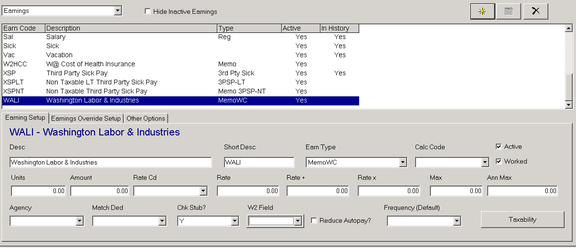
To set up the Washington L&I earning code, perform the following:
- Go to Company Maintenance / Company Setup / Earnings.
- Create a new earning code by clicking the Add (yellow star) button. You can name the code whatever you wish. Make a note of the name as you will need it later in the setup.
- On the Earning Setup sub-tab, add a Description and select MemoWC from the Earn Type drop-down list.
Deduction Code Setup
This step is only necessary if you will be withholding Washington L&I from employee paychecks.
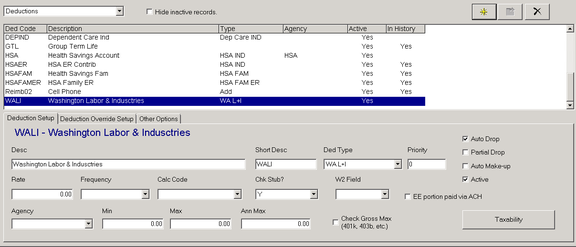
- Go to Company Maintenance / Company Setup / Deductions.
- Create a new deduction code by clicking the Add (yellow star) button. Name the code whatever you wish and make note of it, as you will use it later.
- On the Deduction Setup sub-tab, add a Description and select WA L+I from the Ded Type drop-down list.
Code Group Setup
Refer to the WA Workers Compensation Record Keeping and Reporting Guidelines document for details on which earnings to include.
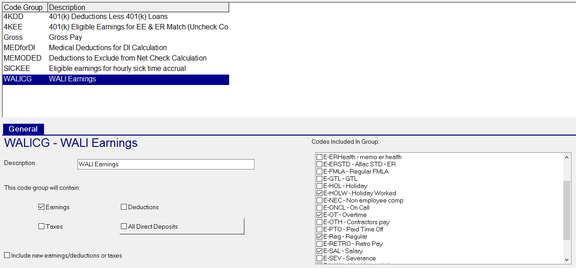
- Go to Company Maintenance / Company Setup / Code Groups.
- Create a new code group by clicking the Add (yellow star) button. You can name the code whatever you wish, but it must not match the name of the earning code you created earlier. Make note of the name, as you will need it later in the setup.
- Under the General sub-tab, place a check in the Earnings check box.
- Under the Codes Included In Group section, place a check in the box that corresponds with all earning codes for worked hours.
Agency Setup
To set up an agency check that is automatically generated at the end of each quarter, you must have a specific frequency set up for that company. The frequency must have a Base Freq of Q3 and Take Last Week should be marked.
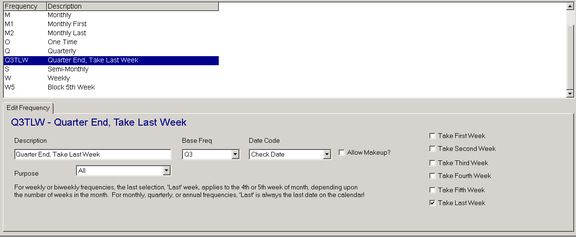
- Go to Company Maintenance / Master Company Setup / Frequencies.
- Create a new frequency code by clicking the Add (yellow star) button. Name the code whatever you wish and make note of it, as you will use it later.
- Select Q3 from the Base Freq drop-down list.
- Select CheckDate from the Date Code drop-down list.
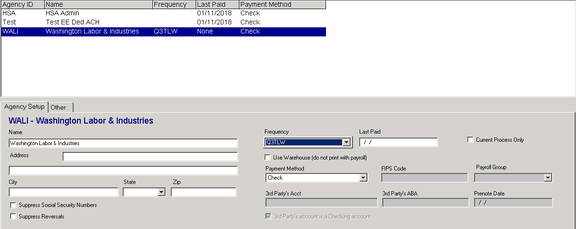
- Put a check in the Take Last Week check box. Create a new agency code by clicking the Add (yellow star) button. You can name the code whatever you wish. Make a note of the name as you will need it later in the setup.
- Go to Company Maintenance / Company Setup / Agencies.
- Select the frequency code you just created from the Frequency drop-down list.
- Fill in the Last Paid field with the last day of the prior quarter.
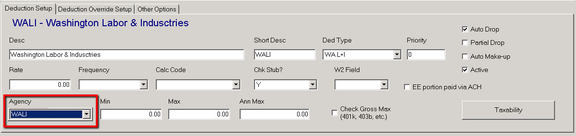
- Attach this agency code to the deduction code if withholding L&I from the employee, or just to the earning code if not. It should not be both.
For example, if you were to redefine the deduction code, you would:
- Select Company Maintenance > Company Setup > Deductions tab.
- Select the L&I deduction code in the items list that you set up earlier.
- Select the agency you just set up from the Agency drop-down list.
Set Up Workers' Compensation
If you set up the appropriate earning and deduction codes and add the correct information to the Edit Workers Comp Code and Workers Comp Rates sub-pages, ReadyPay calculates the appropriate employee and employer portions and posts them to the employee checks.
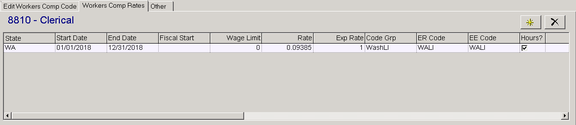
To set up a Washington L&I Workers' Compensation code, perform the following:
- Go to Company Maintenance / Company Setup / Work Comp.
- Select the appropriate Workers' Compensation code.
- Click on the Workers Comp Rates sub-tab.
- Enter the employer's assigned rate in the Rate field; otherwise, if the employer chooses not to withhold from the employee, enter the full composite rate in the Rate field.
- Enter 1 in the Exp Rate field. The reports will not work correctly without an experience rate.
- In the ER Code column, enter the memo earning code that you set up earlier.
- Enter the code group created earlier in the Code Grp column. If paying the Washington L&I on behalf of the client, be sure to set up an appropriate Workers' Compensation transfer.
- If you will be withholding Washington L&I from employees, enter the deduction code created earlier in the EE Code column. ReadyPay uses the employee's state SUI code to determine the appropriate state for Workers' Compensation.
- Put a check in Hours? as the calculation is based on hours worked.
- If you would like to impound the Washington L&I monies, place a check in Impound?. If paying the Washington L&I on behalf of the client, be sure to set up an appropriate Workers' Compensation transfer in Company Maintenance / Master Company Setup / Transfers.
- To have ReadyPay automatically select Washington as the state for Workers' Compensation (and to use the defined WA rate info) if no SUI is set for someone, place a check in Default?. If you choose this option, you will need to check each and every Washington State workers comp line item. If you do not use the Default? checkbox, you must make sure each subject employee's Work State is WA, and they have an active WASUI tax code.
- For each employee, select the appropriate code from the Work Comp drop-down list on the Employee / Dept/Position tab.
- For the same employee, go to their Taxes tab.
- Select WA from the Work State drop-down list.
- Repeat steps 12-14 for each applicable employee.
Employees do not need to be set up with the earning or deduction codes you created. ReadyPay automatically calculates the related earning and deduction amounts based on the employee's state and WCC.
At Quarter End
The Washington L&I return (WALI) is a "Package" option on the Quarterlies tabs. You can print test copies, client copies, filing copies, etc., just like any other quarterly return. However, the Payments tab will not actually create a payment for the tax. Payments for WALI are made using the steps indicated above (Set up Washington L&I as an agency).
Special note regarding the WALI Form: Currently, Millennium does not track the Sub portion of the workers comp code. Instead, the first 2 digits of the description are placed in the Sub column of the return. This allows the company to specify the Sub portion of the workers comp code in the description of the WC code. If a client does not want anything in the Sub column of the form, indent 2 spaces in the description field.
Questions?
Contact your Payroll Service Provider.