Regular Rate of Pay
As a compliance reporting requirement in California, "regular rate of pay" (i.e., RROP) must be calculated, stored, and used within ReadyPay to ensure proper payment to employees.
The RROP calculation entails taking covered wages and dividing them by hours worked to arrive at the rate of pay to be used for overtime premium, paid sick leave (mandatory in CA), and other earnings.
Please read this article in its entirety before starting any setup of RROP. All settings are required unless marked (optional).
- To work most effectively, clients using this feature are configured to pay hourly workers at a weekly or biweekly frequency.
- The calculation of retro pay required in CA is not provided as a feature.
Service Bureau Setup
Before ReadyPay can calculate RROP, several company-level options must be set up and reviewed for accuracy.
Earning Codes
RROP requires changes to earning codes. You must evaluate all earning codes for each company that will use RROP.
1. Evaluate the "Worked" setting for all active earning codes
Earning codes used for overtime, double-time, and overtime premium must use the Earn Type "OT".

Fig. 1
Worked: When you check this checkbox, all hours worked will be used as the hours divisor in the RROP calculation. All earnings not marked as "Worked" will have hours excluded from the RROP calculation.
2. Check the box to include the earning code
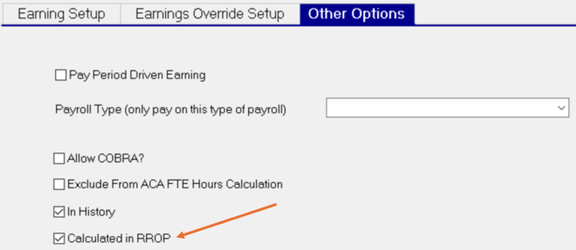
Fig. 2
Calculated in RROP: Specifies the amount paid using the earning code will be included in the total earnings used to calculate RROP. When you leave the checkbox UNCHECKED, any wages tied to the earning code will not be evaluated in the RROP calculation.
DO NOT check either checkbox for the earning code used for overtime premium.
Payroll Service
You must update the Payroll service to enable the RROP calculation to occur. The RROP settings only apply when the Payroll service's service level is "Full". The options for configuring the service are outlined in and explained below Fig. 3.
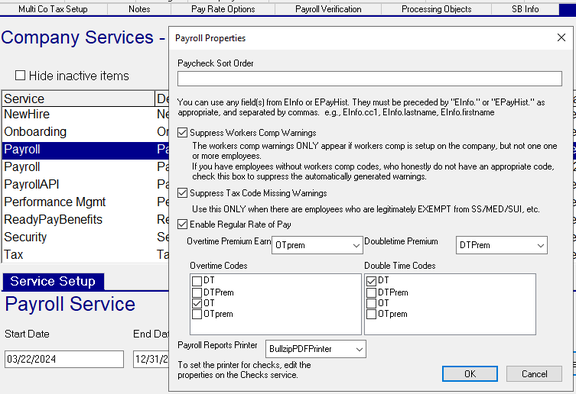
Fig. 3
Enable Regular Rate of Pay: Check this box to activate the RROP calculation.
Overtime Premium Earn: Select the earning code that will pay the employee OT premium due to the RROP calculation.
- This code must be different from all other earning codes used for payment of hours. The Earn Type must be 'OT' to properly report the amount. No 'Rate x' setting should be applied.
- DO NOT select this code in either the "Overtime Codes" or "Double Time Codes" field.
Overtime Codes: Select all applicable earning codes subject to 1.5 times pay that require the RROP rate for calculation.
Doubletime Premium Earn: Select the earning code that will pay the employee DT premium due to the RROP calculation.
- This code must be different from all other earning codes used for payment of hours. The Earn Type must be 'OT' to properly report the amount. No 'Rate x' setting should be applied.
- DO NOT select this code in either the "Overtime Codes" or "Double Time Codes" field.
Double Time Codes: Select all applicable earning codes subject to 2 times pay that require the RROP rate for calculation.
Pay Rate Options
Employees who receive different rates of pay within one pay week or period may have a lower calculated RROP than the highest rate they receive for their hours during the period. You can override the RROP calculation to use the highest pay rate paid during the week or period by using the RROP - Always use employee's highest rate (multiple jobs, change in rate) in the period checkbox on the Pay Rate Options page, as indicated at the bottom of Fig. 4.
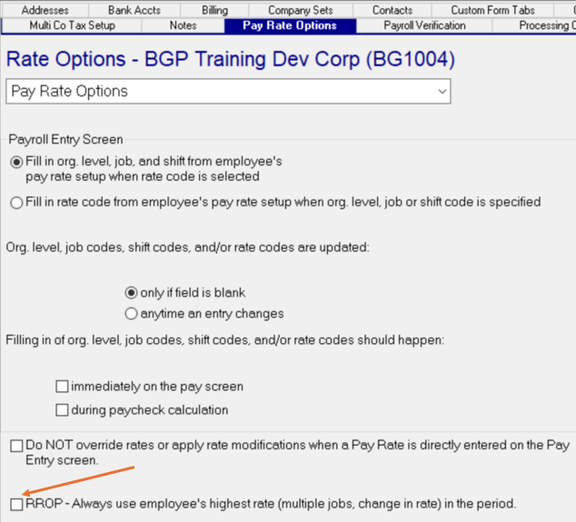
Fig. 4
Entering Payroll Information
The ReadyPay paycheck calculation has been updated to calculate and store the RROP based on pay week and/or period. The calculation will review the Calendar Batch Frequency to determine if only one RROP rate is necessary (single week or non-biweekly period) or if two RROP rates are calculated (one for each week of a biweekly period).
Single Week or Non-Biweekly Period
RROP is factored by work week, and some frequencies may change from one month to the next. ReadyPay can only look at the entire period for the calculation. Entering payroll in a batch with a non-biweekly frequency is straightforward and does not require any additional data entry other than hours and amounts for the period.
Example 1: Hours and Amounts Rolled Up For the Pay Period
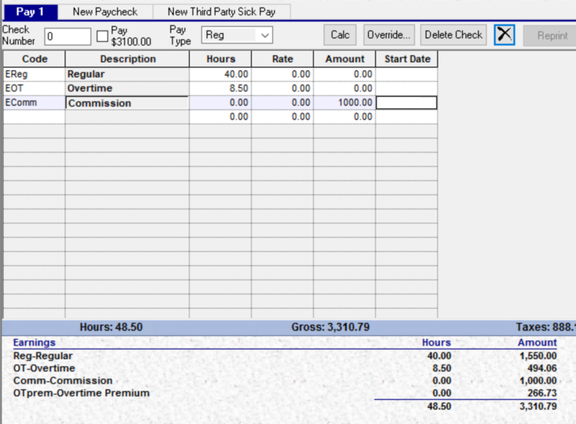
Fig. 5
How the calculation works
- Total worked hours for the period: 48.50
- Total earnings where code is marked for RROP: $3044.06
- RROP calculated: $62.76
- OT Premium = $62.76 x 8.5 x .5 = $266.73
Biweekly Period
Entering payroll in a batch with a biweekly frequency requires additional data entry to calculate RROP separately for week one and week two. Each hours-based earning code must use Start Date to dictate which hours are allocated to which workweek, as shown for Regular and OT earnings in Fig. 6. To determine workweek, the system will look at the batch period Begin Date to determine the first and second 7-day week.
Alternatively, you may choose one single date to use per week to enter hours in the grid, as shown below, or multiple dates per week.
Earning amounts keyed into the pay grid without a date will be allocated to each week based on the percentage of total hours. An example of this is shown for Commission earnings in Fig. 6.
Example 2: Hours and Amounts By Week
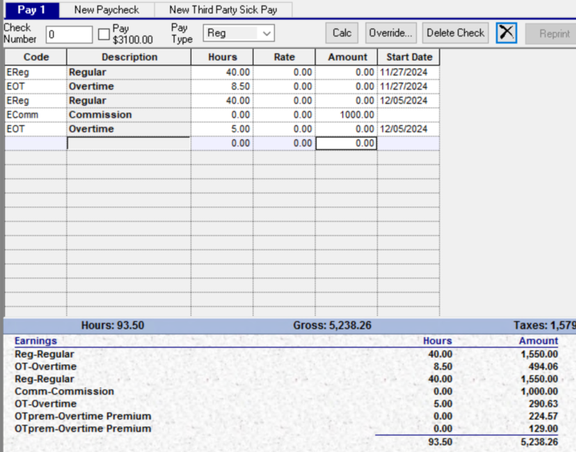
Fig. 6
How the calculation works
- Total worked hours for week 1: 48.5
- Total worked hours for week 2: 45
- Commission (non-dated) amount per hour worked: $10.70 (week 1 $518.95, week 2 $481.50)
- Total earnings for week 1 where code is marked for RROP: $2563.01
- Total earnings for week 2 where code is marked for RROP: $2322.13
- RROP calculated week 1: $52.84
- OT Premium = $52.84 x 8.5 x .5 = $224.57
- RROP calculated week 2: $51.60
- OT Premium = $51.60 x 5 x .5 = $129.00
Paying Other Earnings Using RROP
A future release of ReadyPay will add the ability to calculate RROP on paid sick leave. This will introduce System Calc Code 'S_RROP' which can be set on any applicable earning code to apply the calculated RROP as the pay rate to be used when hours are entered using the code. Keep in mind that hours must be entered by date for a biweekly period.
How RROP Values Are Stored
Two new columns have been added to the EPayEntry and EPayHist database tables: RROP1 and RROP2. These fields will be added to ReadyPay's report writer in a future release.

Fig. 7
Questions?
Contact your Payroll Service Provider.