Quarter End System: Producing Reports with Quarterly Tax Returns
Overview
ReadyPay Desktop (RPD) includes functionality that supports the addition of reports to the Quarterly Tax Return package provided to the end client. You can include as many reports as needed. You also control their placement (before or after or both) in regards to the Tax Returns.
Configuring Reports to Print with the Quarterly Returns
System Setup
To create a Reports Package(s), use the Tree View. Go to System > Tax > Filings > Reporting > Packages.
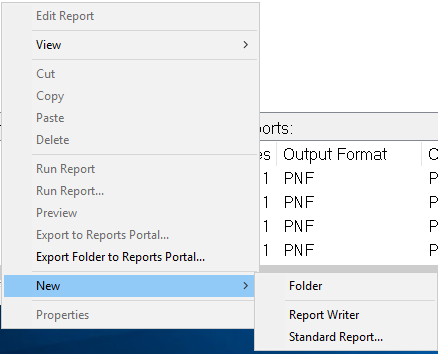
In the open space at the top of the screen, right click and choose New, then Folder.
This will add a folder titled "New Folder." Mouse click on the words New Folder until it is editable.
Type the name of the folder as you wish it to appear in the system.
Our samples are called Tax Package 1 and Tax Package 2.


Add reports to these folders as you do with any Report folders in RPD.
Reports added to the root of the package folder will precede the Tax Returns (in the order they appear in the window).
To add reports that would print after the Tax Returns, add a sub folder in each package called Post.
Click on the newly created folder, then add any reports needed to be printed after the Tax Returns.
The image below indicates a setup where a Blank Portrait report (renamed title Cover sheet) will appear as Page 1 in the Tax Return package.
Reports added to the Post folder will appear after the Tax Returns at the end of the quarterly package (in the order they appear in the window).
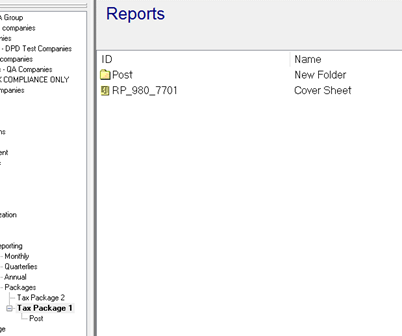
The display order for Tax Returns sent to the Reports Portal is the same as explained above:
- Pre-Tax Return Reports (if any)
- Tax Returns
- Post-Tax Return Reports (if any)
After completing the setup of the Tax Package folders, you must restart your process servers. System level changes are typically cached. These changes will not register until process servers are restarted.
Company Setup
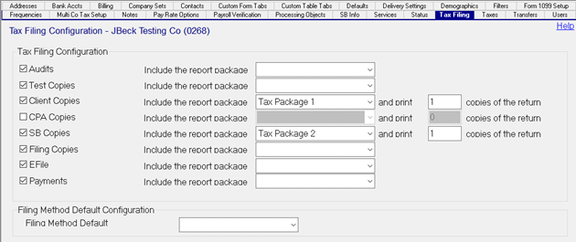
Go to Master Company Setup > Tax Filing. Here is where you get to define the package you wish to use, dependent on the type of tax copy you are running.
Including Reports While Running Quarterly Tax Returns
In order to have the reports defined above included in with your Tax Returns, follow these steps:

1. Open the Tax Filings screen
Go to System > Tax > Filings.

2. Select the Year and Filing Period
Be sure to select the proper Year. The Year field is manually set if a change is needed. Set the correct Tax Return Filing Period from the drop-down list.
3. Choose the Return type
Choose the appropriate tab for the Return type you wish to produce (Client Copies, CPA Copies, Filing Copies, etc.).
4. Set filters and select packages
Set any other filters as needed.
Highlight the tax packages you wish to run.
5. Select a Preparer
At the bottom of the screen, select a Preparer from the available options.
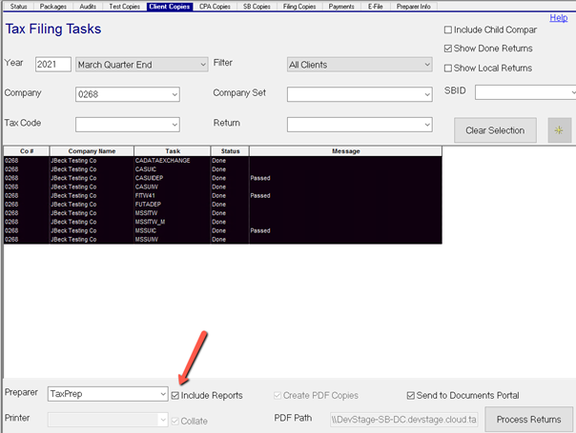
6. Include Reports and process
You must click the Include Reports field.
Click Create PDF Copies and enter the PDF path if applicable.
Click the Send to Documents Portal field if applicable.
Click the Process Returns button.
Questions?
Contact your Payroll Service Provider.