Pennsylvania Local PSD Tax Setup
The information below contains the appropriate setup information of PA PSD taxes in ReadyPay and provides real-world examples of differing employee scenarios.
Prior to beginning PSD setup, it is necessary to identify the appropriate PSD codes to be used in the following sections of this document. Addresses may be entered at Municipal Statistics or Census Fact Finder to understand the political divisions that will need to be utilized for a company's employees. Local LST codes do not follow the formatting below.
Company Tax Code Setup
ReadyPay has been developed with all Pennsylvania PSD codes based on Act 32 and any subsequent updates since it was implemented at the beginning of 2012. When adding a company with PA PSD requirements, you may add the necessary codes on the Taxes tab in Master Company Setup. Each PSD number will have an 'N' code for non-resident tax (work locations) and an 'R' code for resident tax (employee's home). The appropriate PSD-N codes should be added for each work location and PSD-R codes added for each unique employee residence division.
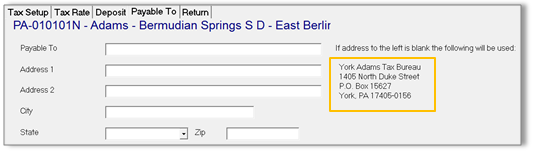
Each PSD-N code is programmed with the appropriate collector information which can be found on the Payable To sub-tab of the tax code.
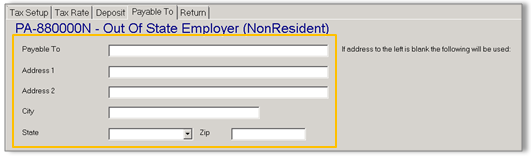
A possible setup scenario to be made aware of would entail a non-PA employer withholding and remitting PSD taxes for PA resident employees. In this scenario, the PSD-N code would be '880000N'. This code, when added on the company level, will not have any pre-programmed collector information. The company would need to decide where to remit their tax liabilities and filings and this information added to the Payable To sub-tab of the code.
Employee Tax Setup
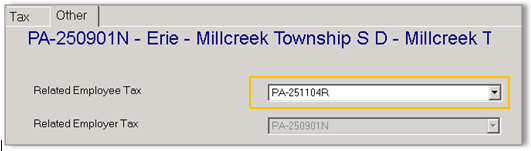
Each employee will need to be set up with the PSD-N code of their work location and the PSD-R code of their residence. This may be done on the Employee | Taxes page. The PSD-N code(s) will be available by clicking ADD (*). After selecting the appropriate work location (PSD-N), go to the Other sub-tab and set the Related Employee Tax, or PSD-R code.
The two employee setup scenarios are:
- An employee living and working in different political divisions — the PSD-N and PSD-R codes would have differing numbers (see screenshot above)
- An employee living and working in the same political division — the PSD-N and PSD-R codes would share the same number (see screenshot below)

Questions?
Contact your Payroll Service Provider.