Online Tax Forms
Publishing Tax Forms
This is the original manual process when not utilizing Client Manager Pro. The first step in providing tax forms online for employees is to publish them. This act occurs when running the employee copies from the System | Year End area of ReadyPay (or by right-clicking on a company and selecting 'Toggle Published').
Publishing Tax Forms Online Automatically
During the printing phase of tax forms, select the companies you will be printing forms for by clicking on them in the company listing. They will be bolded once selected.
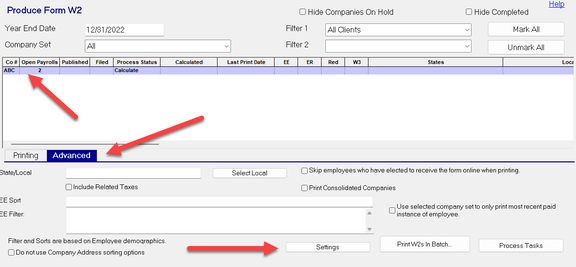
In the Advanced sub-tab, click the Settings button. In the dialogue box that appears, mark the check box for 'Automatically publish W2s during Print of Employee Copy'. Then click OK.

After all options are selected (and any other filtering/sorting options for printing) you may click Process Tasks and the forms will be published. Based on your sync schedule the forms will be moved and made available on ReadyPay Online.
Releasing Tax Forms to Employees
Once forms are published online and made available to the employer, they should be reviewed for accuracy. This allows the employer to catch errors prior to providing an incorrect copy to employees. By accessing the Company module on ReadyPay Online, employers will find the Online Tax Forms page in the Master Company Setup | Taxes area. Here, they can review, print, and release the forms to employees, individually or as a group.
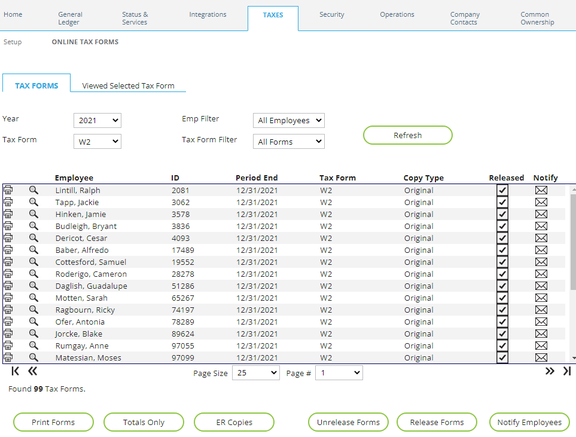
Be sure the Year is set for the forms being released and the Tax Form is set accordingly. If both W2s and 1099s will be made available online, they will be released separately. Filters are available to select specific employees to release to by selecting the Emp Filter at the top of the screen. When selecting different options, you'll need to click the REFRESH button to update the listing.
To release all forms at once, click RELEASE FORMS in the lower right-hand corner of the screen. To release a form to one person at a time, click the green circle next to the appropriate person. In either case, a box will pop up to verify the action. Subsequently, you may UNRELEASE FORMS at any time if you would like to not show them to employees (if you notice an issue with the forms). This can also be done all at once or individually.
If employees registered for the kiosk using an email address, you can notify the employee of their tax form being available online by clicking the NOTIFY EMPLOYEES button in the lower right-hand corner of the screen. This should be done upon completion of releasing forms.
Questions?
Contact your Payroll Service Provider.