Consolidated Tax Forms Processing
UPDATE: Tax Implications for Multiple Employee IDs with the Same SSN
ReadyPay version 3.43.0.6 added back the ability to create multiple employee records with the same tax form and same SSN. Doing so requires additional settings on the company and during year end processing. Failure to use these settings will result in incorrect wage base calculations. This will cause ReadyPay to produce multiple tax forms for the same person.
The following information applies to single companies and companies in a Parent / Child relationship.
- When adding a new employee record, ReadyPay and ReadyPay Online will display a message indicating another employee record with the same SSN exists within the same company.
- When viewing an existing employee record, only ReadyPay Online will display a message indicating the employee's SSN is in use by another employee record. The message appears on the Information and Demographics pages.
Master Company Setup > Multi Co Tax Setup Tab
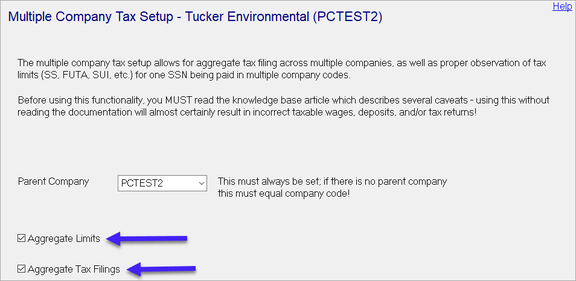
In order to successfully process taxes for consolidated companies, you first should ensure the Multi Co Tax Setup tab is completed properly for all associated companies. You will set one Parent Company for all your associated companies and mark the Aggregate Limits and Aggregate Tax Filings checkboxes as indicated by the blue arrows, shown in the screen shot below.
System > Tax > Year End > Multiple Tabs
The Year End module is used to produce employee tax forms (W2, 1099M, 1099R, 1099NEC) and related mag media files.
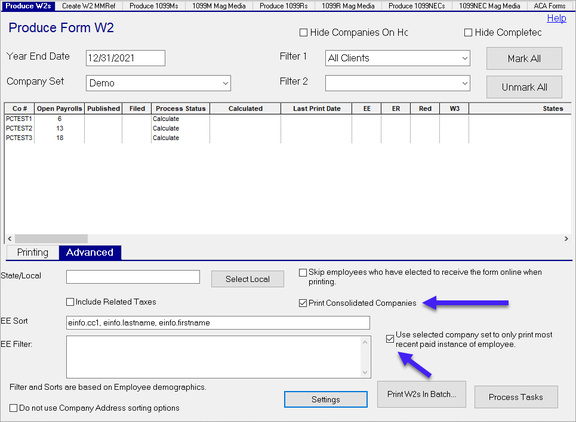
After making your selections on the Printing Sub Tab, select the Advanced Sub Tab.
Be sure that both the "Print Consolidated Companies" and "Use selected company set to only print most recent paid instance of employee" checkboxes are checked.
- You MUST check the checkboxes and then Calculate and Print your W2s.
- The checkboxes will not stay checked if you tab off the Advanced sub-tab and come back to it.
- The checkboxes will not stay checked if you refresh your screen.
Client Manager Pro Settings (Optional)
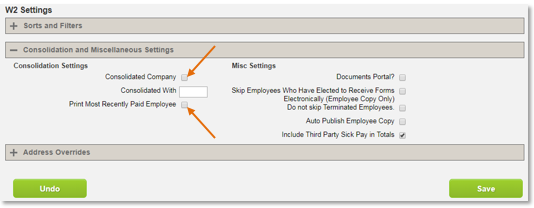
Because the form consolidation settings in ReadyPay would need to be set every time you process forms, it may be worthwhile to set company consolidation options permanently in Client Manager Pro. To do so, find your company in the Active Companies list and proceed to Taxes / W2 Settings / Consolidation and Miscellaneous Settings.
Mark the Consolidated Company checkbox and enter the parent company ID in the Consolidated With field. The Print Most Recently Paid Employee checkbox should be marked to complete W2s with the most recent employee demographic data — this is recommended as the employee data will most likely be most up-to-date based on their most recent pay.
When it is time to Calculate and Print your W2s, no checkboxes need to be marked in ReadyPay on the Produce W2s page. You can confirm a company's Client Manager Pro settings by right-clicking on the company in the page grid and selecting View Settings. The Year End Settings cannot be modified, just viewed.
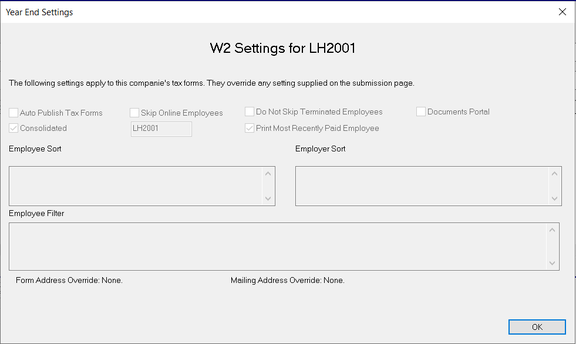
Making changes to these Client Manager Pro settings mid-year may cause the need for data to be recalculated.
Caveats Related to Year End Forms
- These instructions do not apply to ACA forms.
- Forms 1099M, 1099R, and 1099NEC do not allow for the two settings. People with one of these three tax forms will receive multiple tax forms (one for each instance of an employee record with the same tax form and same SSN).
Questions?
Contact your Payroll Service Provider.