CA Large Employer Pay Data Report (RP_350_2401)
Updated 04/10/2025
These instructions explain how to use ReadyPay to comply with the CA Department of Fair Employment and Housing's data reporting requirement covered under California legislation enacted on September 30, 2020 (Senate Bill 973). The law states that private employers of 100 or more employees (with at least one employee in California) must report certain pay and other data to the Department of Fair Employment and Housing (DFEH) by March 31, 2021, and annually thereafter. The state of California may change the reporting deadline each year.
New for 2026
ReadyPay version 3.76.0.6 introduced a second method for tracking hours in this report. You can create a Code Group called CAPAYDT and add the earnings you want to include on the report. The Code Group acts as an override to the original data collection method of marking the "Worked" checkbox on the earning codes you want included on the report.
New for 2025
-
Race, ethnicity, sex: For every company you report, add a new ethnicity code of "MENA" for "Middle Eastern or North African". This new code will use the Base Ethnicity code "MENA". The Race/Ethnicity column will now include these codes: Male/MENA: B70 Female/MENA: C70 Binary(X)/MENA: D70 For Labor Contractor Employee Reports, reporting "unknown" race/ethnicity or sex of a labor contractor employee is no longer permitted.
-
New Column: Exemption Status Accepted Values: Exempt, Non-exempt. The value for this field is pulled from the 'OT Exempt' checkbox on the Employees > Dept/Position tab.
-
New Column: Employment Type Accepted Values: Full-time, Part-time, Intermittent. The value for this field is pulled from the 'For reporting purposes, employees with this particular code shall be considered:' dropdown on Company Setup > Misc > Emp Types.
Anything other than 'FT' or 'PT' selected in this dropdown will result in an 'Intermittent' value on the report.
New for 2024
-
Column A: This column is now populated with Establishment Name.
-
New data fields: Employers must now report whether employees worked remotely during the Snapshot Period. These checkboxes have been added to the following pages in ReadyPay Online: Company | Departments & Labor | Level 1-5 (i.e., all employees in that cc level are remote workers) Employee > Dept/Position > Department (i.e., the specific employee is a remote worker).
-
Race, ethnicity, sex: For Labor Contractor Employee Reports, reporting "unknown" race/ethnicity or sex of a labor contractor employee is no longer permitted.
-
Deadline: Pay data reports covering the 2023 Reporting Year are due by Wednesday, May 8, 2024.
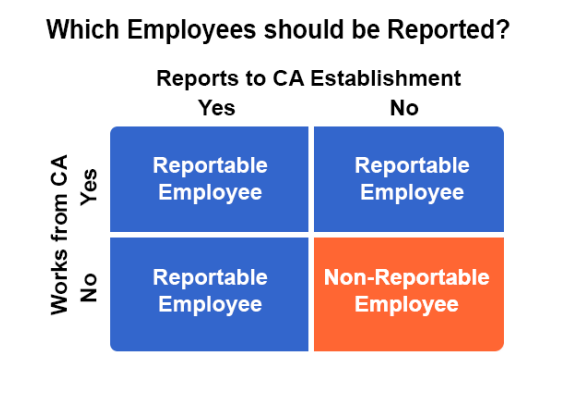
When you designate remote workers, use EITHER the employee OR company cc setting per end client company, not both. The infographic below outlines which employees must be included in the file.
New for 2023
The California New Pay Transparency ACT SB 1162 has introduced new requirements for employers who work with other entities to provide contracted labor. Subject employers must submit a file for their own employees and a file for each subject Labor Contractor. The infographic below outlines the requirements.
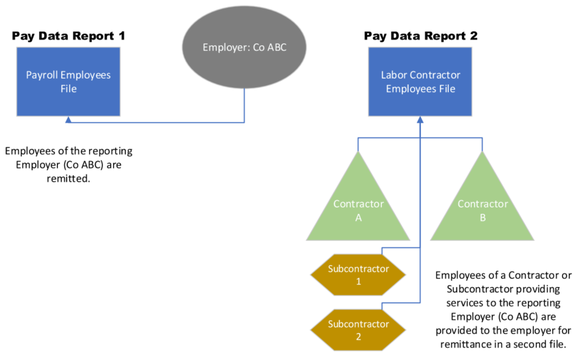
Using the above infographic as an example, the entity that is the Labor contractor to the end client (i.e., Company ABC) must provide the Labor Contractor pay data file to the end client. Company ABC will then submit that file to California as a second file (their Payroll Employees file being the first).
Next, let's assume that your service bureau has an end client who is the Labor Contractor. In this case, the Labor Contractor will produce and submit the Payroll Employee file for themselves. Then, they must edit their Payroll Employee file and insert the additional 4 columns after column 12. These 4 additional columns will contain the additional data the Labor Contractor file requires (Labor Contractor Name, Labor Contractor FEIN, Snapshot - Begin Date, Snapshot - End Date). Save those changes and provide the edited file to Company ABC.
More information is available in the California Pay Data Reporting Portal User Guide.
California Dept. of Fair Employment and Housing (CA-DFEH) Pay Data File Report
The CA DFEH Pay Data report follows the specifications laid out here for the CSV format: https://www.dfeh.ca.gov/paydatareporting/
There are two types of report outputs, single and multi-establishment, as described in the above specifications.
The pay data reported is the same as for the Federal EEO-1 Component 2 report.
Both Types (Single and Multi-Establishment)
Report Settings
-
Run the report for a single payroll process during the allowed snapshot period (Oct – Dec).
-
Set the additional formula "CA Contractor?" to designate whether the employer is a contractor for the State of California.
-
Set the additional formula "CA Report Filed?" to indicate whether this report was run and submitted to the state for this company in the prior year.
-
Set the additional formula "EEO-1 Report Filed?" to designate whether the EEO-1 report for this company was run and submitted to the federal government in the prior year.
RP Data Requirements
-
The company must have a primary contact designated (CompanyContacts.IsPrimaryContact = 1) with a Name, Title, Phone number, and Email populated.
-
CInfo.NAICSCode must be populated (Master Company Setup > Demographics in RPD and RPO).
-
CInfo.DBNumber (DUNS – Dun and Bradstreet) must be populated. (Accessible only via RPO or SQL)
-
Company EEO Classes and Ethnicity codes must be properly configured to match the federal EEO requirements. (See Reference section)
-
All employees must have EInfo.eeoClass populated, EInfo.sex or EInfo.genderObserved populated, EInfo.ethnicity or EInfo.ethnicityObserved populated and valid hire/rehire and term dates.
Any employees who do not have the correct data configuration will not be included in the report.
Single Establishment
Report Settings
Set the additional formulas "HQ CC Level" and "HQ CC Value" to blank.
RP Data Requirements
Establishment ID = CInfo.EEOCCoNumber (Accessible only via RPO or SQL)
CInfo.primaryWorkLocation must be blank/NULL.
Establishment Address info is populated from the CInfo values.
Multi-Establishment
Report Settings
Set the additional formulas "HQ CC Level" and "HQ CC Value" to appropriate values to designate which CC level (establishment) is the company's headquarters.
RP Data Requirements
Establishment ID = CDeptX.EEOCUnitNumber (Accessible only via RPO or SQL)
CInfo.primaryWorkLocation must be populated with a CC level ("CC1", "CC2", etc.) to designate establishments. (Accessible only via RPO or SQL)
Establishment Address info is populated from the CDeptX records for the designated CC level.
All employees must have the appropriate CC value populated (EInfo.cc1, etc.) for the designated CC level.
Report Properties Settings
Report Info tab
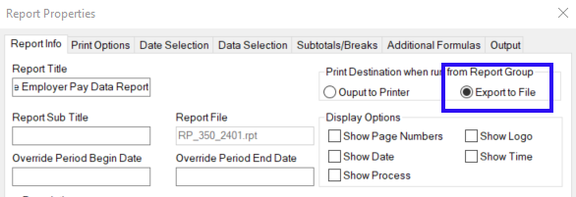
Select the "Export to File" option.
Additional Formulas Tab
Note the following when preparing to run the report:
-
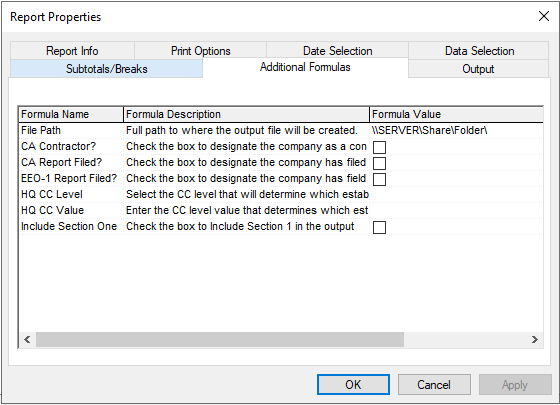
The File path to where output file will be created: Enter a valid path to a directory accessible to ReadyPay. A file will be created in this location using the naming convention of CoCode_CA-DFEH_PayData.csv. The reporting engine also creates a tmp file in the same directory as the output file. The file has a system-generated name. This temp file can be ignored.
-
Use the CA Contractor? checkbox to designate the company as a contractor to the State of California.
-
Use the CA Report Files? checkbox to designate the company that has filed this report for the prior year.
-
Use the EEO-1 Report Files? checkbox to designate the company has filed an EEO-1 report for the prior year.
-
Use the HQ CC Level option to select the CC level that designates which establishment is the company headquarters. Leave blank for single establishment companies.
-
Use the HQ CC Value option to set the CC level value that determines which establishment is the company headquarters. Leave blank for single establishment companies.
-
Use the Include Section One checkbox to generate a file that contains sections one and two. Leave blank when you only need to send a file with section two data.
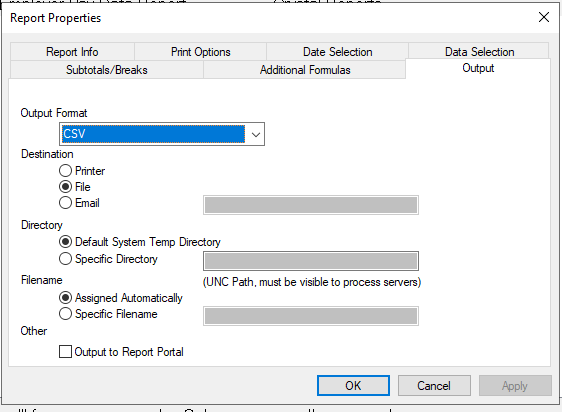
Output Tab
-
Output Format option requires CSV
-
Destination selection is "File"
-
Directory selection is "Default System Temp Directory"
-
Filename selection is "Assigned Automatically"
-
Other checkbox is left unchecked (i.e., Do not Output to Report Portal)
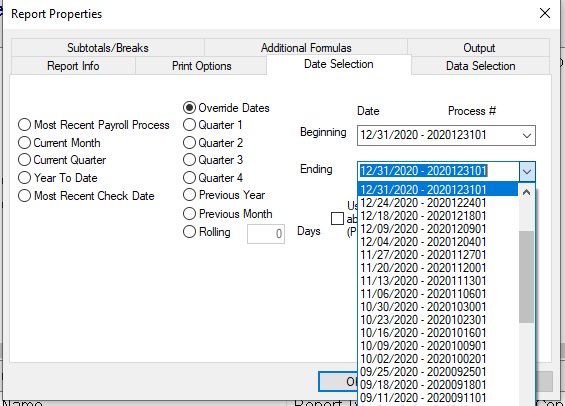
Date Selection Tab
Run the report for a single payroll process during the allowed snapshot period (Oct – Dec).
Important Notes
-
Column I - Establishment Major Activity: value is populated from the SystemNAICSCodes.NAICSTitle value based on the selected CInfo.NAICSCode value.
-
EDD, HQ, and Contact address info values are populated from the CInfo values.
-
Employee counts are based on the check date used for reporting falling within the hire/rehire and term dates. Employee status is not considered. EInfo.workState determines if the employee is considered to be a CA employee.
-
Parent Company information is only populated if CInfo.parentCompany does not match the CInfo.co value (i.e. the company does not have a parent). If the company has no parent company, the "Employer's Ownership; Affiliation; or Enterprise" value will be set to "No".
-
Some service bureaus have reported that when submitting to the state, Section 1 (Employer Information) needs to be cut out (approximately lines 1 through 48). The state only requires that Section 2 A & B be uploaded. An additional formula is provided that allows you to omit Section 1.
Reference
Valid Ethnicity Codes
-
A - Asian
-
B – Black or African American
-
H – Hispanic or Latino
-
I – American Indian or Alaskan Native
-
MENA - Middle Eastern or North African
-
P – Native Hawaiian or Other Pacific Islander
-
T – Two or More Races
-
W – White
Valid EEO Classes
-
1.1 - Executive/Senior Level Officials and Managers
-
1.2 - First/Mid-Level Officials and Managers
-
2 – Professionals
-
3 – Technicians
-
4 - Sales Workers
-
5 - Administrative Support Workers
-
6 - Craft Workers
-
7 – Operatives
-
8 - Laborers and Helpers
-
9 - Service Workers
Questions?
Contact your Payroll Service Provider.