How to Place a Company on Sync Hold
Placing a company on sync hold can be used to troubleshoot sync issues you may be facing on one or more companies. This feature allows other companies on a downstream site to sync successfully. While this feature is only available in the ReadyPay UI, it is primarily useful for RPO sites that have multiple companies syncing. To use this feature, please follow these instructions.
You MUST perform these operations on the downstream site ONLY.
1. Identify the issue and open the Upstream Site tab
If you start to experience errors during sync because of field conflicts or any other reason on a particular company, log on to ReadyPay Desktop on the back end of the downstream side (your RPO process server, for example).
Then navigate to System > Synchronization > Upstream Site.
2. Place the company on hold
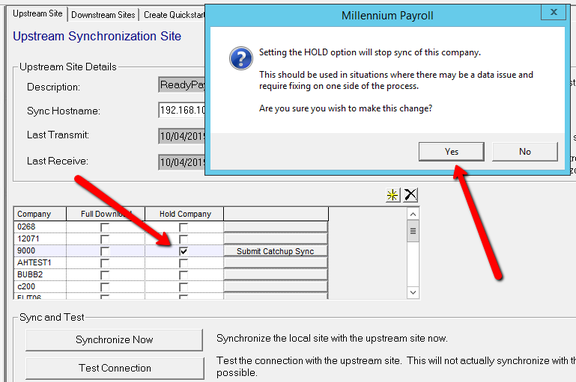
On the Upstream Site tab you will see the list of companies that are syncing up to the upstream site (i.e. processing site). Find the company you are experiencing issues with and click on the Hold Company checkbox. You will be presented with a dialog box confirming your selection. If you are sure you wish to proceed, click Yes.
If you have a large number of companies to place on hold, this can be performed via SQL if absolutely necessary, but it is not recommended. In this case you would run a query like this (against your downstream site database):
UPDATE SSyncDbDetail SET hold = 1
WHERE co IN ('9000', 'PCTEST1', 't901');
3. Run a full sync
The next step after a company has been placed on hold is to perform a regular (full) sync on the downstream site. You can either wait for the regular scheduled sync (if applicable), or you can initiate a manual sync from the same tab by clicking the Synchronize Now button.
This sync will recognize the new hold status on the company /
companies and then populate the lastTransmit and lastReceive in
SSyncDbDetail for the held company / companies. The time stamp used
will be the time stamp for the last full sync that included this
company (not the sync you just performed).
4. Verify the held company's last sync time
To see the actual last sync time for the company in question you can look in ReadyPay Desktop on the upstream side (processing site). It can be found under System > Synchronization > Downstream Site > Companies.
You should see a difference between the last sync times of the site in general and the held company / companies.
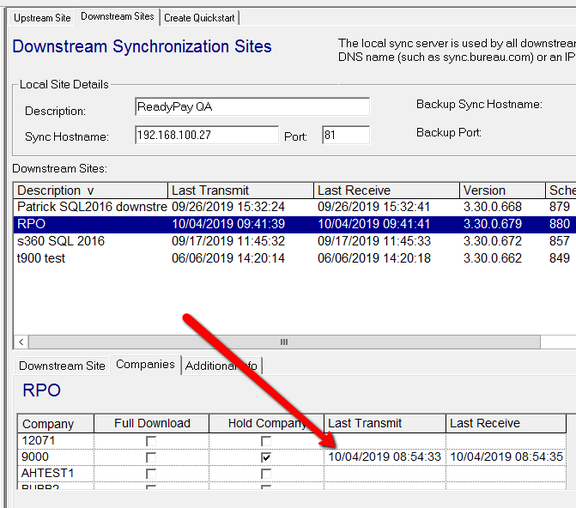
At this stage the held company / companies will no longer sync data back and forth through scheduled or manual syncs.
Even though you can mark the company for full download, because of the hold flag, it will actually NOT transmit any changes, or fully download a copy of the company from the processing site.
5. Submit a Catchup Sync to resume
Once you have addressed the issues that caused you to place the company on hold and you are ready to sync again, go to ReadyPay Desktop on the back end of the downstream site. Go to the Upstream Site tab and click on the Submit Catchup Sync button next to the company you have resolved.

Once you click the Submit Catchup Sync button, it will trigger a SyncUp job in the queue that actually has the company code listed next to it (unlike a full regular sync).
If you have multiple companies on hold and waiting on a catchup sync, they must be run one at a time. You must also wait for each catchup SyncUp job to fully finish before submitting another catchup sync.

The catchup sync will transmit and receive all changed data for each company from the timestamp shown above to the timestamp of the downstream site's last successful full regular sync (not the current time).
Once the catchup sync is complete, the hold flag is cleared, timestamps are removed from the company on both sides, and syncing of that company's data returns to normal.
The next full sync will pick up exactly where it left off and include any recent changes since the last full sync.
Questions?
Contact your Payroll Service Provider.