Ghostscript Setup for ProcessServer.NET
- Ghostscript is the supported application for use with ProcessServer.Net.
- Ghostscript is required anywhere you have ProcessServer.Net installed and running (ReadyPay side and RPO side).
- Ghostscript can be installed or upgraded at any time. There is no requirement that it be done at the same time as a ReadyPay or ReadyPay Online update.
- In order to upgrade your version of Ghostscript, you must first uninstall any prior versions using the Control Panel in Windows.
- Ghostview (GSview) is no longer a required component, so if you have it anywhere it can be safely uninstalled.
The newest supported version is 10.04.0.
Configuring Ghostscript
To correctly configure Ghostscript for use with ProcessServer.Net, follow these instructions:
We have provided the supported version of the application
(gs10040w64.exe) on our FTP site in /Releases/ReadyPayServices. It
is a 64-bit version, so please ensure that it is installed on a
64-bit OS.
Install the application and accept all default settings during the installation process.
Once the installation is complete you will need to add or modify the
following keys in the ProcessServerNet.exe.config file as follows:
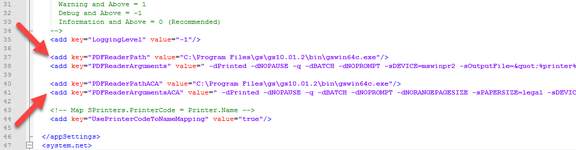
<add key="PDFReaderPath" value="C:\Program Files\gs\gs10.01.2\bin\gswin64c.exe"/>
<add key="PDFReaderArguments" value=" -dPrinted -dNOPAUSE -q -dBATCH -dNOPROMPT -sDEVICE=mswinpr2 -sOutputFile="%printer%[Printer]" "[FileName]""/>
<add key="PDFReaderPathACA" value="C:\Program Files\gs\gs10.01.2\bin\gswin64c.exe"/>
<add key="PDFReaderArgumentsACA" value=" -dPrinted -dNOPAUSE -q -dBATCH -dNOPROMPT -dNORANGEPAGESIZE -sPAPERSIZE=legal -sDEVICE=mswinpr2 -sOutputFile="%printer%[Printer]" "[FileName]""/>
This section should be inserted in the config file as shown in the image below:
Questions?
Contact your Payroll Service Provider.