Employer Match Scripting for Retirement Accounts
Overview
Employer Match calculations vary from company to company. Some have unusual formulas for calculating the Match amounts. Others may have rules that control eligibility for an employee to receive the Match.
In cases like these, the Simple 401(k) Wizard found on the 401k tab in Company Setup will not work.
This necessitates use of the Scripting Function found in the Drop List of the Misc tab in Company Setup.
This article provides VB Scripting samples that address the most common of these calculations and/or eligibility rules.
These are samples. Modifications may be needed to match your needs.
Always acquire a copy of the Plan Document from the client. This document will provide the following information:
- Which employees are eligible for the match.
- When those employees are eligible to receive the match.
- How to calculate the match.
- Any limits on the amount of the Match.
Setting Up Match Scripts using VB Scripting
The VB Scripting function is found in the Drop List on the Misc tab in Company Setup.
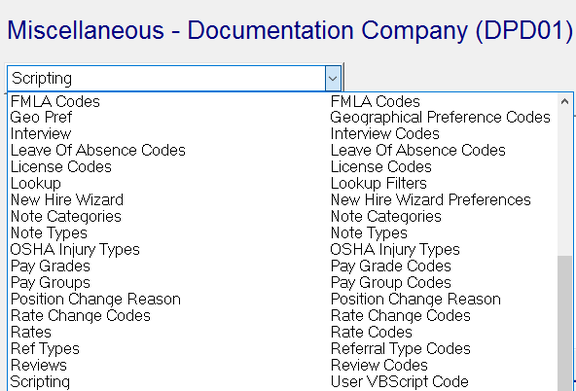
Go to the Misc tab in Company Setup.
Scroll down to and select the option called "Scripting Use VB Script Code".
If the box on the User VB Scripts Sub Tab is blank, click the New (*) button. The "Enter new code" Dialogue Box is displayed.
The code you enter MUST READ PaycheckCalc.

Click OK. The User VB Scripts fields become available.
In the long untitled field to the right, enter PaycheckCalculator.

If the entries do not match exactly as described above, the script will not be executed.
Regardless of how many scripts a company may have, there must be only one entry for PaycheckCalc — PaycheckCalculator.
The structure on any VB Script is as follows:
Sub PaycheckCalculator Hook
    Script Logic
End Sub
The Hook for all Match VB Scripts is Sub PaycheckCalculator_PostCheckCalculation().
This forces the match calculation to happen after the paychecks have been calculated.
Sample of the structure of an ER Match VB Script:
Sub PaycheckCalculator_PostCheckCalculation()  '<--- Hook

    eeContribution = GetTotalAmount("401K")    '<--- Script Logic
    eligibleEarnings = GetTotalAmount("4KEE")
    match = eeContribution * 0.5
    if match > eligibleEarnings * 0.06 then
        match = eligibleEarnings * 0.06
    end if

End Sub                                        '<--- End Sub Command
For more information on the available VB Scripting Hooks and VB Functions, see Scripting Functions for Paycheck Scripts and Calc Codes.
If the User VB Scripts box is already populated, note the following rules regarding placement of the new script:
- The Match script begins with a command that reads
Sub PaycheckCalculator_PostCheckCalculation(). - Scroll through the existing script and determine if
Sub PaycheckCalculator_PostCheckCalculation()is already in use. - If not, begin building the new script either at the very top above the hook of the existing script or at the very bottom below the End Sub command of the existing script.
- There cannot be multiple scripts that start with the same hook. If
the
Sub PaycheckCalculator_PostCheckCalculation()command is in use, you must build the new script within the existingPaycheckCalculator_PostCheckCalculation()script. - As the existing script already has the needed Hook and End Sub
commands, build the new VB Script either directly below the
Sub PaycheckCalculatorHook OR directly above the End Sub command of the existing script.
Building the Match VB Script
The examples below make the following assumptions. Update your company or the script commands accordingly:
- Uses deduction Code Group
4KDDfor employee contributions. - Uses earnings Code Group
4KEEfor eligible earnings. - Assumes 401k Match earnings code is
ERMatch.
Sub PaycheckCalculator_PostCheckCalculation()

    'Update this section to match your company setup
    eecontrib       = GetTotalAmount("4KDD")
    eligearns       = GetTotalAmount("4KEE")
    ytdermatch      = EYTDAmount("EERMatch")
    ytdeecontrib    = EYTDAmount("4KDD")
    ytdeligearn     = EYTDAmount("4KEE")
    matchwagelimit  = 245000.00
    newYTDElig      = eligearns + ytdeligearn

    if newYTDElig >= matchwagelimit then
        eligearns = newYTDElig - matchwagelimit
    end if

    if eecontrib > 0 then
        eePct = Round(eecontrib / eligearns, 2)
    end if

    ' Message Boxes to assist with testing
    MPIMessageBox "pre tax deduction amount is: " & Cstr(eecontrib)
    MPIMessageBox "Elig earnings Amount is: " & Cstr(eligearns)
    MPIMessageBox "Calculated ee percent is: " & Cstr(eePct)
    MPIMessageBox "YTD ER Match is: " & Cstr(ytdermatch)
    MPIMessageBox "YTD EE Contrib is: " & Cstr(ytdeecontrib)
Common Match Calculation Logic
All samples should be adjusted to the particulars of the Plan Document.
Match as a percent of eligible earnings
eecontrib = GetTotalAmount("4KDD")
eligearns = GetTotalAmount("4KEE")

if eeContrib > 0 then
    match = eeContrib
end if

if match > eligearns * 0.06 then
    match = eligearns * 0.06
end if
Match as a percent of employee contribution
eecontrib = GetTotalAmount("4KDD")
eligearns = GetTotalAmount("4KEE")

if eeContrib > 0 then
    match = eeContrib
end if

if match > eligearns * 0.06 then
    match = (eeContrib * 0.5) * 0.06
end if
Staggered Match based on employee contribution percentage
if eecontrib > 0 then
    eePct = Round(eecontrib / eligearns, 2)
end if

' 1 to 3 % = eeContrib
if eeContrib > 0 and eepct <= 0.03 then
    match = eeContrib
end if

' GT 3% and LT 4% = 3.5 % match
if eeContrib > 0 and eepct > 0.03 and eepct < 0.04 then
    match = eligearns * 0.035
end if

' Eq to 4% = 4 % match
if eeContrib > 0 and eepct = 0.04 then
    match = eligearns * 0.04
end if

' GT 4 and LT 5% = 4.5 % match
if eeContrib > 0 and eepct > 0.04 and eepct < 0.05 then
    match = eligearns * 0.045
end if

' Eq to or GT 5% = 5 % match
if eeContrib > 0 and eepct >= 0.05 then
    match = eligearns * 0.05
end if
Match Amount Restriction Logic
YTD Match Limit
ytdermatch    = EYTDAmount("EERMatch")
ytdmatchlimit = 9500.00

if ytdermatch >= ytdmatchlimit then
    match = 0
else
    if ytdermatch + match > ytdmatchlimit then
        match = ytdmatchlimit - ytdermatch
    end if
end if
MTD Match Limit
MoLimit = 250.00
'CurrYr = Year(GetCheckDate)
Currmo = Month(GetCheckDate)
MOERMatch = EYMonthAmount("EERMatch", CurrYr, Currmo)

if MOERMatch < MoLimit and (MOERMatch + match) >= MoLimit then
    match = MoLimit - MOERMatch
end if

if MOERMatch >= MoLimit then
    match = 0
end if
Eligibility Restriction Logic
Scripts are executed starting at the Hook then working down to the End Sub command. The order in which you place restriction logic is important.
Eligibility Restriction logic should typically be placed after all Match Amount Logic, including Match Amount Restrictions.
Match if employee is at least 21 years old and/or has worked one year
Include both or remove either as appropriate.
CheckDate = GetCheckDate()
HireDate  = Einfo("HireDate")
LOS       = CheckDate - Hiredate

If LOS < 365 Then
    match = 0
End If

'EE must be 21 or over
BDate     = Einfo("BirthDate")
CheckDate = GetCheckDate()
Age       = CheckDate - BDate

if Age > 0 then
    AgeY = Round(Age / 365, 2)
end if

If Age < 7665 Then
    match = 0
End If

'MPIMessageBox "LOS in Days is: " & Cstr(LOS) & " - If LOS is LT 365, there is no match"
'MPIMessageBox "EE Age is: " & Cstr(AgeY) & " - If ee is LT 21, then there is no match"
Specific employees do not get a match
This routine uses Check Box field 2 on the EE Misc tab to identify employees who are not to be matched.
To use a different check box, change miscCheck2 below to read
misccheck1, misccheck3, etc.
EENoGets = EInfo("miscCheck2")
'MPIMessageBox "The EE Does not get match field is set to " & Cstr(EENoGets) & " - If True, the ee has no match"

if EENoGets = 1 then
    match = 0
end if
Adding the Match to the Payroll Calculation
The results of the script are not automatically added to the Payroll
Calculation. You must add the match by using the Call AddTransaction
command.
This command is typically placed at the very bottom of the script, usually directly above the End Sub command.
The command is formatted as follows:
Call AddTransaction("DET", "DETCODE", Hours, "Match Name from script")
- DET: Identifies the added transaction as a Deduction, Earnings,
or Tax. For Match Scripts, this will be an
Efor Earnings. - DETCODE: Identifies the Deduction, Earnings, or Tax Code. Enter
the Earnings Code for the Match found in the Company Setup >
Earnings tab. In this case, the code is
401KEM. - Hours: There are no hours for Match Scripts. The value is always
0. - Match Name from Script: The name used in the script to define
the match. In our script, the name is
match.
Based on the above, this would be the correct command:
Call AddTransaction("E", "401KEM", 0, match)
Attaching the Match to an Agency Payment
If the Match is to be paid to an Agency, add the Match to the payroll using these instructions.
ix = AddTransaction("E", "401KEM", 0, match)
SetAccount ix, "Schwab"
Go to Company Setup > Agencies tab. Record the Agency ID of the Agency where the match will be paid.
Replace the word Schwab in the line that reads SetAccount ix, "Schwab" with the correct agency name.
In our case, the AgencyID is Lincoln401.
The result is as follows:
ix = AddTransaction("E", "401KEM", 0, match)
SetAccount ix, "Lincoln401"
End Sub Command
The very last entry in a VB Script is always the End Sub command.
This tells the system this is the end of the script related to the Hook at the beginning of the script.
The entry is:
End Sub
Message Boxes
Message Boxes can be used when testing the Match Script. They are displayed in Payroll Entry when the paycheck is calculated.
Using this Message Box, MPIMessageBox "pre tax deduction amount is : " & Cstr(eecontrib), we see this in payroll entry:

If the script returns a value, this means there are no errors in the script as written. This does not mean the results will be as expected. It simply means the script can be executed without errors.
Message Boxes should be used when the script executes but the returned result is incorrect.
The following are samples of Message Boxes that can be used to debug a script that returns incorrect results.
Insert Message Boxes throughout the script or at the end directly above
the End Sub command.
MPIMessageBox "pre tax deduction amount is: " & Cstr(eecontrib)
MPIMessageBox "Elig earnings Amount is: " & Cstr(eligearns)
MPIMessageBox "Calculated ee percent is: " & Cstr(eePct)
MPIMessageBox "YTD ER Match is: " & Cstr(ytdermatch)
MPIMessageBox "YTD EE Contrib is: " & Cstr(ytdeecontrib)
Testing
After completing the Match Setup, test to ensure the results are as expected.
If there are errors in the coding of the script, a message is displayed in Payroll Entry.
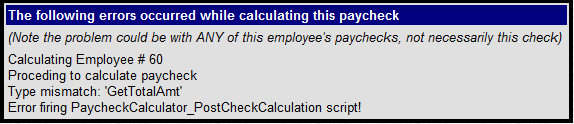
Correct any coding errors until they are eliminated.
If there are no coding errors, the result is displayed in the Earnings Section of the Check Calculation at the bottom of the Payroll Entry screen.

If the result is incorrect, adjust the script as needed until it calculates correctly.
Additional Information
If you have Message Boxes in the script, place a quote in front of the
MessageBox command. This tells the script to ignore the line,
preventing the display of the Message Box.
'MPIMessageBox "pre tax deduction amount is: " & Cstr(eecontrib)
The Message Box information will no longer be displayed.
You may also delete the Message Boxes after you have confirmed the results are correct.
Questions?
Contact your Payroll Service Provider.