Payroll: Duplicate Pay 1 Entries in Payroll Entry
Why do I have duplicate Pay Entries in Payroll Entry?
Duplicate Pay 1 entries in Payroll are typically caused by Start Payroll being run for a company in both ReadyPay Desktop (RPD) and RPO between syncs. This allows both sides to create payroll entries for the check date. Once a sync is run, the records from both Start Payroll jobs are exchanged, resulting in duplicated entries in Payroll Entry.
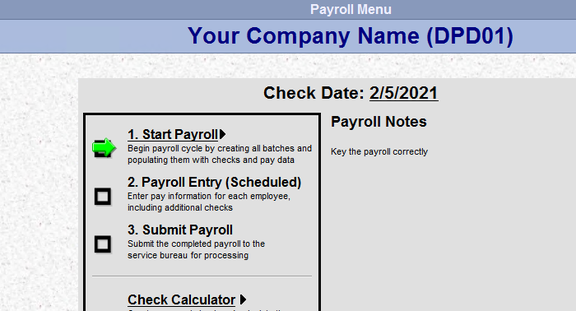
Start Payroll in RPD:
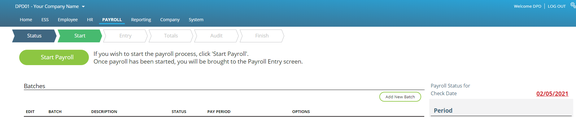
Start Payroll in RPO:
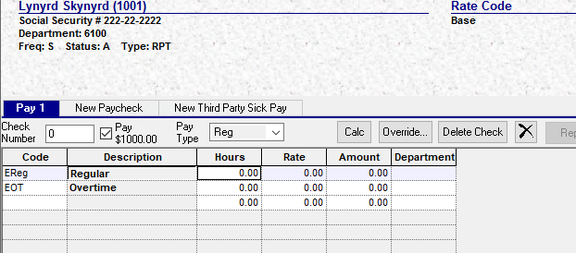
RPD Payroll Entry after Start Payroll BEFORE a sync:
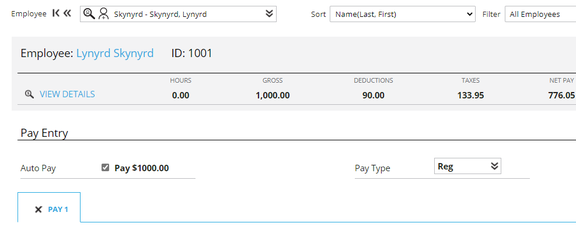
RPO Payroll Entry after Start Payroll BEFORE a sync:
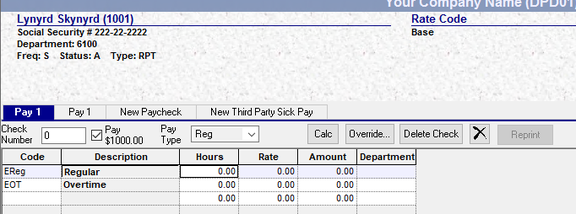
RPD Payroll Entry AFTER a sync. Note Duplicate Pay 1 entries. You cannot move between entries.
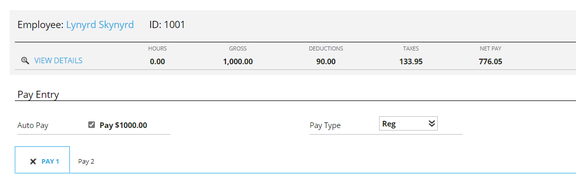
RPO Payroll Entry AFTER a sync. Note there are two payroll entries, identified by PAY1 and PAY2. You can move between entries.
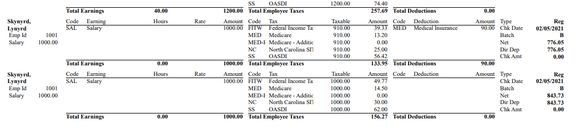
If you run a PreProcess register from either RP or RPO, the duplication is present.
Removing the Duplicates
To correct, you must remove one of the records.
If there are only a few employees, you can delete the duplicates manually.
In RPD Payroll Entry, select the Delete Check button on the left Pay 1 Entry.

Choose Yes in the Dialogue Box to delete the paycheck.

In RPO Payroll Entry, select the X next to either PAY 1 or PAY 2.

Choose OK in the Dialogue Box to delete the paycheck.

In RPO, if you delete PAY 1, PAY 2 will be renamed to PAY 1.
You can do the deletes from either RPD or RPO. You must do them all from one or the other.
Once you have deleted the duplicates, run a sync to update the other side.
A review of Payroll Entry will confirm the duplicates are gone and you can proceed with payroll processing.
What if this is a very large company?
If there are a large number of affected employees, you can use the Restart Batch option from either RPD or RPO.
Once the Restart Batch is complete, a sync must be run to update the other side.
Any data manually entered into payroll will be removed by the restart.
In RPO, go to the Start function in the toolbar. Select Restart Payroll.

In RPD, the Restart Batch function is found on the Payroll Entry tab.

If there are multiple batches, you may need to restart each of them. This depends on what each batch is used for.