System Setup: W2/1099 Form Setup
Use the W2/1099 Form Setup tab to create the setup needed to produce the various Year End Forms.
You must establish the Form Setups prior to producing any Year End forms.
The Year-End forms are forms W2, W3, 1096, 1099M, 1099NEC and 1099R.
Various printers may handle the output differently. To allow for this, this tab provides functionality to control the positioning of the data displayed on each form (if necessary).
Unless a new form layout is introduced or printers are changed, these setting typically are valid year after year.
System Setup
In order to produce the various Year End Tax Forms, a Form Setup must exist for each Tax Form type being produced.. To create the Form Setup. go the W2/1099 Form Setup Tab found under System > Setup. This tab has two Sub Tabs: Form Name/Desc and Layout.
The Form Name/Desc Sub Tab establishes the form needed to produce W2, W3,1099and 1096 Forms.
The Layout Tab controls the placement of data on the form itself
Click the New (*) Button. You are taken to a blank line on the Form Name/Desc Sub Tab

Code : Enter a code for the form such as W2Lgl,1099M, 1099NEC2Up, 1099R. You can have multiple versions of a form. For example: Employee W2s are printed on Legal Stock. The Employer copies can be setup to print on plain stock by using a different form setup. Adjust the code accordingly. W2Legal or W2ER for example.
Tax Form : Select the appropriate Tax Form from the Drop List.

Description : A more detailed description of this form such as W-2 Legal Stock or 1099 NEC 2Up
Save the record. Move to the Layout Sub Tab
Layout Sub Tab
Use this Sub Tab to define what type of stock the form will be printed on and the positioning of the data on the form.
Before entering adjustments to the Layout Sub Tab, print a sample of the form using the preprinted stock for that form type.. In many cases, the default layout settings will be compatible with your printers. If you determine adjustments are required, use the various options on the Layout Sub Tab to correct.
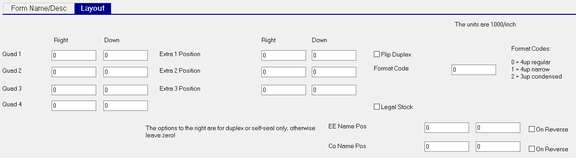
Quads 1,2 3 and 4 : A form can have up to four quadrants of data, The number of quadrants is determined by the Format Codes selected in the right of the tab. Enter values in the Right and Down columns to adjust where each quadrant appears on the form. The adjustments are in 1000/inch.
For 2up form types, adjust Quadrants 1 and 2 as needed.
For 3up forms, adjust Quadrants 1, 2 and 3.
For 4up forms, all Quadrants must be adjusted
In the Right fields, an entry of 300 moves the quadrant 0.3 inches to the right. A negative entry moves to the left.
In the Down fields, an entry of 300 moves the quadrant 0.3 inches down the page. A negative entry moves it up.
Extra 1, 2, 4, 4 Position Right and Down : (Optional) Use these functions to adjust the position the Extra 1,2 and 3 Position fields. Use the same adjustment logic as with the Quadrants.
Flip Duplex : Optional. Check if you are using forms that are printed on both sides.
Format Code : Select the code that matches the format of the stock you are using. There are different formats available for each 1099 Form.
N.B. Form 1099NEC requires using one of the 3-up Format Codes.
Legal Stock : Check if using Legal sized forms.
Use the following fields with self-seal and duplex forms
Use this section to position the employee and company name information when the form type is duplex or self-seal.
This fields control the location of the mailing information data.

Left Fields : The fields to the left in this section controls the Right Setting.
Right Fields : The fields to the right in this section controls the Down setting.
In the Right column, a positive entry moves the data to the right. A negative entry moves it to the left.
In the Down fields, a positive entry moves the data down the page. A negative entry moves it up.
On Reverse : Use when using Duplex option.
Note : Tax Forms being output to pdf may align themselves differently than forms being printed.
If so, you may need a pdf and printer version of each Tax Form setup