System Setup: Company Sets
Overview:
A Company Set is a collection of clients. Company Sets can be used to identify clients with a certain status (Active, Term, etc). Company Sets are also used to identify clients using certain services offered by the service bureau (ACA, Full Tax Service, etc).
All company codes belong to a Company Set called "All".
They are automatically added to the "All" Company Set when created.
A company cannot be removed from the "All" Company Set.
A company can be included in as many Company Sets as needed.
Creating New Company Sets
New Company Sets are created using the System > Setup > Company Sets tab.

Click the New (*) button the create a new Company Set.
Enter a brief Company Set code in the "Enter New Company Set Code" Dialogue Box. Click OK.

You are taken to the Company Set Sub Tab.
Description : A complete description of the Company Set.
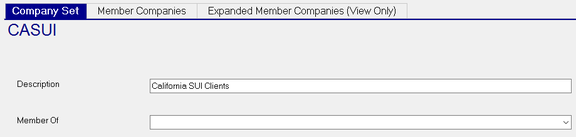
Member Of : (Optional). Used to associate one Company Set with another.

The Drop List displays a list of all the other Company Sets. Select a Company Set to make it a "Member of" the selected Company Set.
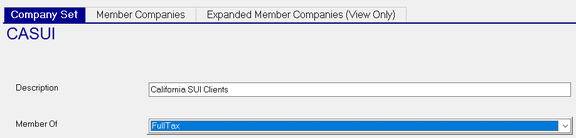
In our example, we have made CA SUI a member of the Full Tax Company Set.
The results of this manifest themselves in two places: In the Master Company Setup on the Company Sets tab and the Expanded Member Companies (View Only) Sub Tab.
In Master Company Setup > Company Sets:
If we add the Company Set CASUI to the company, the FullTax Company Set is added automatically as well.

If we delete the CASUI Company Set, the "FullTax" Company Set is removed as well.
In the Expanded Member Companies (View Only) Sub Tab, the display includes all companies from any company set list as a member of the company set being viewed.
Member Companies Sub Tab
The Member Companies Sub Tab allows for the addition to or the removal of companies from a Company Set.

New ( * ) Button : Click for a Dialogue Box called "Choose the company to add to this set". The Dialogue Box has a Drop List of all company codes. Find and select the appropriate company code and click OK.

Delete (X) Button : Highlight the line for the company you wish to delete and click the Delete Button.
No Dialogue Box or message to request to confirm the deletion is displayed. The deletion is immediate .
You cannot add or delete more than one company at a time.
Expanded Member Companies (View Only) Sub Tab

This Sub Tab displays any companies associated with the Company Set in a View Only Mode.
Entries on this sub tab can only be removed by deleting
If the "Member Of" field is not blank, the companies in this Company Set are included on the Expanded Member Companies (View Only) Sub Tab of the Company Set that this Company Set is a member of.
For information about using Company Sets at the Company level,
click here,