System Messages
System Messages can be set up to have pop-up notifications appear when a user logs into the System, just like when new versions of RPO are rolled out. Once a user clicks 'Dismiss Notification' it will no longer pop up for the user upon logging in.
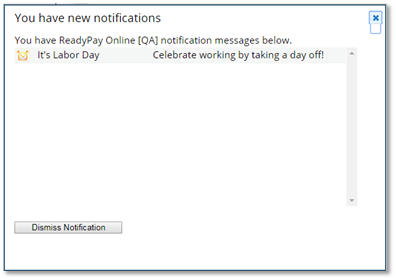
The message will, however, appear in a banner on the Home screen until the Expiration Date set on the message setup detailed below.

Setup
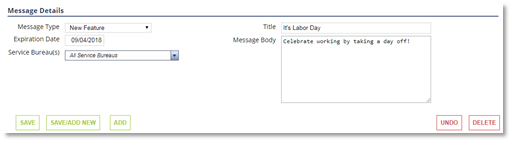
The following fields are used to build and populate System Messages and are found at System | System Messages | RPO Messages:
Message Type - Select the type of message being communicated to alter the icon that appears with the message; Holiday - displays a clock icon, Scheduled Outtage - displays a red alert icon, Product Offering/New Feature/Alert/Other - displays blue information icon
Expiration Date - Enter the date users will no longer be presented with the notification, either in pop-up or banner form
Service Bureau(s) - Select the applicable Service Bureaus whose users would see the message
Title - Enter a brief title to appear in the message (will be bolded in the banner)
Message Body - Enter the message to be provided to users
Once all fields have been completed, click SAVE to activate the message.