Master Company Setup: Transfers
Transfers are used to move money from a client to the service bureau or other third parties. Transfers are sometimes used to move funds from one client account to another.
Funds can be transferred electronically via ACH or Paper Check.
Each transfer identifies which bank account the funds should be transferred from. This is known as the Source Account.
Each transfer identifies which bank account the funds should be transferred to. This is known as the Destination Account.
If the Source Account and the Destination account are the same, there will be no transfer of funds.
If the Source Account and the Destination account are different, funds will be transferred.
In certain cases, monies may be returned to the client via the Transfers.
The money movement controlled by transfers occurs during payroll processing.
Options are available to control when the transfer is made in relation to the check date. or the due date.
Options are available that support multiple versions of the same transfer type. For example: the client wants the net amounts of paycheck from Dept 1 to be paid from Account 1000 and the net of paycheck nets Dept 2 to be paid from account 2000.
| Field Name | Information |
|---|---|
| There are seven types of Transfers | Agency, Billing, DirDep. DirDep-Ded, Paychecks, Tax and WC. |
| Agency | Manages transfers related to Agency payments created for the client. |
| Billing | Used by service bureau to collect fees for the various services provided to a client. |
| Dir Dep | Used to transfer any employee direct deposit amounts to the employee's bank account(s). |
| Dir Dep-Ded | Used to transfer employee deductions to employee accounts(s) |
| Paychecks | Controls which account the amount of the employee Net Checks is paid from. The setup of this account will be used to control the data on the printed checks. |
| Tax | Used to transfer tax liability amounts created during payroll, typically from the client to the service bureau. |
| WC | Used to transfer worker comp premiums calculated during payroll, typically from the client to the service bureau. |
Working with Transfers
Prior to working with the Transfers settings, all bank accounts to be used by the transfers must exist on the Master Company Setup > Bank Accounts Tab.
For more information on Company Bank Accounts,
click here.
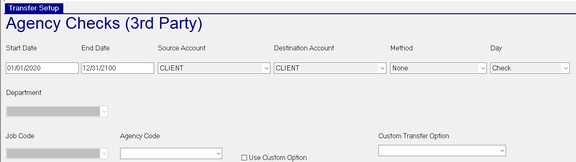
Start Date : The first day the transfer is in effect.
End Date : The last day the transfer is in effect.
If the check date of the payroll being processed falls outside of the range of the start date and end date for the transfer type,
no transfer will be generated.
Source Account : The account housing the funds for this transfer at the time the payroll processing begins. Use the provided Drop List to select the appropriate account.

Destination Account : The account where the funds for this transfer will reside after the payroll processing is completed. Use the provided Drop List to select the appropriate account. This is the same list as found with Source Account.
Method : How the transfer (if any) will be made. Select the Method from the provided Drop List.

Day : The date to be assigned to the transfer.
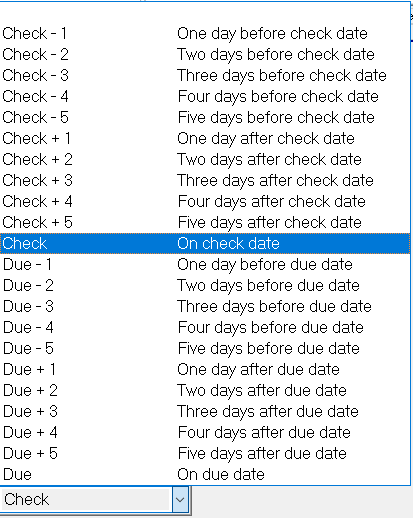
If the Source Account and the Destination Account are the same, there will be no transfer. In these cases, technically, the settings in Method and Day are not considered. It is recommended to update the Method to None to facilitate review of the transfers in the upper section of the transfers Tab
Updating Transfers for Bank Account Changes
Transfers typically need to be updated when the client and/or service bureau introduce a new bank account.
Before updating the transfers, the new bank account must be added to the Master Company Setup > Bank Accts Tab.
Next, click the "Hide inactive items" check box to ensure you are working with the active transfers.
Begin the update by selecting the transfer type to update. Next, click the New Version (Calendar Icon) in the upper right of the Transfers Tab. Depending on the type of account being added, one, some or all of the transfers may need to be updated.
This will display the "New Effective Date" Dialogue Box.

The New Effective Date field is populated with the end date of the Transfer plus one day.
Override this date with the date the transfer using the new bank account will be in effect.
For our example, we will use 01/01/2022.
The Dialogue Box is updated with instructions to add a new record effective 01/01/2022 and end date the existing transfer record one day before the new Effective date (12/31/2021).

Click on the highlighted entry to save the new transfer. This will also end date the old transfer.
Note that the new Transfer still reflects the original source and destination account information.
Update those fields as needed. In our example, we are changing the Destination Account of our Agency Transfer from Client to SBOper. We select the newly created Agency Transfer, then select SBOper from the Destination Account Drop List

The results are as follows:

Customizing Transfers using Override Options
While uncommon, there are clients with unique requirements regarding the transfer of funds.
To accommodate these needs, all Transfer Types, except Billing, have some type of override options.
Each Transfer Type has line of overrides that are reflective of the Company Structure as defined on the Company Setup > Departments Tab.


For more information about the Company Setup > Departments Tab,
click here.
The Company Structure Override options are available on all transfer types EXCEPT the Agency and Billing transfer.
Each option has a Drop List of the entries for that particular part of the company structure.

Each Transfer Type has a Job Code Override Option that is based on the data defined in Company Setup > Jobs Tab.

The Job Code Override option is available on all transfer types EXCEPT the Agency and Billing transfer.
If there is no data in Company Setup > Jobs Tab, the Job Code option is unavailable.
If the override options are used, there must be a version of the Transfer Type with no overrides.
This version acts as a catchall for omissions in the transfer override logic.
Example: The client wants checks for Department 6100 to be drawn on bank account Client1. Checks for Department 6120 are drawn on bank account Client2. All other checks are drawn on the bank account Client.
Currently, all checks are drawn from the bank account CLIENT.

To begin, click the New (*) button.
Select Paychecks from the available options. A new Paychecks Transfer is added.
Leave the Start Date and End Date as they are unless there is a reason to change them.
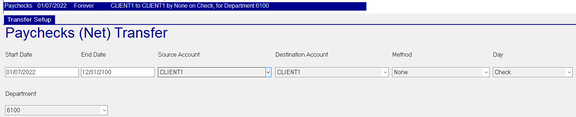
In the Source Account, we select CLIENT1 from the Drop List. We do the same for the Destination Account.
Set the Method to None using the Drop List.
There is no need to change the Day setting.
In the Department field, we select 6100 from the Drop List.
Here are the results:
Repeat the process for Client2 and Department 6120.
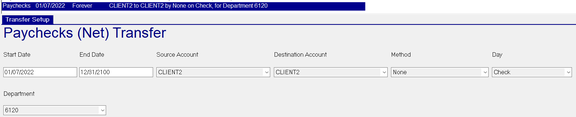
When completed, the results are as follows:

Additional Override Options for specific Transfer Types
Some Transfer Types have additional override options that are specific to that Transfer Type.
These are discussed below.

Agency Transfers
Agency Code: Drop List of all Agency Codes for the Company.
Use Custom Option: Check to be able to select from the Custom Transfer Option
Custom Transfer Option: AGENCYCHECK option is the actual amount taken from employees without any negative deductions

DirDep-Ded Transfer

Dir Dep-Ded Code is used when the client wants specific electronic employee deductions charged against a specific account.
The DirDep-Ded Code Drop List is based on entries from the Company Setup > Agencies Tab.
Paychecks Transfers

Paychecks Code is used when the client wants specific check types charged against a specific account.
The Paychecks Code Drop List is based on entries from the Company Setup > Paycheck Attributes Tab.
Tax Transfer

Tax Code: Use this option to create Tax Transfers for specific Tax Codes. The Tax Code Drop List is based on the entries from the Master Company Setup > Taxes tab.
Custom transfer Option: Blank means Tax Transfers are based on Labor Distribution amount. HomeCC will create the transfers based on the employees Home Cost Center setup (Employee Maintenance > Dept/Position tab)
WC Transfer

WC Code is used when the client wants the Work Comp premiums for specific Work Comp codes to be drawn against specific accounts.
The entries in the WC Code Drop List are based on the entries from the Company Setup > Work Comp Tab.