Master Company Setup: Payroll Verification
Payroll Verification is a tool that allows for the display of messages to the user during the input of payroll. They are generated during the Audits phase of the payroll process. These messages advise the user of potential problems in the payroll needing their attention. Examples: Paying a Termed employee, active employees with no pay, Gross Pay exceeding a certain amount.
Verifications can be set to run at the client and/or the service bureau side.
Verifications can be set to generate warnings or errors.
Warning verifications are informational and allow the user to submit the payroll.
Error verifications prevent submission of the payroll until they are resolved.
Verifications setup on the tab are specific to this client only.
Setting up a new Payroll Verification
Prior to creating Payroll Verifications, the company must be setup to run the verifications.
Go the Master Company Setup > Status. Find and click the field called Verify Payroll during processing.

This allows you to use the verifications. It also activates a number of built-in data review tests.
Click the New (*) Button. A Dialogue Box is displayed titled "Enter the sequence number of the Pre Process Verification".

The sequence number controls in which order the verifications run.
Enter a sequence number, Multiple digits are supported. Click OK.
You are moved to the Company Pre Process Verification tab.
Company Pre Process Verification Sub Tab
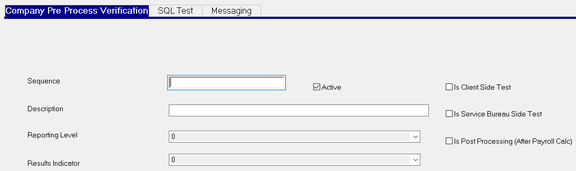
| Field Name | Information |
|---|---|
| Sequence | Will be populated with the value you entered in the Dialogue Box. |
| Description | Describe the purpose of the Verification. |
| Reporting Level | Choose the appropriate Reporting Level from the Drop List. |

In RPD, the Results Indicator will do the following:
0. Provide information in the PreProcessVerify job Progress Log but otherwise process the job and show green (Done).
1. Cause the PreProcessVerify job to process yellow (Warning) and provide information in the Progress Log – the payroll process will continue.
2. Cause the PreProcessVerify job to process red (Error) and stop the payroll process – the payroll process will not continue until the data found incorrect by the test is corrected.
In RPO, the Results Indicator will do the following when the Audits are run:
0. Nothing
1. Display the results as a Warning that the user can ignore and approve the Audit
2. Displays the results as an Error. User must correct the reported issues in order to be able to successfully run the Audit.
Results Indicator : Choose the appropriate Results Indicator from the Drop List.

0. The test should return no results (ie. looking for employees being paid with no rate).
1. The test should return results (ie. reviewing employees with prenotes).
| Field Name | Information |
|---|---|
| Is Client Side Test | Test will be run on the client side (RPO). |
| Is Service Bureau Side Test | Test will be run during the payroll processing in RPD. |
| Is Post Processing (After Payroll Calc) | Mark if the verification is to look at data once the payroll is processed. |
SQL Test Sub Tab

Enter the verification SQL in the box provided.
To access a library of the most frequently used Verification SQLs, click here.
Messaging Sub Tab
Use the Messaging Sub Tab to provide the message received when the Verification is run.
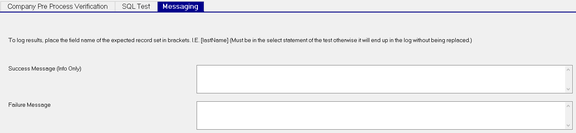
Success Message (Info Only) : U sed when Reporting Level option 0 is selected on the System Verification sub-tab.
Failure Message : Use when Levels 1 or 2 are selected on the Company Pre Process Verification Sub Tab.
Verification Results Examples
From the Audits in Payroll on RPO. Click the >> to view the details.

From the PreProcessVerify Job in the RPD Job Queue.

Additional Information
The biggest benefit of Payroll Verifications is they can prevent a client from submitting payroll from RPO with data that can cause an error in the RPD Job Queue during the payroll processing. Preventing theses errors eliminates manual intervention in the Job Queue by the Service Bureau. Best practice recommends that, In as many cases as possible, the Verification should only run on the client side and result in an error, forcing them to correct the issue before they can submit payroll.
System Wide Payroll Verifications
If there is a verification that should be applied to all companies, use the Payroll Verification tab found in
System > Setup. Verifications setup here will be applied to all companies.
The setup process is the same as described above.