Master Company Setup: Pay Rate Options
The Pay Rate Options Tab has two functions: Pay Rate Options and Rate Effective Date Options.
Pay Rate Options is used to control how Pay Rate Overrides are applied during payroll processing.
There are numerous options in the system where a rate override can exist (Earnings Codes, Job Codes, Shift Codes, Organization Levels, etc.). The Pay Rate options allow you to control which overrides are applied, and in the case of multiple overrides, the order in which they are applied.
Rate Effective Date Options is used to determine what date to use when new date driven items (ie: employee earnings, deductions, accruals, etc) are added to the system. Access to these functions is found using the Drop List on the Rate Options Tab.

Pay Rate Options Function
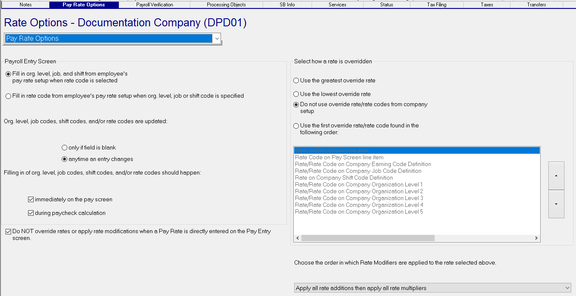
This Sub Tab is divided into two sections: "Payroll Entry Screen" and "Select how a rate is overridden".
Payroll Entry Screen section
The vast majority of clients do not have complicated steps to follow in order to properly calculate wages while applying Rate Overrides. The settings in the Payroll Entry Screen section will suffice in these cases.
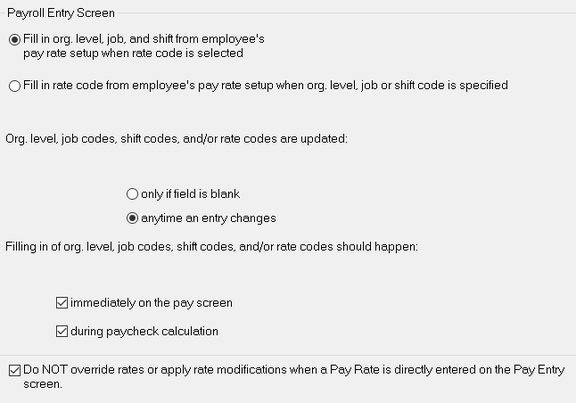
You must choose one of the following two radio button options.
Org. Level refers to the company structure as defined in the Company Setup > Departments Tab.
Job refers to information setup on the Company Setup > Jobs Tab.
Shift refers to the entries in the Shifts - Shift Codes option of the Company Setup > Misc Tab.
Fill in org. level, job, and shift from employee's pay rate setup when rate code is selected : If a rate code is entered in payroll entry, the system will review the employee's rates setup for that rate code, If there is a match, it will take any org. level, job or shift values from that rate code and apply them in payroll. any org. level, job or shift values. This is the most commonly used option.
Fill in rate Code from employee's pay rate setup when org level, job or shift code is specified : If any org. level, job or shift values is entered in payroll entry, the system will review the employee's rates setup for those org. level, job or shift values , If there is a match, it will apply the rate code of the rate with the match(s).
Org. Level, job codes, shift codes and/or rate codes are updated : You must choose on of the two radio button options.
only if field is blank
anytime an entry changes. This is the most commonly used option.
Filling in of org. level, job codes, shift codes and/or rate codes should happen :
Use this to control when the overrides are applied.
immediately on the pay screen
during paycheck calculation
Neither field is required. You can select one or both options.
Do NOT override rates or apply rate modifications when a Pay Rate is directly entered on the Pay Entry screen:
Check the box if you want to apply rate modifications when a rate is entered in the Payroll Entry grid. (Most used option)
Uncheck if no modifications should occur.
Select how a rate is overridden section
In cases where multiple rate overrides are to be considered, there may be the need to specify which of the overrides is applied and the order those overrides are applied. You must choose one of the Radio Button options.
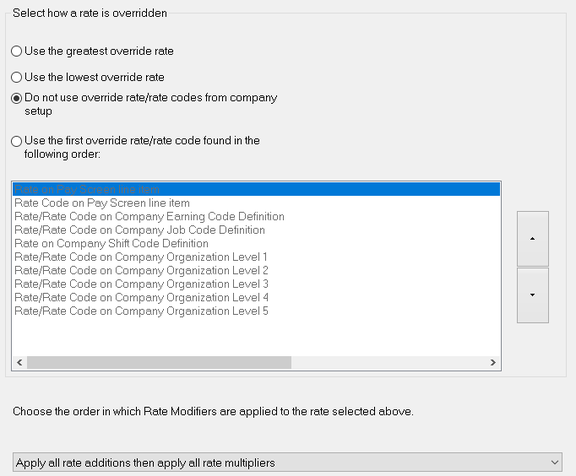
Use the greatest override rate : If multiple rate overrides are encountered, use the highest rate.
Use the lowest override rate : If multiple rate overrides are encountered, use the lowest rate.
Do not use override rate/rate codes from the company setup : No company level rate overrides are applied.
Use the first override rate/rate code found in the following order : The Grid controls the order of examination of overrides. It then will apply the first override encountered.
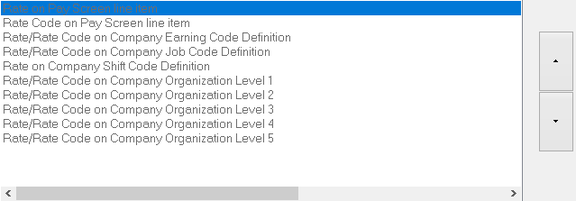
Use the Up/Down arrows to the right to change the order of examination.
Choose the in which the Rate Modifiers are applied to to the rate selected above :
This controls how the rate will be calculated.
Example: I have a Rate multiplier of 1.50 and a Rate addition of 0,20 (20 cents) The rate these will be applied to is $10.00.
If I apply the Rate multiplier first, the rate is $15.00. Adding the Rate Addition of 0.20 gives a rate of $15.20.
If I apply the Rate Addition first, the rate is $10.20. Applying the Rate Multiplier of 1.5 gives a rate of $15.30.
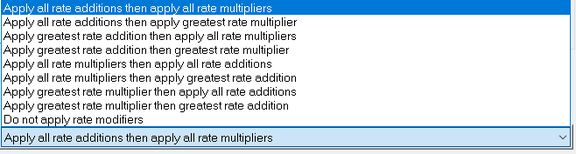
Rate additions and rate multipliers may exist in several places. They refer to these fields.

These fields are available on Company Earnings, Job Codes and Shifts.
Select the option that best applies to how your rate overrides should be applied.
Rate Effective Date Options Function
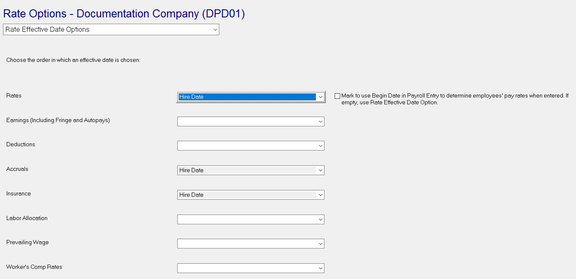
Use the Rate Effective Date Options function to control what start date is applied to various date driven entries.
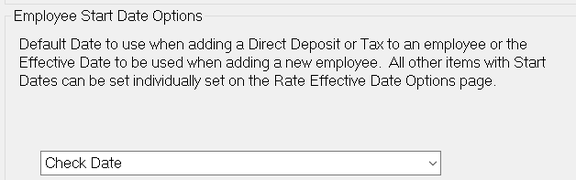
These options work in conjunction with the setting found in the Employee Start Date Options section of the Defaults Tab in Master Company Setup.
For each item on the screen, you can set the start date to be one of the following dates.

Blank is the same as Check Date.
On the Rates selection, note the check box that reads "Mark to use Begin Date in Payroll Entry to determine employees' payrates when entered. If empty, use Rate Effective Date Option. Select if appropriate.