Master Company Setup: Notes
Notes are used to assist Service Bureau personnel with various tasks related to Payroll processing and day to day activities.
They are also used to record data about the company not housed anywhere else in the software.
There is no limit to the number of notes that can be setup on an individual company.
Setting up Notes
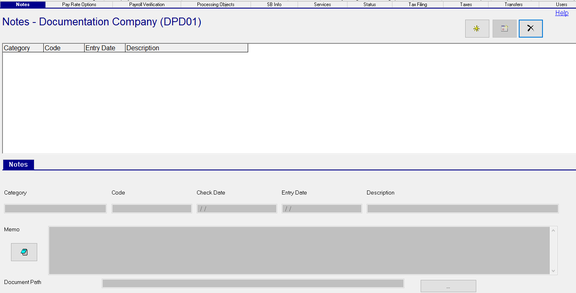
To add a new Note, click the New (*) button.
The Notes Sub Tab will become active.
| Field Name | Information |
|---|---|
| Category | Free Form field. There is no Drop List. There is no Spell Checking. See the Other Information Section for special uses of the Category field. |
| Code | Optional. If needed, enter a Code as a sunset to the Category. There is no Spell Checking. |
| Check Date | Optional. Enter the Check Date for when the Note is effective. |
| Entry Date | Optional. Typically the date when the Note ends. |
| Description | Optional. Additional Information about the Note. |
| Memo | Optional. Detailed information/instructions for the note. |
If the Memo entry is such that it extends past the viewable area, use the Note Icon to view the complete Memo.

Document Path : Path to a document relevant to the note. Any documents used in this manner must be housed in folders accessible by RPD.
Other Information
Payroll Notes
Payroll Notes can be made to display on the Start Payroll Screen to the right of the Start Payroll Check Box. These notes are different from those that may be displayed in the Payroll Notes Box at the bottom of the Start Payroll tab.
To add a note to the Start Payroll screen, follow these instructions.
Click the New (*) button.
| Field Name | Information |
|---|---|
| Category | The Category must be Payroll. This is not optional. |
| Code | Enter a value in the Code Field. This is not optional but is user discretionary. |
| Check Date | Enter the Check Date where the Note is effective. The note will not be displayed on the Start Payroll screen for check dates prior to this date. |
| Entry Date | Enter the date when the note expires. The note will not be displayed on Start Payroll screen for check dates after this date. |
| Description | Optional. Additional Information about the Note. |
| Memo | Detailed information/instructions for the note. The note on the Start Payroll Screen is displayed exactly as it is entered in this field. |
Please note the following sample of a Payroll Note and its use in Payroll.
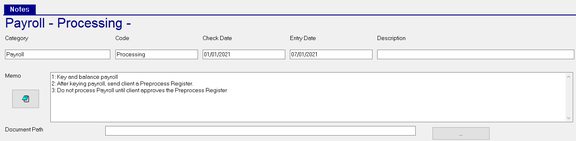
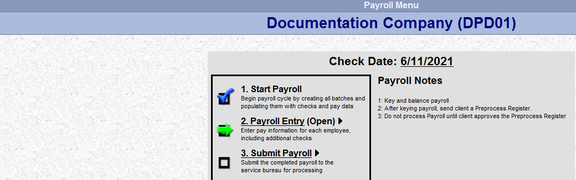
In Payroll, a header called Payroll Notes is added to the screen. The Note (or notes) is displayed below the Payroll Notes header.
On Check Dates where multiple Payroll Notes are in effect, the notes are displayed in order by the Check Date Field value (lowest to high)
On Check Dates where there are no effective Notes. the Payroll Notes header is not displayed.
Processing Hold Notes
On the Master Company Setup > Status Tab, there is a section called Processing Holds

Companies are put on Hold to prevent their payroll from processing until the reason for the hold is addressed.
Regardless of which Hold Category is selected, the system will display a Hold Reason Dialogue Box. The Hold Reason is preceded by the name of the Hold being placed. In our example, Billing Hold has been chosen.

Enter instructions about the Hold in the Note field.
Enter a check date in the Expected Resolution Date. This is the check date when the Hold reason should be resolved.
Click OK.
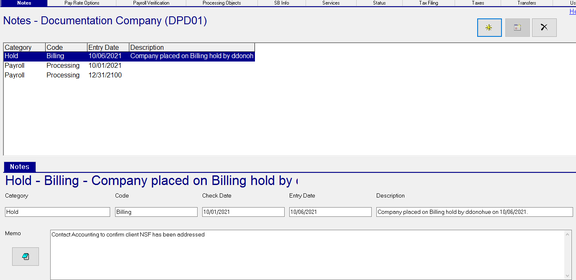
An entry will be added to the Notes Tab with a Category of Hold.
The Code field is filled with the type of Hold.
The Check Date is populated with the value from the Expected Resolution Date.
The Entry Date is the actual date the hold was placed
Description is populated by the system. It indicates who placed the hold and when
Note is populated with the information entered in the Note field of the Hold Reason dialogue.
When a payroll is submitted for a company on hold, the SubmitPayroll Job with return an error. The text in the Note field from the Hold Setup will be displayed in the Summary, Progress Log and Error Log sub tabs of the Submit Payroll job. The note should be instructive to the people handling payroll processing so they know how to address the Hold.

When removing the Hold, a Dialogue Box titled "ReadyPay Payroll" will display.

Click Yes to remove the note associated with this Hold from the Notes Tab.
Click No to leave the note on the Notes tab.
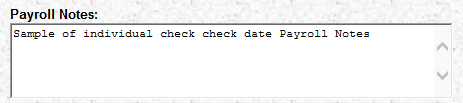
Individual Check Date Payroll Notes
On the Start Payroll Screen below the Start Payroll/Payroll Entry/Submit Payroll Box, there is a section also called Payroll Notes. This area is used to store Payroll Notes that apply to a specific check date.
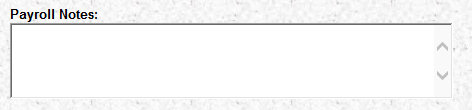
To create a note for display on a specific check date, go to Calendar tab in Company Setup.
Select the appropriate check date in the calendar.
Go to the Note Sub Tab.
Enter the note in the text box.

Go to the Payroll Module and select the Check Date with the note.