Master Company Setup: Form1099 Setup
Form 1099 is one of several forms used to prepare and file a return to report various types of income other than wages, salaries and tips.
The Form 1099 Setup Tab is used to control what data in displayed on and included on Form(s) 1099 produced through RPD. This includes Forms 1099-NEC, 1099-M and 1099-R.
Form 1099-NEC was reintroduced by the IRS in 2020. It is used to report non employee Compensation. .
Form 1099-M is used to report miscellaneous income such as rents, prizes and awards.
Form 1099-R is used to report distributions from annuities, profit-sharing plans, retirement plans, IRAs, pensions, etc.
Adding a Form 1099 Setup.
Before performing the actual setup of a Form Setup, the following should be addressed.
1. Earnings Code for the 1099 Type. Go to Company Setup > Earnings. Create an earnings code for the 1099 Type.
There is an Earn Type for 1099-M and 1099-NEC. Assign this on the appropriate code.
There is no Earn Type for 1099-R.
For information on Earn Types, click here.
2. Code Group for the 1099 Earnings. (Optional). If multiple earnings codes are to be considered by a Form 1099, a Code Group is needed. Go to Company Setup > Code Groups to create a new Code Group.
For information on creating a Code Group, click here .
If initially, a single earn code is needed for a Form 1099 setup, a Code Group is not needed. However, using a code group for a Form 1099 setup makes ongoing maintenance simpler. If a new earn code is added that needs to be considered by a Form 1099, you simply maintain the code group. If the Code Group doesn't exist, one must be created AND maintenance performed on the Form 1099 Setup to consider the new Code Group instead of the earnings code.
3. Company Set from Forms 1099. (Optional). Having a Form 1099 Company Set is helpful when creating the 1099 Forms during the Year End Process. There is a Company Set filtering option in the Year End module used to isolate the appropriate companies to expedite processing.
For information on creating up a Company Set, click here .
After addressing the steps above, go to Master Company Setup > Form 1099 Setup.
The Form 1099 Setup Tab is comprised of two sub tabs. They are called Form 1099 Setup and Code Mapping Table.
Click the New (*) button.
A Dialogue Box titled "Select a tax form to map" will be displayed.
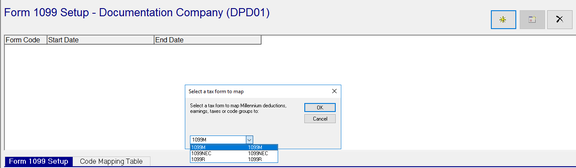
Use the Drop List in the Dialogue Box to select the appropriate Form 1099 to set up. The options for each 1099 form vary.
Form1099M Setup
Select 1099M from the Drop List. Click OK.
You are moved to the Form 1099 Setup Sub Tab.
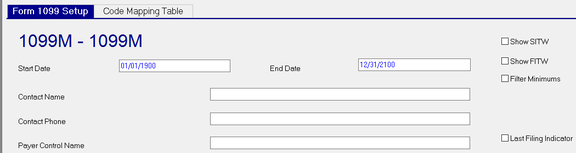
| Field Name | Information |
|---|---|
| Start Date | Enter a Start Date or use the system provided default Start Date. |
| End Date | Enter an End Date or use the system provided default End Date. |
| Contact Name | Contact at the company for Form 1099M. The Contact Name cannot exceed 12 characters. |

| Field Name | Information |
|---|---|
| Contact Phone | Phone number for the Contact. Field is not formatted as a phone number field. |
| Payer Control Name | Is a sequence of characters derived from the taxpayers name used by the IRS in processing the return filed by the tax payer. The Payer Control Name is created by the IRS when a company files for an Employer Identification Number |
| Show SITW | Mark the check box to display any State Income Tax withheld for the 1099 Form. |
| Show FITW | Mark the check box to d isplay any Federal Income tax withheld for the 1099 Form. |
Note
: If the box to Show FITW or SITW is not marked, and state wages are to be reported or state income tax is withheld, this data will not be included in the 1099 mag media file(s) including files created using the Combined Federal / State Filing feature.
Filter Minimums : Check this box to prevent the creation of the 1099 Form if the amount is less than the Federal Minimum amount for reporting Form 1099.
Last Filing Indicator : Check this box if this is the Last Filing for this company.
After completing the Form 1099 Setup Sub Tab, save the record. You must save the record prior to populating the Code Mapping Sub Tab. Move to the Code Mapping Table Sub Tab. Click the New(*) Button, The "Add 1099 Fields to Map" Dialogue Box will be displayed. There are twelve options in the Dialogue Box. All are checked. Deselect any you do not need to map. Click OK.

The Code Mapping Table Sub Tab is now populated with a line for each item checked in the previous step.
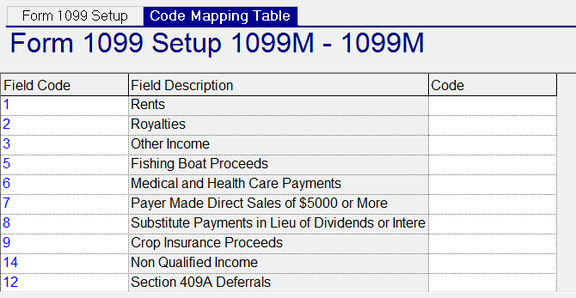
For each line, use the Code Field Drop List to assign the Earnings or Deduction code associated with the Line. The Drop list contains (in this order) all deduction, earnings and tax codes for this company. The last items listed are any code groups setup on the company.
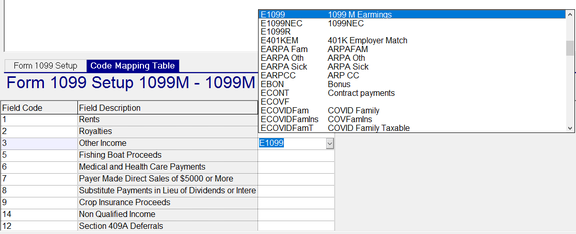
For line items with no associated code to map, leave the Code blank or delete the line with the Delete (X) Button.
Save the Code Mapping Table record.
Form1099NEC Setup
Select 1099NEC from the Drop List. Click OK.
You are moved to the Form 1099 Setup Sub Tab. The fields on this Sub Tab are the same as Form 1099M.
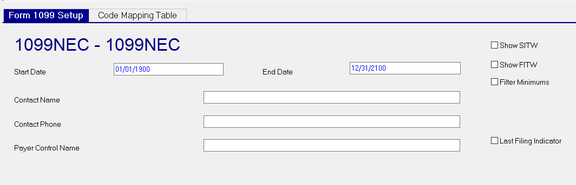
| Field Name | Information |
|---|---|
| Start Date | Enter a Start Date or use the system provided default Start Date. |
| End Date | Enter an End Date or use the system provided default End Date. |
| Contact Name | Contact at the company for Form 1099NEC. The Contact Name cannot exceed 12 characters. |
| Field Name | Information |
|---|---|
| Contact Phone | Phone number for the Contact. Field is not formatted as a phone number field. |
| Payer Control Name | Is a sequence of characters derived from the taxpayers name used by the IRS in processing the return filed by the tax payer. The Payer Control Name is created by the IRS when a company files for an Employer Identification Number |
| Show SITW | Mark the check box to display any State Income Tax withheld for the 1099 Form |
| Show FITW | Mark the check box to d isplay any Federal Income tax withheld for the 1099 Form |
| Filter Minimums | Check this box to prevent the creation of the 1099 Form if the amount is less than the Federal Minimum amount for reporting Form 1099. |
| Last Filing Indicator | Check this box if this is the Last Filing for this company. |
After completing the Form 1099 Setup Sub Tab, save the record. You must save the record prior to populating the Code Mapping Sub Tab. Move to the Code Mapping Table Sub Tab. Click the New(*) Button, The "Add 1099 Fields to Map" Dialogue Box will be displayed. There is one prechecked option in the Box called "NonEmployee" Compensation. Click OK.
The Code Mapping Table Sub Tab is now populated with a line for each item checked in the previous step.
Use the Code Field Drop Arrow to assign the proper code for the 1099-NEC.
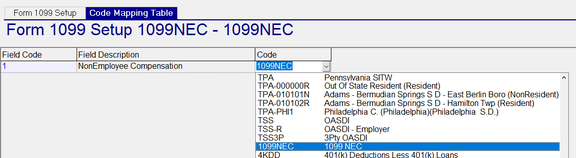
Save the Code Mapping Table record.
Form1099REC Setup
Select 1099R from the Drop List. Click OK.
You are moved to the Form 1099 Setup Sub Tab.
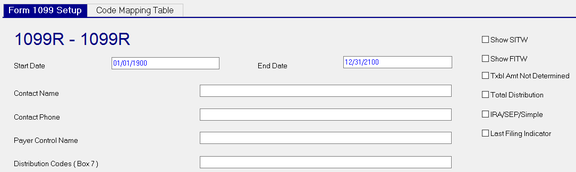
| Field Name | Information |
|---|---|
| Start Date | Enter a Start Date or use the system provided default Start Date. |
| End Date | Enter an End Date or use the system provided default End Date. |
| Contact Name | Contact at the company for Form 1099NEC. The Contact Name cannot exceed 12 characters. |
Contact Phone : Phone number for the Contact. Field is not formatted as a phone number field.
Payer Control Name : Is a sequence of characters derived from the taxpayers name used by the IRS in processing the return filed by the tax payer. Payer Control Name is created by the IRS when a company files for an Employer Identification Number.
Distribution Codes (Box 7) ; Enter all applicable Distribution Codes. See IRS documentation for valid entries. Distribution Codes can be omitted here and entered on the individual. See the Compliance Tab found in Employee Maintenance.
| Field Name | Information |
|---|---|
| Show SITW | Mark the check box to display any State Income Tax withheld for the 1099 Form. |
| Show FITW | Mark the check box to d isplay any Federal Income tax withheld for the 1099 Form. |
| Txbl Amt Not Determined | Check if the taxable amount of this 1099r cannot be determined. |
| Total Distribution | Used to indicate a zero balance has been reached in the reporting year |
| IRA/SEP/Simple | Check to indicate the distribution is not from a 401(k). |
| Last Filing Indicator | Check this box if this is the Last Filing for this individual. |
After completing the Form 1099 Setup Sub Tab, save the record. You must save the record prior to populating the Code Mapping Sub Tab. Move to the Code Mapping Table Sub Tab. Click the New(*) Button, The "Add 1099 Fields to Map" Dialogue Box will be displayed. There are eight options in the Dialogue Box. All are checked.
For line items with no associated code to map, leave the Code blank or delete the line with the Delete (X) Button.
Save the Code Mapping Table record.

For each line, use the Code Field's Drop List to assign the Earnings or Deduction code associated with the Line. The Drop list contains (in this order) all deduction, earnings and tax codes for this company. The last items listed are any code groups setup on the company.
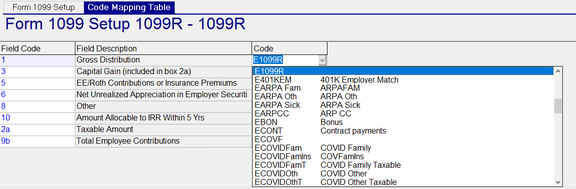
Once complete, save the record.
System Setup
In order to produce the various 1099 Forms, a system-level 1099 Form Setup must exist. To create the Form Setup. go the W2/1099 Form Setup Tab found under System > Setup. This tab has two Sub Tabs: Form Name/Desc and Layout.
The Form Name/Desc Sub Tab establishes the form needed to produce a specific 1099 Form
The Layout Tab controls the placement of data on the form itself.
For detailed instructions on the system setup of 1099 Forms,
click here .