Master Company Setup: Filters
Filters are used to facilitate navigation in both the Payroll and Employee Modules.
Filters are company specific and can be based on employee and payroll data.
When used, the employees displayed to the user are those allowed by the filter.
For example, when working in employee maintenance, using an Active Employees filter eliminates Termed employees from the list of displayed employees.. In Payroll, a Batch filter will include only employees in the Payroll Batch. Samples of these filters are found below in the Samples of Commonly Used Filters section.
A company can have as many or few filters as needed dependent on the client's requirements. Best practices recommends that any filter needed for all companies be setup in the Template Company codes used when implementing new business.
To access to the existing filter options for a company, you must select an employee in either the Payroll or Employee Modules. Find the Filter Drop List on the Tool Bar.

Click the Drop Arrow to display the available filters for this company.
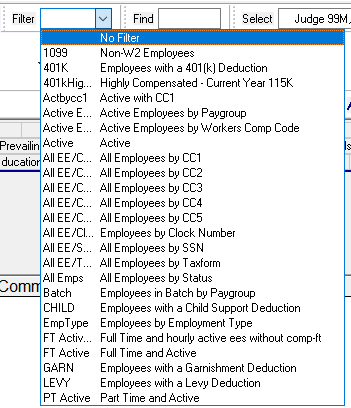
Select the filter that is appropriate for the task at hand. The employees who meet the filter criteria will be included in the Drop Arrow in the Select field. In my sample, the filter is for ALL employees whose Tax Form setting is like 1099.

If you receive the following error after you select a specific filter, you need to determine if the filter statement is invalid or if no employees meet the filter's criteria. If you update an employee to meet the filter criteria, you will get a Select list containing that employee, meaning the filter is valid. If the error persists, there is an issue with the setup of the filter itself.

Adding New Filters
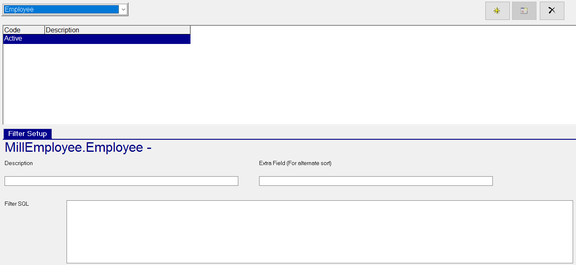
To add a new filter, click the New(*) Button.
The Dialogue Box called "Enter new code" is displayed.

Enter a name for the filter and Click OK. Codes can be numbers, letters and a combination of the two. Special characters are allowed. For our example, we will use "Active".
Description : Optional but recommended. While optional, entering a detailed explanation of the Filter is recommended. In our example, our entry is "Active Employees".
The assigned code and Description are displayed when accessing the Filter Drop Arrow from the Tool Bar.

Extra Field (For alternate sort) : Optional but recommended. Entries in this field are displayed to the left in the Select entries returned by the selected filter. The display is sorted by the data from the the Extra Field (For alternate sort) field. In our example, we will use "empstatus". Employees are sorted by name within empstatus.

Using cc1 will sort the employees returned by the filter by their cc1 value.
The Extra Field (For alternate sort) function supports data strings to expand what fields are displayed by the filter and the sort order in which they are listed.
To create an expanded sort, list each field and separate them with some type of separator entry. I am using '-' in my example .
You cannot simply list multiple fields or the filter will report an error when attempting to save.
You can use '/' for a slash or ' ' for a space between the fields in the Extra Field (For alternate sort). Entering a comma between the fields will display them as comma separated.
For example, I want my filter to sort by employee id within empstatus. Expanding the entry in the " Extra Field (For alternate sort)" field to read taxform + '-' + einfo.id changes the sort accordingly.
If we want a sort of CC2 within cc1, use cc1 + '-' + cc2.
Filter SQL : Optional. Enter the sql statement that is applicable to your filter.
Our sample filter is called Active - Active Employees. Without a Filter SQL statement, all employees will be returned regardless of their empstatus value. To correct this, we enter a FilterSQL statement of empstatus <> 'T' . The filter can also read empstatus = 'A'.
Once you have completed the filter, save it. If there is any issue with the Extra Field (For alternate sort) and/or the Filter SQL, an error will be displayed. It does not provide information as to what is wrong, just that it is invalid in some way.

Once you have completed an error free setup of a new filter, test it in either the Employee Maintenance or Payroll modules. While there may be no errors in the setup, the filtering itself may include or exclude employee incorrectly. If necessary, adjust the Filter setup.
Samples of Commonly Used Filters
Code Description Extra Field (For alternate sort) Filter SQL
Active Active EEs empstatus einfo.empstatus = 'a'
Batch Employees in Payroll Batch empstatus param(inbatch)
1099 Non-W2 EEs taxform ISNULL(taxForm,'') <> 'W2'
Dept1000 EEs in CC1 of 1000 cc1 cc1 = '1000'
Advanced Filter SQL Statements
The system does support advanced instructions in the Filter SQL field.
Example 1: Filter to include active employees with an employee type type of FT
emptype in (select empType from CEmpType where baseEmpType = 'FT') and empStatus in (select status from CEmpStatus where statusType = 'A')
For active Part Time employees, change the entry for baseEmpType = 'FT' to baseEmpType = 'PT'
Example2: Filter active employees in multiple cc1s
cc1 in ('6100', '6120', '6110') and empstatus = 'A'
To filter by employees not meeting those cc1 values, change the Filter SQL to
cc1 not in ('6100', '6120', '6110') and empstatus = 'A'
Example 3: Our filter needs to include any active employee in the Payroll Batch that has an active deduction where the deduction code is like CHILD (Child, Child2, ChildSup, etc). Here is the Filter SQL.
param(inbatch)
and
einfo.id in (
select distinct d.id
from eded d
left outer join cinfo c
on d.co = c.co
left outer join ccalendar cc
on c.co = cc.co
and c.calendarid = cc.calendarid
where d.co = einfo.co
and d.startdate <= cc.checkDate
and d.endDate >= cc.checkDate
and (dcode LIKE 'CHILD%')
Change the value in the line and (dcode LIKE 'CHILD%') to read
and (dcode LIKE 'GARN%') the filter will deductions where the code is like GARN.
Use and (dcode LIKE '401k%') for deductions where the code is like 401(k).