Master Company Setup: Demographics
The Demographics page is used to record various information about the company and its primary contacts.
The name and address information from this page is used throughout the system on reports, checks and tax returns, unless overridden by options in the areas of the system that control those items.
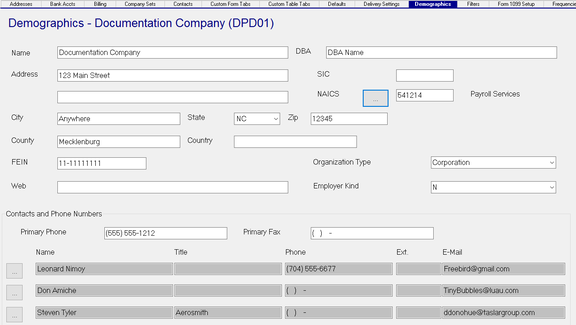
| Field Name | Information |
|---|---|
| Name | Name of the company |
| DBA | Doing Business As Name. This overrides the name on reports, checks and tax returns. |
| Address | Address of the company. |
| Add'l Address | Additional address information for the company. |
| City | City of the company. |
| State | State of the company. |
| Zip | Zip Code of the Company. |
| County | Optional. County where company is located. |
| Country | Optional. Country where company is located. |
| FEIN | Federal Employer Identification Number. |
| Web | Optional. Web address for the company. |
| SIC | Standard Industrial Classification Code for the company. |
| NAICS | Optional. North American Industrial Classification System Code. |
To assign an NAICS Code, click in the Blue Box with the three dots in it.

This will display a Dialogue Box called Find / Select NAICS Code
If you know the NAICS code, enter it in the box called NAICS Code. For example, The code for Payroll Services is 541214

Check the box next to the code to select for this company.
NAICS Codes are organized into nine groups by industry. If you enter a 1 in the NAICS code field, you will see all NAICS codes for Agriculture. 2 is for mining, 3 is Manufacturing and so on
If you do not know the code, you can use the above numeric search method.
Another way to find the NAICS code is to type the industry name in the field called NAICS Title. If you enter Man in the field, a number of codes are returned. If you expand the filter and enter Manu, the list of codes shrinks.
Once you locate the proper NAICS code, click on it to complete the population of the field.
Organization Type : Optional. If applicable, chose the Organization Type from the Drop List

Employer Kind : Optional. Select the Employer Kind from the options in the Drop List.

Contacts and Phone Numbers Section
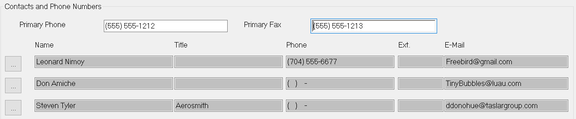
Use this section to identify the primary Phone and Fax numbers for the client.

Primary Phone : Optional. Main phone number for this company
Primary Fax : Main Fax Number for this company
Use this section to identify the primary contact(s) for the client.

Before you can add Contacts to this section, they must be setup on the Master Company Setup > Contacts Tab.
For instructions on setting up and maintaining contacts, click here .
While you can have limitless contacts on the Contacts tab, you can only add three primary contacts to this page.
The top entry is for Contact 1. Those below are for Contact 2 and Contact 3.

Click the box with the three dots to see a list of Contacts from the Contacts tab. The Select Primary Contact Dialogue Box will be displayed. The text in the box indicates which contact number (1,2,3) you are working with. Use the Drop list to select the contact you wish to assign. Click OK.


The Name, Title, Phone, Ext and E-Mail fields are filled in from the Contact information.
For the Phone field:
If the contact has no business number but does have a cell number, the cell number is used.
If the contact has both numbers on file, the business number will be used.
Once a Contact is assigned, that contact is removed from the available contacts Drop List.
There are a number of standard reports that will display contact information. The default is typically Contact 1.
Review the Additional Formulas tab of the report you are running to see if it has an option to override the contact chosen for the report.