Master Company Setup: Defaults
The Defaults tab allows the user to preset certain values in the software, reducing the time required to perform the associated functions. The are seven distinct sections on the tab, each aimed at the function(s) associated with the name of the section. While the settings are company code specific, they are typically values that are used across all companies at the discretion of the service bureau.
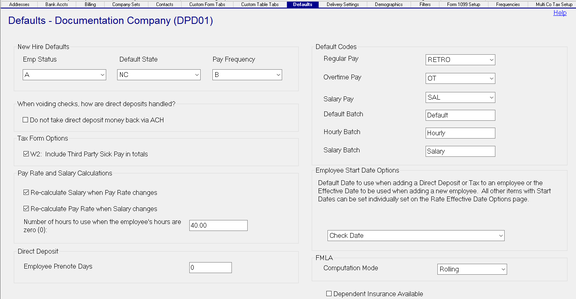
New Hire Defaults Section
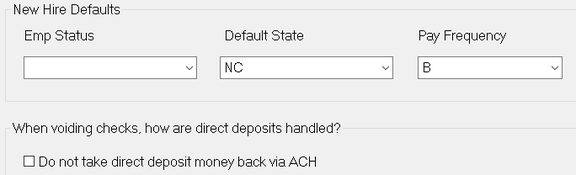
Values in the section are used to prepopulates those fields in the New Hire process
| Field Name | Information |
|---|---|
| Emp Status | This field is blank in a newly created company code. As typically new hires are Active when initially entered in the system, the recommended entry is A - Active. |
| Default State | This value is assigned based on the data entered in the Default State field when the company code is created. It cannot be set to none (Blank). The Drop List is expanded when a new state tax code is added in Master Company Setup > Taxes. If the company pays is multi-state, frequencies, set this field to the most used state. |
| Pay Frequency | This value is assigned based on the data entered in the Pay Frequency when the company code is created. It cannot be set to none (Blank). The Drop List contains all Frequency Codes set up on the Master Company Setup > Frequencies Tab. If the company pays employees using multiple frequencies, set this field to the most used frequency. |
When voiding checks, how are direct deposits handled?: Use the Check Box titled "Do not take direct deposit money back via ACH" to determine how the system handles a direct deposit(s) on a voided check. If the box is not checked, the system will attempt to collect the direct deposit amount(s) back from the employee. Checking the box is recommended.
Tax Form Options Section

Use with companies that have a Third Party Administrator for sick pay.
Checking the box forces the inclusion of Third Party Sick Pay data on the employee W2.
If the Third Party issues Year End documents for the sick pay they have issued, do not check the box.
Pay Rate and Salary Calculations Section
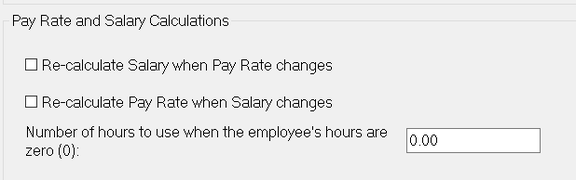
Re-calculate Salary when Pay Rate Changes : If checked, when a new Pay Rate is entered for an employee, the system will calculate the salary amount and update the salary field for that rate code.
Re-calculate Pay Rate when Salary : If checked, when a new Salary amount is entered for an employee, the system will calculate the hourly rate and update the rate field for that rate code.
Number of hours to use when the employee's hours are zero (0) : This field works in conjunction with the previous two Re-calculate fields if they are active . When adding a new rate or salary to an employee (Employee Maintenance > Rates), the value in this field is used to calculate the new rate/ salary if the Def Hours field on the employee is set to zero (0.00).
Direct Deposit Section

Employee Prenote Days : For a new employee Direct Deposit record, enter the number of calendar days for the prenote period. Typically this will match the number of days in the pay period (Weekly = 7, Bi-Weekly = 14, etc.). If no prenote is desired, set this field to zero (0).
Default Codes Section

| Field Name | Information |
|---|---|
| Regular Pay | Use the Drop List to select the earnings code that is identified as Regular Pay. |
| Overtime Pay | Use the Drop List to select the earnings code that is identified as Overtime Pay. |
| Salary Pay | Use the Drop List to select the earnings code that is identified as Salary Pay. If there is no earnings code specific to Salary, use the earnings code from Regular. |
Default Batch. Hourly Batch and Salary Batch: These fields are no longer used in RPD.
Employee Start Date Options Section
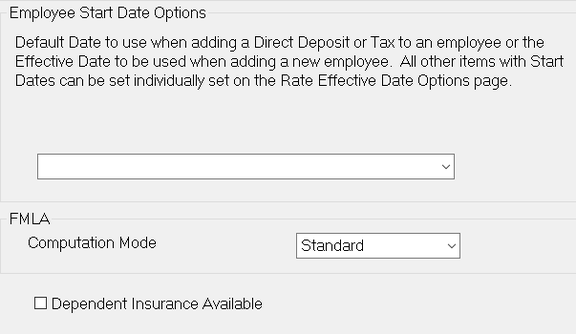
Default Date Drop List: Sets Direct Deposit Start dates for existing employees or all start dates on a new hire.

Overrides to these settings (except for Direct Deposit Start Dates) are available using the Rate Effective Date Options. These are found at Mater Company Setup > Pay Rate Options Tab. Click the Drop List on the left side of the tab and choose "Rate Effective Date Options".
FMLA Section

Computation Mode : Use the Drop List to select the Computation Mode

Dependent Insurance Available: Check if Dependent Insurance is available