Master Company Setup: Custom Table Tabs
The Custom Table Tab provides the ability to create custom tables where a user can enter, edit or view the data. The tables can contain company or employee data. The tables are similar to Excel in their appearance.
There are three Custom Tables Tab Types: Custom, Log and Query.
Custom Tab : Supports building a tab to display data not already included in the existing tabs in RPD/RPO.

Log Tab : Used to display data from the Log Changes Table. Data displayed on this type of tab cannot be edited.
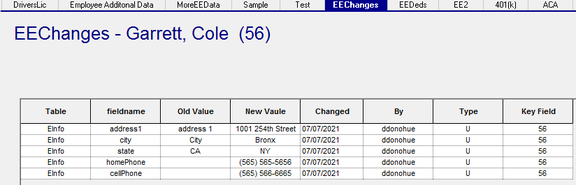
Query Tab : Display data from tables other than Log Changes. Data displayed on this type of tab cannot be edited.

Creating a Custom Table Tab
Go to Master Company Setup > Custom Table Tabs.
Click the New (*) Button.
Name : Enter the name for your Custom Tab. Click OK.
Note: This is what the Tab will be called in the system. Be brief.

Tab Setup Sub Tab
Name : from above. The Name can be change if needed.
Description : Informational. The description is not displayed on the actual tab

Tab Leve l: Options are Company and Employee. Company Tabs are displayed in the Company Setup Section. Employee Tabs are displayed in Employee Maintenance.

Tab Type : Options are Custom, Log and Query.
Tab Types are discussed in detail later in this article.
| Field Name | Information |
|---|---|
| Load Data on Demand | If checked, a Refresh option is displayed on the Custom Table Tab. If not checked, the data for the tab is always displayed. |
| Read Only | Mark the Check Box to set tab to Read Only |
| Allow Web Access | Mark the Check Box to add the tab to RPO. |
After completing this tab, save the record. Otherwise, the remaining Sub Tabs cannot be populated.
Query Sub Tab
Dependent on the selected Tab Type, the Query Sub Tab will be populated or left blank.
Custom Tab Types: A query will be inserted.
If the Tab Level is Company, the query will read:
SELECT * FROM CCustomTableData WHERE tabId = [paramTabId] AND CO = [paramCo]
If the Tab Level is Employee, the query will read:
SELECT * FROM ECustomTableData WHERE tabId = [paramTabId] AND CO = [paramCo] AND id = [paramEmployeeId]
Log Tab Types : A query will be inserted.
If the Tab Level is Company, the query will read:
SELECT * FROM LOGCHANGES WHERE CO = [paramCo]
If the Tab Level is Employee, the query will read:
SELECT * FROM LOGCHANGES WHERE CO = [paramCo] AND id = [paramEmployeeId]
Important: The Log Tab Type queries can/should be changed to limit the data they report.
If not, they will report ALL data from Log Changes for the company or the employee.
Query Tab Types : No query is inserted. A query must be written to display the desired Company or Employee Data.
Be sure to use the following param commands to limit data to the specific company and, if applicable, the employee
CO = [paramCo]
id = [paramEmployeeId]
Table: Only apples to Log Tab Types . Works in conjunction with the Fields option. Enter LogChanges in the Table Field
Fields: Only applies to Log Tab Types . An entry in the Table field will allow a display of the available fields in that table.

Use the Check Box(s) to identify the fields you want included in the Custom Tab.
| Field Name | Information |
|---|---|
| Map Fields | Click this button to populate the Field Maps Sub Tab. The Field Map Sub Tab will contain a list of fields based on the sql statement in the Query Tab. |
| Log Tab Types only | If you used the "Include ?" option in the Fields function, only the fields you included will be listed. |
| Field Maps Sub Tab | Use this Sub Tab to format how the fields will be displayed on the Custom Table Tab |
| Field Name | Name of the field from the table indicated in the sql on the Query Sub Tab. |
| Type | Indicates the data type of the particular field. Do not change this field unless working with a Custom Tab Type. |
| Hide Col | Use the Check Box to hide this field on the Custom Table Tab. |
Read Only ?: Click to mark this field Read Only.
Column Header : Controls the Column Header on the Custom Table Tab. If Blank, the Field Name value is the Column Header.
Field Options : Only available with Field Type Combo Box.
Click Options to display the "Add / Modify Combo Box Entries" Dialogue Box.
Use the New(*) button to add entries. Enter a Value and Description
Change existing entries by typing in the appropriate field
Use the Delete (X) button to remove unwanted entries.

Additional Information regarding Custom Tab Types
As noted above, a query will be inserted in the Query Sub Tab when the Tab Type is Custom
If the Tab Level is Company, the query will read:
SELECT * FROM CCustomTableData WHERE tabId = [paramTabId] AND CO = [paramCo]
If the Tab Level is Employee, the query will read:
SELECT * FROM ECustomTableData WHERE tabId = [paramTabId] AND CO = [paramCo] AND id = [paramEmployeeId]
There are two tables in the database used to build a custom table
CCustomTableData and ECustomTableData.
These tables consist of the following fields:
| Field Name | Information |
|---|---|
| Co | Company Code. |
| Id | Employee Id. Only present in ECustomTableData table when Tab Level is Employee. |
| TableID | System generated guidfield (unique identifier) |
| TabName | Name assigned when creating the table |
| RowId | System Generated guidfield (unique identifier) |
| Text1 - Text10 | 255 Character Text Field |
| LargeText1 - LargeText5 | Provides an Editable field(s) where a large amount of text data can be entered (1000 characters) |
| Date1 - Date10 | Date/Time field(s) |
| Boo1 - Boo5 | No/Yes Boolean Field(s) |
| Combo1 - Combo5 | Use when a Drop List is needed for the field. See instructions above. |
| Numeric1 - Numeric7 | 19,9 numeric field(s). Supports decimals |
| Int1 - Int5 | Whole Number field(s). No decimals. |
| Phone1 - Phone3 | 20 position field(s) formatted for telephone numbers |
| LastChange | Date of last change |
| LastChangeUser | User who made the cahnge |
Manipulating Data on Custom Tab Type
There are two ways to control what fields are included/displayed on a Custom Tab Type.
1. Use the default query created when you save the Custom Table Tab setup
If this is a Custom Tab Type with a Company Tab Level, the system inserts this query.
SELECT * FROM CCustomTableData WHERE tabId = [paramTabId] AND CO = [paramCo]
If this is a Custom Tab Type with an Employee Tab Level, the system inserts this query.
SELECT * FROM ECustomTableData WHERE tabId = [paramTabId] AND CO = [paramCo] AND id = [paramEmployeeId]
These queries will add all the fields in the CCustomTableData/ECustomTableData to the Field Maps Sub Tab.
Exclude those fields you do not need by checking the HideCol check box on each field needing to be suppressed.
2. Build a select query that include the specific fields you need from the CCustomTableData/ECustomTableData tables.
SELECT co,id,tabid,rowid,text1,phone1,int1,combo1,bool1
FROM ECustomTableData WHERE tabId = [paramTabId] AND CO = [paramCo] AND id = [paramEmployeeId]
After you insert your query, click the Map Fields option.
Next, go to the Field Maps sub tab and edit the columns as needed.
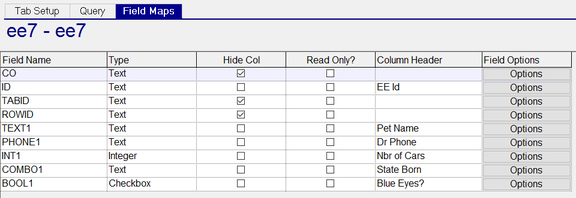
Once the Setup is complete, save it then, use the Publish option on the Tab Setup SubTab.
Since the tab and the included fields are not read only, new data can be added and existing updated.
If you make changes to the setup, you need to Unpublish, save the setup then Publish again.