Master Company Setup: Addresses
Clients may require that various payroll, tax and Human Resources related items be sent to specific locations and parties.
The Address Tab allows for storage of a number of addresses needed to meet the distribution needs of the client.
A number of predefined Address Types are provided for this purpose.
Currently, all addresses on this tab are informational. They are not used by the functions associated with the address type.
Setup
Add a new address to the Addresses tab by clicking the New (*) button.
The Select Address Type box will display.
Choose the appropriate address type from the Drop List. For our example, we will choose "Year End". Click OK.

Your cursor will be moved to the Description field on the Address Sub Tab.
Address Sub Tab
The system will prepopulate the address, city, state and zip fields from Master Company Setup > Demographics Tab.

| Field Name | Information |
|---|---|
| Description | Enter a description that describes the purpose of the address. |
| Name | Prepopulated with the Company Name from the Master Company Setup > Demographics Tab. Update accordingly. |
| Address | Prepopulated with the Address from the Master Company Setup > Demographics Tab. This applies to the second address line as well. Update accordingly. |
| City | City is prepopulated with the City from the Master Company Setup > Demographics Tab. Update accordingly. |
| State | Prepopulated with the State from the Master Company Setup > Demographics Tab. Update accordingly. |
| Zip | Prepopulated with the Zip from the Master Company Setup > Demographics Tab. Update accordingly. |
Use as Override : Function is to be determined.
| Field Name | Information |
|---|---|
| Default Address | Function is to be determined. |
| Start Date | Prepopulated with the Check Date from the Payroll Module. Change as appropriate. |
| End Date | Prepopulated with 12/31/2100. Change as appropriate. |
| Phone/Fax/County | Not copied from the Master Company Setup > Demographics Tab. Update accordingly. |
| Sync Changes With Send To Companies | Changes will be sent to the companies defined on the Send To Information Sub Tab. Currently a future enhancement. |
Contact Information Sub Tab
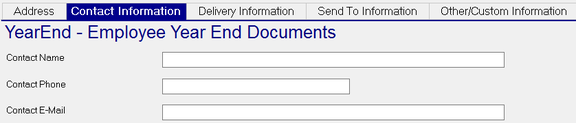
No information from Master Company Setup > Demographics or Contacts tabs is copied to this Sub Tab
Enter information for Contact Name, Phone and E-Mail as needed.
Delivery Information Sub Tab
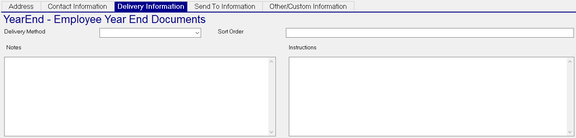
Delivery Method : Choose the appropriate Delivery Method from the Drop List.

| Field Name | Information |
|---|---|
| Sort Order | Enter sort order if applicable |
| Notes | Free form notes regarding the delivery |
| Instructions | Instructions regarding the delivery |
To add a new Delivery Method, go to System > Setup . Misc tab.
Scroll through the Drop List and select "Delivery Services" from the options.
Click the New (*) button. In the "Enter Code for new Delivery Service", enter the code for the Delivery Service. Click OK.

The Description field will be populated with the same data as the code you entered. Update as needed.
Send To Information Sub Tab
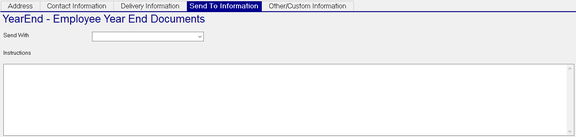
Send With : If the package associated with this delivery should go with another company's shipment,
select the company from the Drop List
Instructions : Free form test for providing additional instructions regarding the delivery
Other/Custom Information Sub Tab
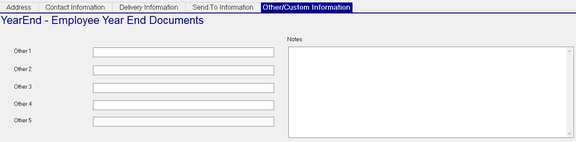
Other1 > Other 5: Custom identifiers for this delivery
Notes: Additional information about this delivery
Reporting on Addresses Tab Information
There are no Taslar provided canned Crystal Reports available for Addresses reporting.
There is no Report Writer Report Type for Addresses.
Reporting can be done via SQL query. The data is housed in the CAddress database table.
A simple query like this will display the contents of the table
select co, description, addresstype, address1, address2, city, state, zip, contactname, contactemail, startdate, enddate from caddress
order by co
To see specific address types, add a where clause that specifies the address type and looks for end dates greater than today,
select co, description, addresstype, address1, address2, city, state, zip, contactname, contactemail, startdate, enddate from caddress
where addresstype = 'Billing' and enddate > GetDate()
order by co