Employee: Payroll Data | Pay Rates
The Pay Rates tab houses all of the rates currently in use for an employee.
It is also used to display a rates history for the employee.
Additionally, this tab houses the employee's Pay Frequency, their Default Hours (if used) and indication if the employee has a locked in Salary or number of hours per pay period.
Each employee must have a Base Rate. Employees can have a number of other rates as well. The number of rates an employee can have on file is limited to the number of Rate Codes set up on the company.
For information about Company Level Rate Codes.
click here.
Working with the Pay Rates Tab
Below the Employee's Name is the Pay Settings section of the tab.

| Field Name | Information |
|---|---|
| Frequency | Use the Drop List to select the frequency with which the employee is paid. (W, B, S, M, Q) |
| Base Auto Pay | Optional. Use this option if the employee is to be paid the number of hours entered in Def Hours or the Salary amount found on the active Base Rate. Select Hours or Salary from the Drop List as appropriate. Leave blank if there is to be no automatic paying of hours or a salary. |
| Annual Salary | This field is populated by the system. |

When accessing this tab, any active Rates are displayed in the upper section of the tab. Select an entry in the top section to display the various fields settings on that rate.
Tab Buttons

Display aa pay rates: Use to display inactive pay rates. A Pay Rate is inactive if the current check date in the Payroll Module is before the Start Date or after the End Date of the individual Pay Rate.

Add (*) : Use to add a new Pay Rate to the employee.

Save | Save/Add New | Pay Rate Change | Cancel : These buttons (except Save/Add new) become active when the process of adding a new Pay Rate is initiated. Save : Saves the newly created Pay Rate.
| Field Name | Information |
|---|---|
| Save/Add New | Not active on this tab |
| Pay Rate Change | Use to changes an existing rate |
| Cancel | Click the Cancel Button to undo the entry you are working on. |
Delete Button

Delete an existing Pay Rate from the tab. You can delete Pay Rates that have already been used in payroll history. If a historical view of the employee's Pay Rates is required, do not delete obsolete Pay Rates. Use the End Date field to control when they are no longer used. Use the "Display all pay rates" check box to display inactive Pay Rates.
Adding a new Rate to an employee
Click the Add Button.
The Add New Pay Rate box is displayed.
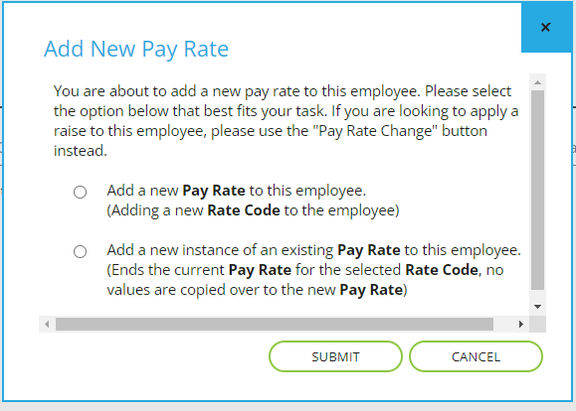
Select the "Add a new Pay Rate to this employee. Adding a new Rate Code to the employee)" Radio Button to add a new Rate Code to the employee
Select the "Add a new instance of an existing Pay Rate to this employee (Ends the current Pay Rate for the selected Rate Code. No values are copied over to the new Pay Rate)" Radio Button to change an existing Rate.
After selecting the appropriate Radio Button, select the Submit Button.

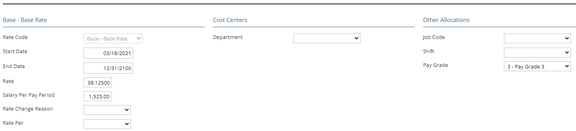
Note: The space above Rate Code is blank. Once the new rate is saved, the space is filled with the Rate Code and Rate Name.

| Field Name | Information |
|---|---|
| Rate Code | Use the Drop List to select the Rate Code to be used. |
| Start Date | Start Date of the new Rate. Defaults to the check date in the Payroll Section. |
| End Date | End Date of the new Rate: Default is 12/31/2100. |
| Rate | The Rate amount |
| Salary Per Pay Period | The Salary amount for the Pay Period. |
| Rate Change Reason | Optional. Use the Drop List to select the reason for the Rate Change. |
The Rate Change reasons are housed in the Rate Change Codes option on the Miscellaneous Tab under Company Setup.
For information about the setup of Rate Change Codes,
click here.
Rate Per : Optional. Use the Drop List to select the Rate Per value.
Cost Centers Section
Use this section to assign this rate to a specific Cost Center using the Drop List option or options provided.
Use of this section is optional.
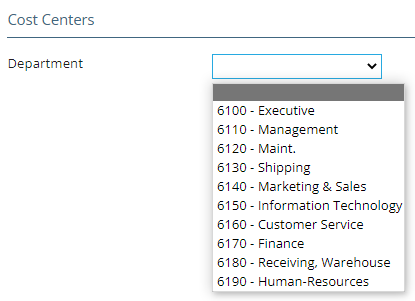
Some companies will have multiple Cost Center options.

These are based on the company structure as defined on the Departments Tab in Company Setup

Other Allocations Section
Use this section to assign additional overrides to this rate. Use of this section is optional.

Job Code: Use the Drop List to assign a Job Code to this rate.

Shift : Use the Drop List to assign a Shift code to this rate.

Pay Grade : Use the Drop List to assign a Pay grade to this rate.

Changing an existing Pay Rate/Salary
There are two ways to change an existing pay rate
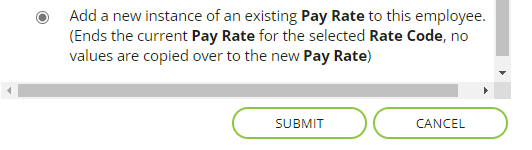
1. Click the Add button and select the "Add new instance of an existing Pay Rate " option.
Select a Rate Code value
Enter a Start Date for the new Rate
Leave the End Date at 12/31/2100
Enter a new Rate value OR a new Salary per Pay Period value.
Select a Rate Change Reason and Rate Per value. Both are optional.
Click the Save Button.
A message is displayed at the top of the screen regarding the old rate.

A new Rate is added, and the old Rate is ended one day prior to the Start Date of the new rate.
2. Select the rate to be changed and select the Pay Rate Change button
The following box is displayed.
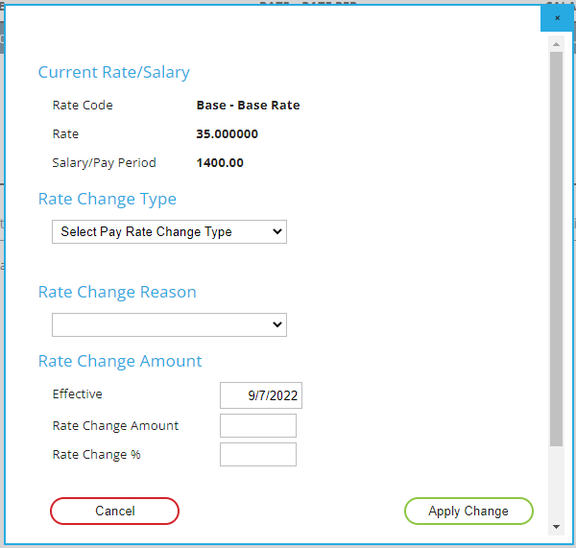
Rate Change Type : Select the appropriate entry from the Drop List.

Rate Change Reason : Select the appropriate entry from the Drop List.

| Field Name | Information |
|---|---|
| Rate Change Amount | Use the provided fields to adjust the existing rate amount |
| Effective | Effective Date of the Rate |
| Hourly Change Amount | The numeric amount of the rate change (ie: 0.57) |
Hourly Change % : The value of the changes as a percentage of the existing rate.
An entry in the Hourly Change Amount will result in the appropriate Hourly Change % being calculated.
An entry in the Hourly Change % will result in the appropriate Hourly Change Amount being calculated.
Click the Apply Change button then the Save button to save the new Rate entry.