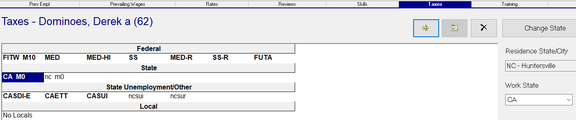
Employee Maintenance: Taxes
The Employee Taxes tab is used to manage which taxes, if any, an employee is subject to. This includes both employee and employer taxes. There are certain businesses, due to the nature of their business, that are exempt from various Federal, state and local taxes.
On certain employee taxes, options are provided that allow the employee to determine how the tax is withheld.
Other employee taxes, such as Medicare, Social Security and others, have predefined taxation rules and the employee is taxed according to those rules. The taxation of employer taxes is controlled by logic in the ReadyPay system.
A tax code cannot be added to an employee unless it first exists at the company level.
For information about the setup of Company Taxes,
click here.
Employee taxes are initially added to the employee when the individual is added to the system as a Tax Form W2 employee using the New Employee process. This is done in the Tax Information section of the New Hire screen.
For Onboarding clients, the process for adding a new employee and setting up their taxes is different than what is noted here. Once added, the information found in the "Working with Employee taxes" is applicable.
Please note: the following example is based on the test company used when building this document. The options in the Tax Information section will vary from copany to company based on their Company Level tax setup.

Selecting one of the other tax form options (1099M, 1099NEC, 1099R and OTHER) will not, by design, add employee level taxes during the New Hire process.

In the New Employee setup, tax withholding options are entered for FITW, SITW and Local tax codes, if any.
Tab Buttons
Housed in the upper right of the tab are the New, New Version, Delete and Change State buttons.

New (*): Use to add a new Tax Code to the employee.
New Version (Calendar Icon); Not available on this tab.
Delete ( X ): Use to delete an existing tax code'
Change State : Use this wizard when an employee is moving from one state to another.
Working with Employee Taxes
The following is an illustration the upper section of the Employee Taxes tab. It can vary from employee to employee.
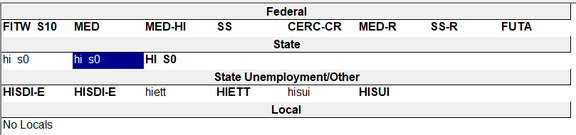
The upper section of the tab is divided into four sections: Federal, State, State Unemployment/Other and Local.
Each section contains the tax codes in place for the employee for those taxing authorities.
A Tax code in ALL CAPS and BOLD is active for the current check date in Payroll.

Tax Codes in lower case and not bold are inactive for the current check date in Payroll.

The lower section of the tab contains all the fields that control how the tax will be calculated on the employee.
Select a code in the upper section to review those settings. The Tax Sub Tab is highlighted.
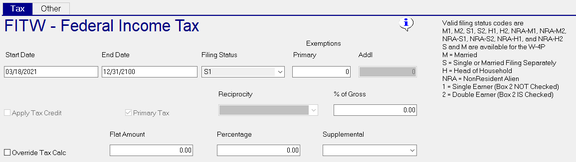
Start Date : Effective Date for the tax code.
End Date : End date for the tax code.

| Field Name | Information |
|---|---|
| Filing Status | Use the Drop List to select the appropriate filing status for this tax for the employee. The options in the Drop List are specific to the tax code being worker with. To the right of the fields in the grid, there is a text box offering a brief description of the various filing statuses.  |
| Exemptions | use the Primary and Addl fields to enter the exemptions being claimed for this tax. Dependent on the tax code, the Primary and Addl fields may both be active, the Primary field is active and Addl is not active, or neither is active. These fields are no longer used with the FITW tax code. |
| Apply Tax Credit | Not used |
| Primary Tax | Indicates if the tax code is the Primary Tax Code in a Reciprocity scenario. |
| Reciprocity | Use the Drop List to determine how the tax is calculated in a Reciprocity scenario. |

% of Gross : Calculate the tax amount as a percentage of gross
| Field Name | Information |
|---|---|
| Override Tax Calc | Checking this box forces an override of the tax calculation. This field can be used with the Flat Amount and Percentage fields to force the tax withheld to a specific amount. If this box is checked and no entries are made in the Flat Amount and Percentage fields, NO TAX IS WITHHELD. |
| Flat Amount | Adds this amount to the calculated tax. If Override Tax Calc is checked, this amount is the amount withheld. |
| Percentage | Calculates tax as a percentage of the taxable wages for the tax. Adds this Percentage to the calculated tax. If Override Tax Calc is checked, the percentage amount is the amount withheld. |

Supplemental : Used when employee is paid with a Supplemental Check Type. Use the Drop List to select the appropriate option.
For more information on Supplemental Check Types,
click here.
Other Sub Tab
The Other Sub Tab was added to the Employee Taxes tab to address changes to Federal Tax calculations introduced in 2020.
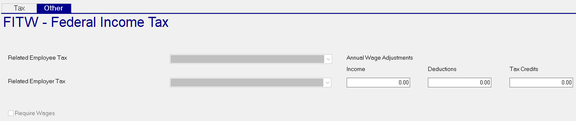
| Field Name | Information |
|---|---|
| Related Employee Tax | Future use |
| Related Employer Tax | Future Use |
| Income | Based on values from Box 4(a) of Form W-4 |
| Deductions | Based on values from Box 4(b) from Form W-4. |
| Tax Credits | Based on values from Step 3 of Form W-4. |
For more information regarding the changes to the FITW tax calculation introduced in 2020,
click here.
Adding a new Tax Code to an employee
Click the new button. A box containing all the active company level tax codes for the company will be displayed.
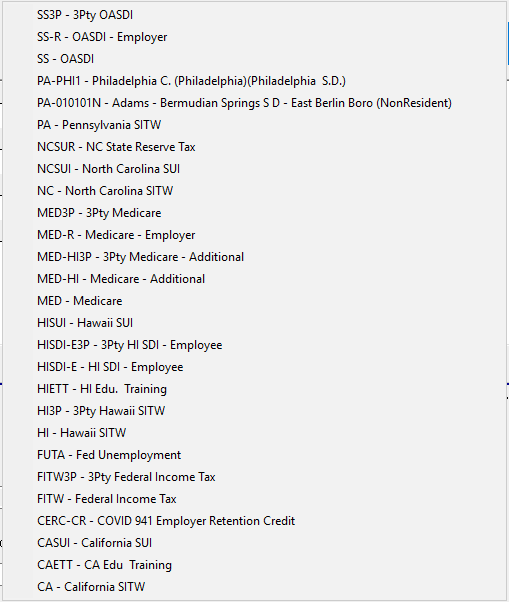
Select the code to add. (In our example, we selected PA-PHI1). The code is added to the employee in the section appropriate to the tax code. The code will be in lower case and not capitalized, appearing to be inactive.

Save the tax code. The code is switched to CAPS and BOLD, indicating the tax code is active.

Update the settings in the lower section of the tab as needed.
Deleting an existing tax code
Use the Delete ( X ) Button to remove an existing tax code.
Select the tax code to be deleted and click the Delete ( X ) Button.
The following ReadPay Payroll box will be displayed.

Select Yes to delete or No to cancel the Delete Request.
Change State
Use the Change State Button to address the taxes of an employee moving from one state to another.
Click the button to initiate the Change State Wizard.
The Change State box will display. Use the provided Drop List to select the state where the employee is moving.
(The Drop List contains all active SITW code for the company).
For our example. our employee is moving from North Carolina to California.

Click OK to move to the next step in the wizard titled "Which Taxes No Longer Apply?"

This step in the wizard addresses UI codes for the employee.
While rare. you can uncheck any tax code needing to remain active on the employee.
Click OK
The "Other Taxes Which Might Apply" Box is displayed.

The UI Tax Codes for the destination state are displayed.
Uncheck any codes not needed to be added to the employee.
Next the Wizard addresses the Employee's Work State.
Work State is critical to the calculation of Work Comp information.

Click Yes to update the Work State, unless there are COMPELLING reasons not to.
This completes the Change State Wizard function.
Note: I in the following example, the tax codes for California are active (CAPS and BOLDED).
Their Start Dates are set to the check date in the Payroll Module (05/28/2021)
The Tax Code for North Carolina are inactive (lower case and not capped).
Their end dates are one day before the start dates of the newly added taxes.
The Work State is set to CA.