Employee Maintenance: Position History
The Position History tab is used to enter future dated values for a number of employee level fields.
The fields available for updating are found on the Dept/Position and Status/Type/Payroll Class Sub Tabs.
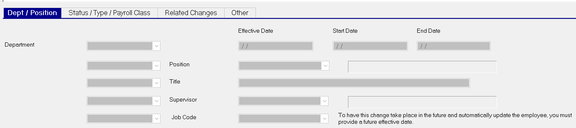
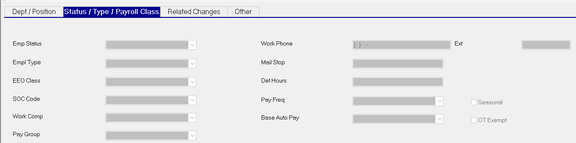
When an employee is changing positions, the information related to the change is typically known prior to the effective date. Position History allows the input of the new Information when received by entering a date for when the new information is effective.
Example: Today is 06/14/2022. I receive notification that Sample Employee is moving to a new position, effective 06/15/2022. I input information about the new position today (06/14/22) but enter an effective date of 06/15/2022.
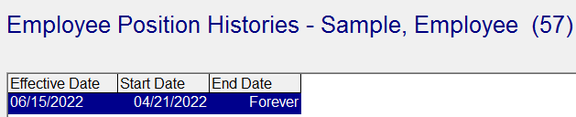
The entries made on the Dept / Position and Status / Type/ Payroll Class Sub Tabs are listed on the Related Changes Sub Tab.
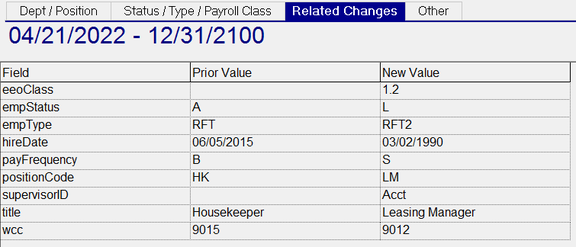
On the Effective Date (06/15/2022), the data from the Position History record effective 06/14/2020 will be applied to the various fields that are to be changed per the Position History record.
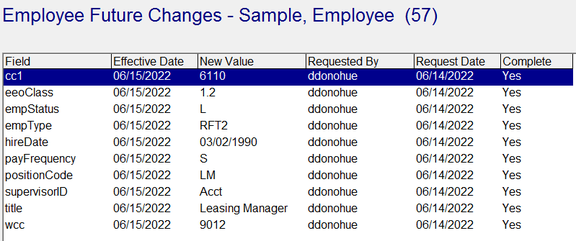
The fields being updated by the Employee Position History record are also recorded on the Employee Future Changes Tab.
Entering a new Position Change Record .
Click the New (*) Button
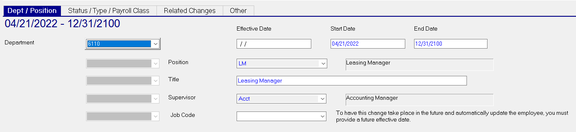
The Cursor moves to the first field on the left-hand side of the Dept/Position Sub Tab.
The number of fields and their titles are determined by the company structure found on the Departments tab under Company Setup.
The field (or fields) are prepopulated with the current values from the employee's Dept/Position tab.
| Field Name | Information |
|---|---|
| Department | Select the new value, if applicable, using the provided Drop List. The employee may not be changing their department. |
| Effective Date | Effective Date of the change |
| Start Date | Prepopulated with the check date from payroll. |
| End Date | Prepopulated with a default of 12/31/2100. |
The following fields are prepopulated with the existing values (if any) for the following fields.
| Field Name | Information |
|---|---|
| Position | Use the Drop List to select the new Position Code. |
| Title | Enter the new Title |
| Supervisor | Use the Drop List to select the new Supervisor Code |
| Job Code | Use the Drop List to select the new Job Code |
Move to the Status / Type/ Payroll Class Sub Tab
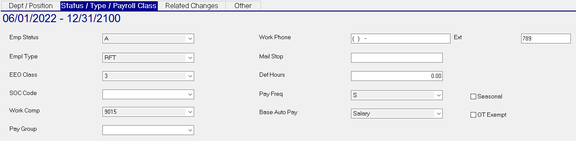
Status / Type/ Payroll Class Sub Tab
The fields on this Sub Tab are prepopulated with the current values of those fields. The listed fields are found on multiple employee tabs and organized here for ease of access.
| Field Name | Information |
|---|---|
| Emp Status | Use the Drop List to select the new employee status. |
| Empl Type | Use the Drop List to select the new Employee Type. |
| EEO Class | Use the Drop List to select the new EEO Class. |
| SOC Code | Use the Drop List to select the new SOC Code |
| Work Code | Use the Drop List to select the new Workers Comp Code. |
| Pay Group | Use the Drop List to select the new Pay Group. |
| Work Phone | Enter the employee's work phone. |
| Ext | Enter the Extension number of the employee's work phone |
| Mail Stop | Enter the employee's Mail Stop. |
| Def Hours | Enter the employee's Default Hours |
| Pay Freq | Use the Drop List to select the new Pay Frequency. |
| Base Auto Pay | Use the Drop List to select the new Base Auto Pay Code. |
| Seasonal | Check if new position is Seasonal. |
| OT Exempt | Check if new position is overtime exempt. |
The vast majority of fields on this tab are optional and can be left blank.
For those where the value isn't changing, simply ignore them.
Related Changes Sub Tab
The Related Changes Sub Tab contains a list of the fields being changed by this Position History record.

The changes noted on the Related Changes Sub Tab are also added to the Future Changes Tab.
The Complete Column is blank.
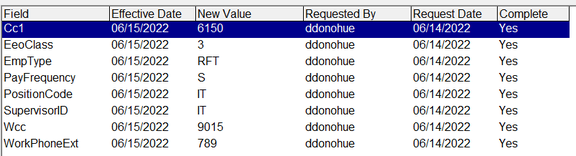
Once the Effective Date is met, the Complete Field is set to Yes.
The Position History tab displays a history of employee changes related to a change in Position by the employee.
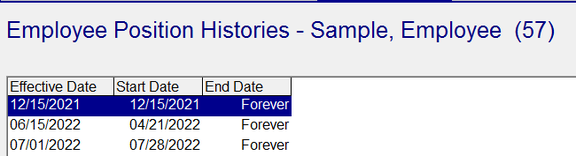
To see the changes for each entry, choose the date from the upper section of the screen.
Go to the Related Changes Sub Tab to view the changes.