Employee Maintenance: Pay History
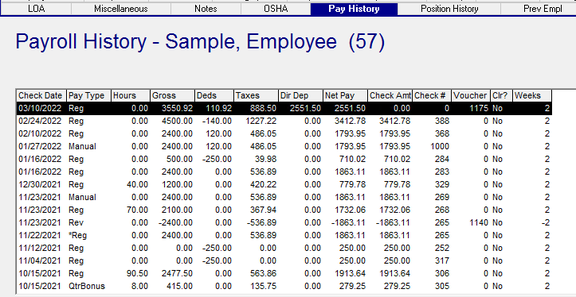
The Payroll Hist tab houses entries for each paycheck an employee have received during the course of their employment.
The entries are stored in descending check date order (most recent on top).
The entries are never purged. This allows access to paycheck history from as far back as the employee has been paid,
The tab is divided into three sections.
The upper section lists all the individual paychecks.
Totals Bar
The lower section is populated with detailed information about the selected paychecks.
Explanation of the Payroll History Grid (Upper Section)
| Field Name | Information |
|---|---|
| Check Date | Check Date of the entry |
| Pay Type | Paycheck Attribute used with this paycheck. |
| Hours | Total Hours paid on this check |
| Gross | Gross Earnings of the check. |
| Deds | Total of employee deductions |
| Taxes | Total of employee taxes |
| Dir Dep | Total of any direct deposits issued in the paycheck. |
| Net Pay | Entire Net of the check. |
| Check Amt | Total amount if a paper check is produced. May not be equal to Net Pay |
Check # : Check Number of paper check
Voucher : If the paycheck is a full net direct deposit, the voucher number of the pay.
Clr? : Is paycheck cleared
Weeks: Number of weeks worked.
Explanation of the Payroll History Grid (Lower Section)
The lower section contains totals of the fields found in the upper section grid.
The Totals Bar divides the tab between details and the recap sections and contains totals based on the selected entries.

Below the Totals Bar is a recap of all the entries that make up the values in the Total Bar.

The recap provides totals for:
Earnings Hours and Amount
Deductions
| Field Name | Information |
|---|---|
| Taxes | Employee Taxable, Capped and Amount |
| Direct Deposits | Transit ABA, Account Number and Amount |
| Employer | Taxable and Capped Wages |
Using the options on the Payroll History Tab

View an individual check: Scroll through the entries on the tab and select the particular entry you wish to view. The lower section will display totals for the selected check. 
View multiple checks displayed in order on the screen: Holding down the Shift key, select an individual entry. Next scroll down or up to highlight the consecutive items you wish to summarize. The lower section will display totals for all the selected checks.

Viewing multiple checks randomly positioned on the screen: Holding down the Ctrl key, select the individual checks you want to summarize. The lower section will display totals for all the selected checks.

View multiple checks with the preset options buttons
There are five preset Date Range selection buttons on the right side of the screen.

The top five Date Range buttons are for checks in the current calendar year.
The bottom button is for all checks in the previous year.
The year noted in all the buttons is based on the current system date. Our sample was produced in 2022.
Each year on January 1, the year values on all the buttons are changed.
So, on January 1, 2023, the top five buttons will reference 2023. The bottom button will switch to 2022.
Viewing check data from years prior to the current or the previous year must be done with the options discussed above.
Compensation Detail Report option
Another way to view checks is through the Compensation Detail Report option.
Highlight a check or checks from the grid, then select the Printer Icon found on the left of the screen.

This will launch the Compensation Detail Report.
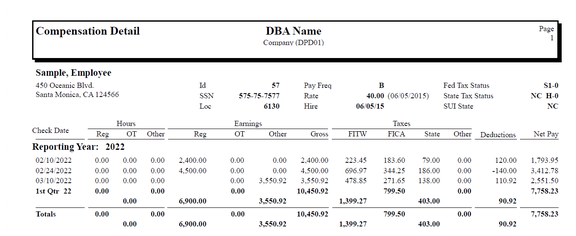
The Compensation Detail Report option is especially helpful when needing to view data for multiple checks.
Using the View Check / Void and Void/Reissue buttons

View Check : Select an individual check and then the View Check button.
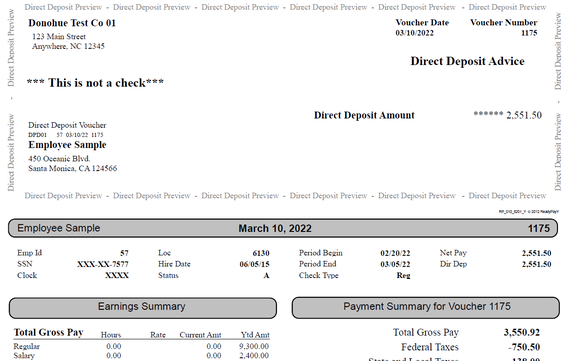
A pdf of the check will be displayed.
If desired, you may print the previewed check by using the Print options in the PDF viewer.
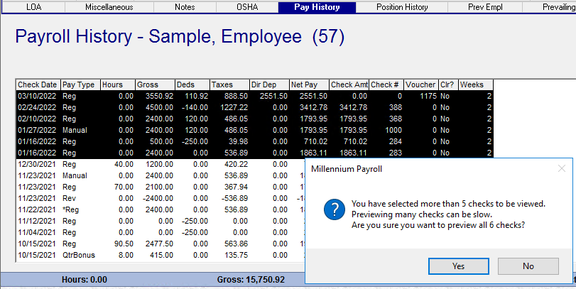
You can preview multiple checks concurrently. Note the following in those cases.
Void
Use the Void button the void a check. Checks are typically voided when the check was issued in error or the check was incorrect for some reason.
When a check is voided, it is voided into a VM (Voids/Manuals) batch in the payroll of the check date in the Payroll Module.
The VM Batch will be created even if the payroll for that check date has NOT been started.
Select the check to void and click Void.
The following dialogue box is displayed.

If the check is from a prior quarter, the following message displays:

If the check is from a prior year, the following message displays:

Voiding checks from a prior quarter and/or year in the current quarter can have significant ramifications to tax returns and other tax documents.
Exercise caution before proceeding. Prior year voids will almost always result in amended tax returns.
Click the Yes Button to void the check. The following message will be displayed.

The check is voided into the payroll for the check date selected in the Payroll Module.
If this is the first check voided into that check date, a VM Batch (Voids/Manuals) is automatically created.
This is true even if the payroll for that check date has not been started.
Note the following:
A check was voided into the 03/24/2022 check date.
The 03/24/2022 payroll has not been started.
Clicking the Start Payroll button takes us to the Check Date Overview.
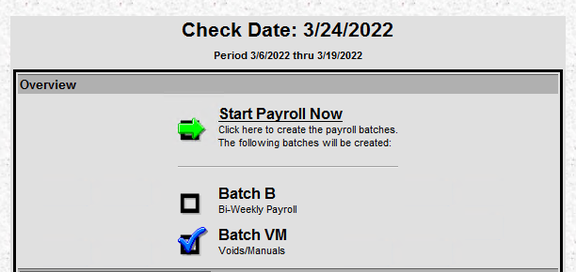
Note the presence of Batch VM. The Batch is also marked as closed.
This does not prevent the addition of more voided entries.
To view the voided entry, go to the VM Batch and select the appropriate employee.
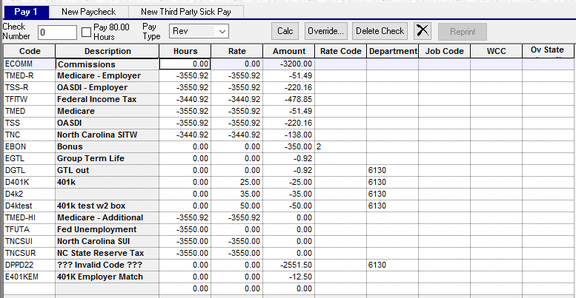
This is what the voided entry looks like.
Note the following:
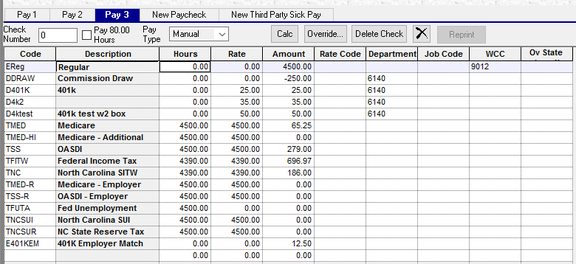
Hours are Hours for earnings. For taxes, they are taxable wages. Deductions, except in rare situations, typically have no hours.
Rate is the rate for earnings and deductions. For Taxes, it is capped taxable wages.
Amount is the amount for earnings, deductions and employee taxes. There are no amounts for Employer Taxes.
The other columns represent various override data entered with the original check.
Void/Reissue
Void/Reissue will void the selected check. All of the information provided above about the Void process is applicable with the Void/Reissue option.
In addition to the voiding the check, a second entry is created in the VM batch to reissue the check exactly how it was originally issued. The check is created as a Manual check with no check number. Manual checks with no check number will have a check number assigned and will be printed during the payroll process.
For this reason, the Void/Reissue function is rarely used. Most times the manual check is needed immediately.