Employee Maintenance: Labor Allocation
Use this tab to establish preset distributions of an employee's labor costs. Only use this feature with any employee where labor needs to be allocated on a consistent basis.
A common use is to prorate the wages of a manager to the cost centers they manage.
For example, a supervisor manages three cost centers. Using Labor Allocations, the employee wages can be automatically charged to the cost centers by preset percentages.
If the employee works multiple locations but with inconsistent hours. this method is not advised.
Regarding this Tab

Hide Inactive Items : Use to suppress entries in the Allocation Sub Tab grid that are not active based on Payroll check date.
New (*) Button : Use to add new entries to the A llocation Sub Tab grid .
New Version Button : Not active on this tab

Delete (X) Button : Use to remove entries from the Allocation Sub Tab grid. A ReadyPay Payroll box is displayed when clicking the Delete box. Click OK to continue. There is no recovery from a deletion.
Adding Labor Allocations to an employee
Click the New (*) Button.
A new line is added to the Labor Allocation grid.
The cursor automatically moves to the Start Date Field on the Allocation Sun Tab.
The Start Date is populated with the check date selected in the Payroll Module.
Allocation Sub Tab

End Date: System defaults to 12/31/2100. Change as needed.
Percentage: Enter a number representing the percentage to associate with this allocation.
The next row of fields is used to assign the percentage to a specific Cost Center.
The first five fields (left to right) are named for the levels of the company found in the Organization Levels Setup Sub Tab in the Departments Tab in Company Setup.

Note in this example, the company has three levels.
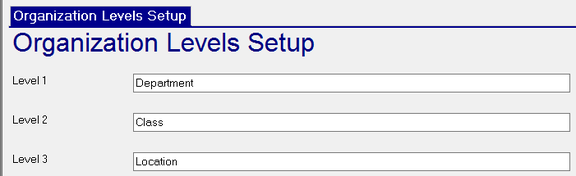
Consequently, the Labor Allocation tab displays those three levels.

Regardless of the number of levels on the company, each allocation will have a field to select Job Codes and Earnings Codes. These fields have Drop List options to select a Job Code or Earnings code as needed.
Job Code and Earnings Codes are optional entries.
Allocations for Job Codes or Earning codes only affect entries with those values assigned.
Budget Information Sub Tab
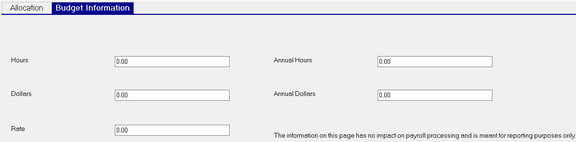
The information on this page has no impact on payroll processing and is meant for reporting purposes only.
All entries are informational.
| Field Name | Information |
|---|---|
| Hours | Hours related to the allocation. |
| Dollars | Dollars related to the allocation. |
| Rate | Rate associated with the allocation. |
| Annual Hours | Annual Hours for the allocation. |
| Annual Dollars | Annual Dollars for the allocation . |
Budget Information reporting is NOT supported by the Report Writer options found in the system.
Reporting must be created using Crystal Reports
Additional Information regarding Labor Allocation
Enter as many allocations as are needed. There is no limit.
The total of the percentages need not equal 100. However, IT MUST NOT EXCEED 100% .
There is no warning in the software when the total percentages exceed 100%.
Allocations exceeding 100% will result in incorrect allocations and can cause negative allocations in payroll.
Allocations can be made so that the entire 100% is allocated to other locations (Cost centers) than the employee's home location. My employee in department 1000 can have 50% allocated to Department 1100, 30% to 1400 and 20% to 1500.
The employee will be shown in their home location on payroll register type reports.
On labor type reports, they will only show in the locations to where they are allocated
If the total of allocations is less than 100%, the unallocated amounts are applied to the employee's home location to ensure 100% is allocated.
Example: Employee's Home Location is 1000.
An allocation assigns 40% to department 1200.
40% will allocate to Department 1200. The remaining 60% will be allocated to the employee's home location (1000).
Always review the results of newly setup allocations in payroll.
Labor Allocations in Payroll
If an employee has allocations in place, you will see a partial representation of the allocations in payroll.
In our sample, our employee has allocations on the earnings codes COMM and BON. The amounts displayed are based on the percentages in the allocations.

Note: there are no allocations on the SAL earnings code. That earnings code is not allocated on this employee.
While you can see the mathematical results, you cannot see the Cost Center assignments associated with the amounts for BON and COMM.
In payroll, the impact of the allocations is only shown on earnings.
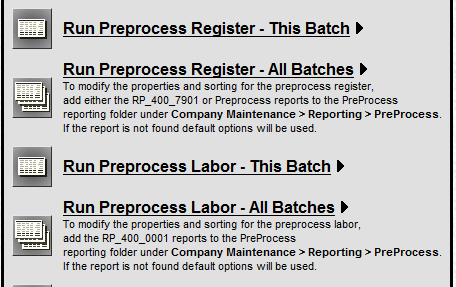
To see the complete Cost Center assignments, you need to run the PreProcess Labor Report.
You must run the Preprocess Payroll Register PRIOR to the PreProcess Labor Report..
The PreProcessLabor report will show the allocations of earnings, deductions, employee and employer taxes.
A recap of each allocation is also provided. This includes Gross, Tot Liab (Gross minus ER Taxes) and Net amount.

Important : If you make changes in payroll or to the allocations themselves, you must rerun the Preprocess Register, then the PreprocessLabor report to see accurate results.
Both reports can be accessed from the Batch Totals menu in Payroll.