Employee Maintenance: Insurance
The Employee Insurance Tab can only be populated when company level insurance plans are actively used by a client.
Entries on this tab associate the employee with a company level plan or plans.
The company level plan controls the employee insurance deduction amounts, frequencies, etc.
Overrides are available to handle exceptions to the company level plan settings.
If there are no Company Level Insurance Plans, employee Insurance deductions are handled as standard deductions on the Employee Maintenance Tab and this tab is not used.
Adding Insurance to the Employee Insurance Tab
Click the New (*) button to add a new Insurance Plan to an employee.
The Select Insurance Plan Box is displayed. A Drop List containing all active company level Insurance Plans is displayed.

Select the appropriate plan from the Drop List, then OK.
The cursor is moved to the Start Date field on the Premium Information Sub Tab.
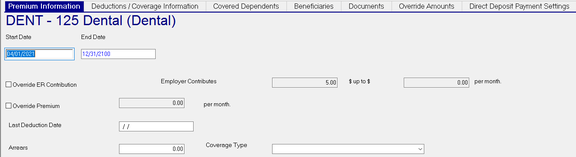
Premium Information Sub Tab
| Field Name | Information |
|---|---|
| Start Date | Pulled from the Start Date of the Company level Insurance Plan. |
| End Date | Defaults to 12/31/2100. Does not use the End Date of the Company level Insurance Plan, |
| Override ER Contribution | If unchecked, the Employer Contributes Fileds to the right display the amounts from the company level plan. If checked, those fields become active and can be populated with overrides to the company level values. |
if unchecked, the fields display the Employer Contribution and monthly limit for this plan.
| Field Name | Information |
|---|---|
| Override Premium | Use to override the monthly employee premium for this plan. |
| Last Deduction Date | Populated during payroll processing. |
| Arrears | Used to track amounts where employee was unable to contribute the entire deduction amount. |
| Coverage Type | Use the Drop List to assign a coverage type for this plan. |

Additional Information:
Do not setup deductions controlled by the Employee Insurance plan on the employee Deductions Tab. Doing so will result in doubling of the deductions.
To allow for viewing of all deduction setups on an employee, the deductions housed on the Insurance tab are displayed in memo fashion on the employee Deductions tab.
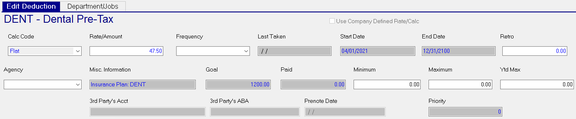
Note : All the fields are highlighted in Blue. The color comes from the user settings under Tools > Preferences.
In the Preference options, the setting for Changed Date on the Colors sub tab is used.
Deductions/Coverage Information Sub Tab
This sub tab provides a breakdown of costs for the selected plan based on the current check date in payroll
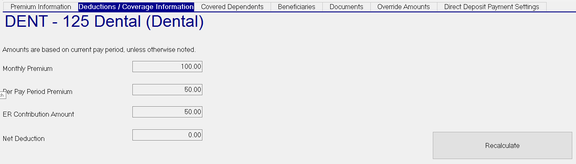
If settings on the employee or company level plan are changed, use the Recalculate Button to update the values on this sub tab.
Covered Dependents Sub Tab
Use the Covered Dependents Sub Tab to define dependents covered by the plan.

Before adding Dependents to a plan, the Dependents must be setup on the Dependents Tab in Employee Maintenance.
For information on setting up Dependents,
click here.
Click the New (*) Button to add covered Dependents. A list of Dependents will be displayed.
The list only includes individuals identified as Dependents on the Employee Maintenance > Dependents Tab.

Select the appropriate Dependent from the list.
The selected Dependent is added to the Grid.
| Field Name | Information |
|---|---|
| Coverage Start | Start Date from the employee Plan |
| Coverage End | System default of 12/31/2100. |
| Name | Name of Dependent as defined on the Dependents Tab in Employee maintenance. |
| Relationship | Relationship to the employee as defined on the Dependents Tab in Employee maintenance. |
Once the Dependent Record is saved, the Listed Dependent field for the Plan is updated.
The field displays number on dependents by Relationships type.
After the necessary dependents are added, return to the Deductions/Coverage Information sub tab. Use the Recalculate Button to display updated premium information based on the added dependents.
Beneficiaries Sub Tab
Use this tab to identify any Beneficiaries for this plan. Various insurance plans provide benefits to third parties in the event of death or injury to the employee.

Click the New (*) Button to display a list of individuals who are recorded as Beneficiaries on the Employee Maintenance Tab.
A list of Beneficiaries is displayed.

Select the appropriate Beneficiary.
The Beneficiary is added to the grid.
| Field Name | Information |
|---|---|
| Coverage Start | Coverage Start Date of the employee's Insurance Plan. Entered by the system. |
| Coverage End | Coverage End Date. System default is 12/31/2100 |
| Name | Name of Beneficiary from the setup on the Employee Maintenance > Dependents Tab |
| Relationship | Relationship of Beneficiary to employee from the setup on the Employee Maintenance > Dependents Tab |
| Type | Choose Primary or Secondary from the provided Drop List |
| Percentage | Enter a numeric value representing the percentage of the entire benefit this Beneficiary will receive upon payout. |
Documents Sub Tab
Use the Documents Sub Tab to attach documents related to the plan.

Click the New (*) Button to add a document to the Insurance Plan.
A Browser window is opened.
Navigate to and select the document to be stored and select Open.

An entry is added to the Grid.
Code: The code is the name of the Plan followed by a one (1).
Subsequent attached documents are named Plan Code2, Plan Code 3, etc.
Edit Notes: Click the field to open an "Edit Notes" Text Box. Enter free form text regarding the document. No text formatting options are provided.
Load/Update : Click the Load/Update Box to load a new version of an already attached document. A ReadyPay Payroll warning box will display. Click Yes to begin the replacement process.

View: Use the View Box to view the currently loaded document.
Override Amounts Sub Tab
Use the Override Amounts Sub Tab when the employee needs to participate in the plan, but circumstances dictate that the employee pays different amount than those setup at the company level.

Override ER Premium : Check to allow access to the "Employer Contributes" and "% up to $" fields.
Employer Contributes : Enter a number representing the percentage of the premium the employer will contribute.
% up to $ : Enter an amount that reflects the limit the employer will contribute.
After making entries in these fields, go to the Deductions/Coverage Sub Tab. Use the Recalculate Button to see the new amounts
.
| Field Name | Information |
|---|---|
| Override Premium | Check this box to allow access to the "per month" and per year fields. |
| Per Month | Enter an amount for the Per Month Premium, |
| Per Year | Automatically populated when the per month amount is stored. |
After making entries in these fields, go to the Deductions/Coverage Sub Tab. Use the Recalculate Button to see the new amounts.
Direct Deposit Payment Settings Sub Tab
Use this sub tab to use direct deposit to pay either the Employee Deduction or the Employer Contribution or both.
This option is only available if the "EE Portion paid via ACH" Check Box is checked on the Company Level plan.
If not selected, all fields on this sub tab are inactive.
Find this field on the EE/ER Contrib Setup Sub Tab of the company level plan.
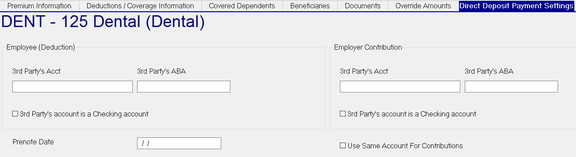
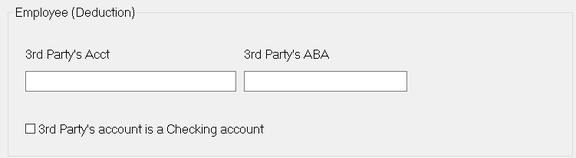
Employee (Deduction) Section
Use to identify to which account the employee deduction is sent.

3rd Party's Acct : Enter account number to which the employee deduction should be sent.
3rd Party's ABA : Transit ABA Number of the account number to which the employee deduction should be sent.
3rd Party's account number is a Checking account : Check if the account is a checking account. Id left blank, the transactions to this account are identified as for a savings account.
Employer Contribution Section
Use to identify to which account the employer contribution is sent.
3rd Party's Acct : Enter account number to which the employer contribution should be sent.
3rd Party's ABA : Transit ABA Number of the account number to which the employe r contribution should be sent.
3rd Party's account number is a Checking account : Check if the account is a checking account. Id left blank, the transactions to this account are identified as for a savings account.
Prenote Date : If you want this entry to prenote, leave the field blank. If the entry should go live immediately,, enter a data thirty days prior to the current date.
Use the Sam Account for Contributions : Use when both the employee deduction and the employer contribution go to the same account. In the Employer Contribution section, complete the 3rd Party's Account, 3rd Party's ABA and 3rd Party's account is a Checking account fields. Leave the entries found in the Employee (Deduction) sections