Employee Maintenance: Information
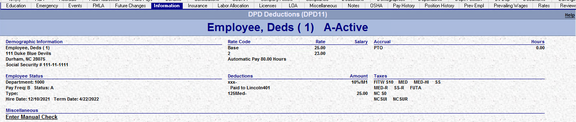
The Information tab displays various information from several tabs of the employee setup. This is a view only display.
Changes to the displayed information cannot be made from this tab.
You must go to the specific tab to add new and remove or change existing data.
This can be done by clicking on the section associated with the item you wish to change.
Information Tab
Demographic Information Section
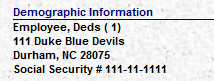
Displays the following:
Last Name, First Name, Employee Id, employee address and Social Security Number.
Employee Status Section
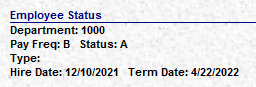
Displays the following:
Department (if company has a multi-level structure, all levels are displayed).
Pay Frequency, Status, Employee Type, Hire Date and Term Date.
Rate Code Section
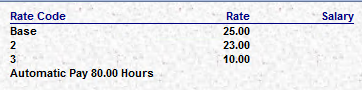
Displays the following:
Rate Code and Rate for all rates that are Active based on current pay date in Payroll Module.
Automatic Pay information is included. If Autopay is set to Hours, the value from Def Hours is displayed.
If Autopay is set to Salary, the Salary Amount from the Base Rate is displayed.
Deductions Section

Displays the following:
Any active deductions, Shows deduction code and description, amount of the deductions,
Taken and Goal amounts (if any), Agency check assignment and information from the Misc field of the deduction.
Accrual Section

Displays the following:
Accrual code(s) and available hours
Taxes Section
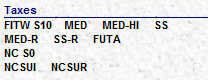
Displays the following:
All active employee and employer tax codes.
If applicable, tax withholding settings on employee taxes
Accessing the Tabs associated to each section
You can navigate to most of the tabs associated with each section by simply mouse clicking in the section.
This is true for the Deductions, Accruals, Taxes and Demographic sections.
You must click in the Demographics section to access the Employee Status and Rate Codes. Data in these sections is pulled from multiple tabs or tables in the database. Click in the Demographic Section, then move to the appropriate tab.
Miscellaneous Section
Currently, the Miscellaneous section only houses access to the Manual Check Calculator

Click the Enter Manual Check option. You are taken to the Check Calculator screen for that employee.
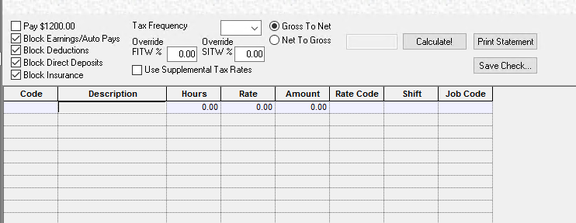
This is the same Check Calculator functionality as found in payroll section