Employee Maintenance: Future Changes
Future Changes refers to options in the system that allow the entry of certain employee changes today that are effective in the future. Typically, changes to employee data are effective immediately. Future Changes allows entries to be made today but not take effect until the date you stipulate.
For example: an employee resigns with a resignation date two weeks in the future. If you change their employee status to T for Term, they are considered terminated immediately by the system. Using the Future Changes options, you can change their employee status but assign an effective date of two weeks in the future. Until that future date arrives, their employee status remains A for active. On the effective date, the status automatically becomes terminated.
This feature is extremely helpful to the departments that handles employee maintenance as it eliminates holding and entering certain changes until their effective date.
There are two options in the system that generate Future Change records.
1: Future Change Employee Address function: This is found in the Address section of the Employee Demographics tab. Initiate the future address change routine by clicking the button with the three dots.

2: The Term Wizard: Activate the Term Wizard function by clicking the Enable Term Wizard check box on the Status tab in Master Company Setup.

Changing the value in the Emp Status field of the Employee Demographics tab activates the Terminate Employee Wizard.
For information regarding use of the Future Change Address function and the Term Wizard.
click here.
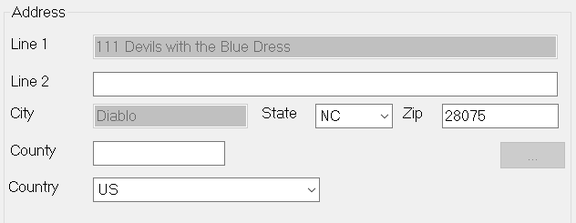
Once a Future Change entry has been created, the field associated with the change is greyed out
Example of Future Changes in use
We have clicked on the Future Change Employee Address function.
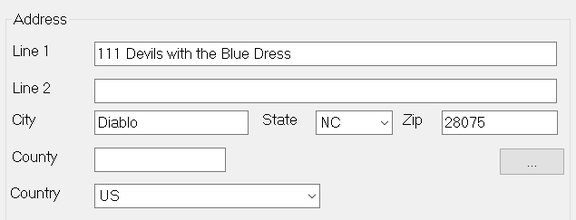
The Future Change Employee Address wizard open, displaying the current values for the fields in the Address section.
The needed changes are entered.An Effective Date is entered and the Make Change button is selected.

Once a Future Change entry has been created, the field(s) associated with the change is greyed out
At the same time, an entry is added to the Future Changes tab reflecting the field, effective date of the change, the new value for the field, who requested the change and when.
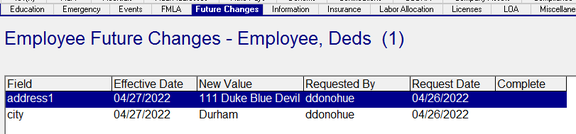
Managing Future Changes
In order for Future Changes to work properly, there must be a scheduled FutureChanges.net job setup on the Job Schedules Tab under System > Operations.
The job should run each business day, either before or after regular business hours.
The job reviews all entries in the Future Changes table of the database and applies the values in the Future Changes record on the day where the effective date matches the job run date. After applying the changes, the Future Change record is removed from the database. The field is no longer greyed out.
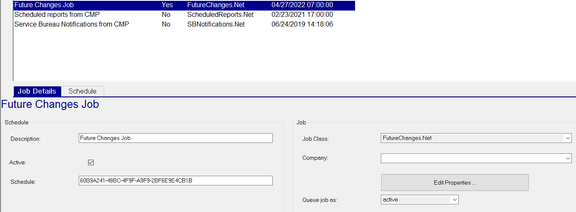
Note the entries above (address1 and city). They were entered on 04/26/2022 with an effective date of 04/27/2022.
On 04/27/2022, the FutureChanges.net job ran. The Complete field on those entries now reads Yes.

On the Demographics tab, the changes are in place and the fields are available to update.
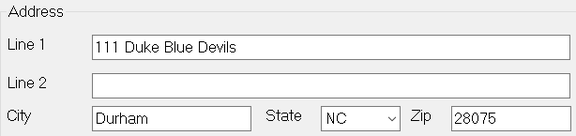
Manually managing Future Changes
In cases where the Future Changes records were created in error. the Future Change record(s) can be manually deleted from the employee's Future Changes Tab. In these cases, the user should
1: Note the change on the Future Change on the Future Change tab
2: Delete the Future Change record.
3: Go to the Demographics tab to ensure the field contains the correct value from the change.
In cases where the Future Change records contain incorrect values, you cannot change them in the Future Changes record.
You must delete the erroneous record then recreate them.