Employee Maintenance: Events
The Events tab is used to record important activities involving the employee. Employee of the year, Salesperson of the Month are some examples.
The Events Tab contains three sub tabs: " Event, Event Notes and Documents.

The Event Sub Tab describes the event.
The Event Notes Sub Tab allows for the entry of free form notes regarding the event.
The Documents Sub Tab allows for attachment of documents that are relevant to the event.
Before an event can be added to an employee, the event must be setup at the company level.
For information regarding the setup of company level Events ,
click here.
Adding Events to an employee
To add an event to an employee, click the New (*) Button.
This displays a list of the Event codes setup on this company.
If there are a large number of events on file, a Drop List will be provided instead.

Select the Event Code to add.
The cursor is moved to the Description field on the Event Sub Tab.
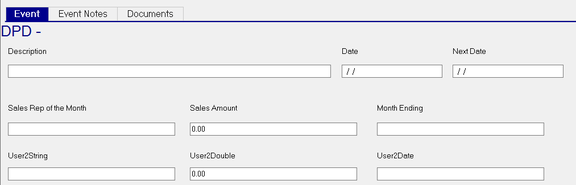
Description : A description for the event. The description from the company level Event is not used.
Date : Date of the event
Next Date : Date the event will occur again (if ever).
The following two rows of fields can be customized to have labels appropriate to the event.
The labels are setup on the company level event. If no custom labels are entered, the fields are labelled as in the following example.

Below is an example where custom labels have been entered at the company level for the first row of fields.
No labels are entered for the second row of fields, so the default company level labels are retained.

The left two fields are used to enter freeform text data relevant to the label.
The center two fields are used to enter numeric values appropriate to the label.
The right two fields are intended as Date fields. They are not, however, preformatted as a date field. Consequently, entries can be in any date format. As they are not date formatted, they can be used for other purposes.
Event Notes Sub Tab
Use this sub tab to store additional notes regarding the event. The field accepts 7000 characters of free form alphanumeric text. There are no formatting options.

Documents Sub Tab
Use the Documents Sub Tab to attach documents pertinent to the event for ease of access.

Adding a document to the Documents Sub Tab
Select the event to which you wish to add a document.
Click the New (*) button.
A Browser window is opened.
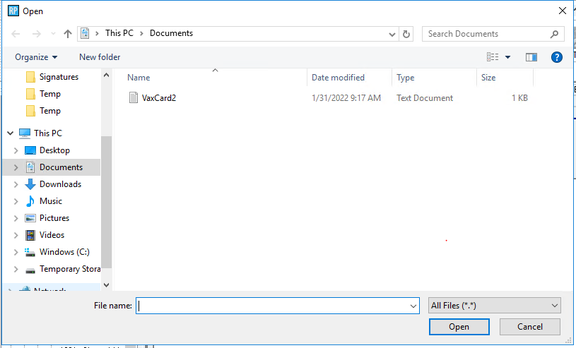
Locate and select the document you wish to add. Click Open.
A line is added to the documents tab. It is assigned a Code of the Event Code with a numeric value appended to the end.
The numeric value starts with 1 (one) and is incremented each time a new document is attached to the event.

Code : Described above.
Edit Notes : Use Edit Notes to add information about the attached document. The field is free form alphanumeric text. There are no text formatting options.

Load/Update : Click on this field to load an updated version of the attached document.
The following message box is displayed.

If you are replacing an existing document, click Yes.
A Browse Window is opened. Select the document as noted above.
View : Use this to display the attached document.
The Delete Button (X) on the Documents Sub Tab performs an immediate delete. There is no dialogue asking for the user to confirm they wish to delete the item.
Additional Information
Reporting on the Employee Events Tab is available using the Employee Events Report Type in Report Writer
