Employee Maintenance: Documents
Use of this tab is optional. The tab is used to store various documents related to the employee.
The system contains a prepopulated list of Document Types that are used with each employee document.
If the provided Document Types list does not meet the client's needs, client specific Document Types can be created
Customized Document Types are created and housed in the Document Types option in the Drop List of the Miscellaneous Tab in Company Setup.
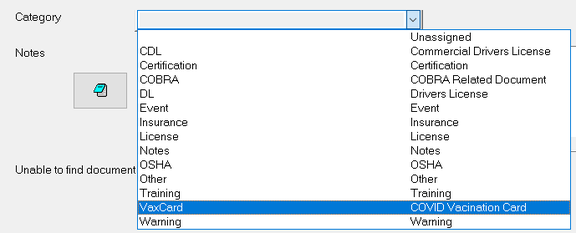
When adding a document to an employee, the Document Type displayed are a combination of the system types plus any custom types added to the individual client.
Any documents to be added to an employee must be placed in a folder accessible to the system prior to adding them to the Documents Tab of the employee.
There is no limit to the number of documents that can be associated with an employee.
Adding a document to an employee
Click the New (*) button to display the "Enter new document code" Dialogue Box.
The code is a freeform text field. Alpha, numeric and special characters are supported.

Click OK. The cursor moves to the Category field of the Info Sub Tab.

Use the Drop List to select the appropriate Category (Document Type). Note the Drop List contains both system and custom Document Types.
| Field Name | Information |
|---|---|
| Notes | If necessary, enter free form notes regarding the document. If the notes are extensive |
| View | Use the View Button to display the document attached to this entry. The button is not available until a document is attached. |
| Load/Update | Click the Load/Update Button to add a document to this entry. A browse window will be opened. |

Navigate to and select the document you wish to attach. Click Open.
The View Button is now active. Click it to display the document.

If an updated version of a document needs to be added, click the Load/Update button.
A warning is displayed indicating a document is already loaded.

Click Yes. A browse window will be opened.
Navigate to and select the new version of the document. Click Open.
Deleting an existing document
Select the document to delete from the existing documents.
Click the Delete (X) button. The following message box is displayed.

Click Yes.
There is no recovery if a document is deleted in error. It must be readded using the steps for adding a new document.