Employee Maintenance: Certifications
Assigning certifications to employees is optional.
Use the Certifications Tab to record information regarding various Certifications held by the individual employee. Clients can review the Certifications while searching for internal job candidates. Additionally, they can be reviewed for any expiring certifications to ensure employees remain up to date in Certifications required for their position.
Prior to assigning certifications to an employee, a list of certification codes must be created at the company level.
The company level Certifications list is found under Company Setup > Misc > Certification Codes.
For information on the setup and maintenance of Company Level Certification Codes.
click here.
Adding a new Employee Certification
On the Certifications Tab, click the New (*) Button.
This will display a list of the Company Level Certifications.

Select the appropriate Certification from the list.
The cursor is moved to the Code Field on the Certification Sub Tab.
Certification Sub Tab
The Code and Description fields are initially populated by the data from your company level selection.
| Field Name | Information |
|---|---|
| Certificate # | Optional. Enter the Certification Number if available. |
| Effective | The default is today's date. Update as appropriate. |
| Expires | Optional. Enter the expiration date (if any) |
| Paid | Optional. Use the ER and EE fields to record the amount (if any) paid towards the cost of the certification process. |
| Reimbursed | Optional. check if the employee was reimbursed. |
| Notes | Optional. Use the free-form text field to enter any additional information regarding the certification. |
You may use the Drop List in the Code Field to change the Certification code. THIS DOES NOT UPDATE the Description field automatically. It will need to be changed manually.
Documents Sub Tab
Use the Documents Sub Tab to attach files that contain the Certification information.
Click the New (*) Button to display a file explorer window.

Navigate to the appropriate folder to access the file to be attached.
Click on the file, then select Open to add to the Documents Sub Tab.
An entry is added to the Grid using the Certificate Code from the Certification Sub Tab plus a number starting with 1 (one).

In our example, the Certificate Code is JS. The code for the entry added to the Documents Sub Tab is JS1.

Subsequent additions are identified accordingly.

| Field Name | Information |
|---|---|
| Notes | Click this field to display and Edit Notes test box. Enter additional information about the Certification as needed. |
| Load/Update | Click this box to update a new version of an existing Certification. The following instructions will be displayed, |

Click Yes to proceed. A file explorer window will open. Navigate to and select the appropriate file to update.
View : Click the View button to display the Certification document.
Certification Reporting
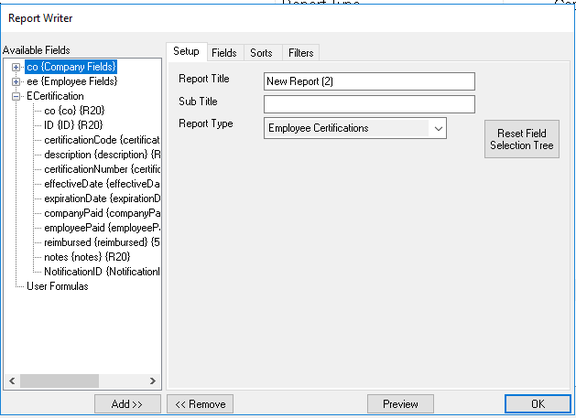
Simple reporting on Certification data can be achieved using the on-board Report Writer function.
Use the Employee Certifications Report Type to build reports reflecting the data setup on the Employee Certifications Tab.