Employee Maintenance: Accruals
The Employee Accrual Tab is used maintain employee participation in any Time Off policies setup for the company.
The tab contains various fields that control how the employee is handled within the Time Off Policies. Several fields are available to override settings on the company level policy.
The tab also displays data reflective of the employees activity within the policy. This includes the employee's available and used hours and dollars. Other informational fields are included.
Working with the Accruals Tab
The Accruals Tab is divided into two sections.
The upper section displays any Time Off Policy the employee participates in (or has participated in).
Use the Hide Inactive Accruals to suppress policies that are out of effect based on the current check date of the company.

The lower section is composed of two Sub Tabs called Accrual Information and Rollover Balance. These subtabs reflects the details of the policy selected in the upper section.
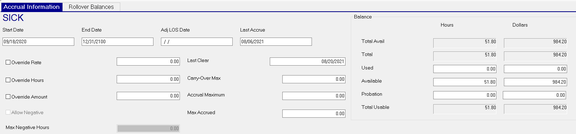
| Field Name | Information |
|---|---|
| Start Date | Start Date for this Time Off Policy |
| End Date | End Date for this Time Off Policy |
| Adjusted LOS Date | Use to override for Length of Service. Use for employees who fall into a higher accrual rate tier (being rehired or terms of their employment contract). This field supersedes all other employee dates in determining their LOS. |
| Last Accrue | The date this benefit last accrued. This field is extremely important for frequency based accruals. If the last accrue date is invalid, it will affect how the accrual reacts to the frequency. When adding a new Time Off type to an employee, you must setup a valid last accrue date. After the initial entry, this date is updated during payroll processing. |
| Last Clear Date | The date this benefit last cleared based on the policy setup. This field is extremely important for frequency based accruals. If there is a last clear date that is invalid, it will most likely affect how the accrual reacts to the frequency. It is imperative that you setup the employee with a valid last clear date to ensure the accrual works properly. |
The following are employee level fields used to override the values in the company level time off policy for this employee.
Client must manage and update them accordingly as necessary.
| Field Name | Information |
|---|---|
| Override Rate | If selected, the rate entered in the field on the right will be used for the accrual rate, overriding the rate setup on the company level. This rate will be used regardless of the Length of Service. If you check this box and leave the rate box set to zero, the accrual rate will be zero and nothing will accrue. |
| Override Hours | If selected, the number entered in the field to the right is the number of hours the employee accrues each time the accrual is triggered. |
| Override Amount | Use with dollars-based accruals. The value entered will be used as the amount the employee accrues each time the accrual is triggered. |
| Allow Negative | Mark if allowing the individual employee to “go negative”. |
| Max Negative Hours | If "Allow Negative", enter the maximum number of hours the employee may have. |
| Carry-Over Max | If the employee can carry over a balance of hours from year to year that is different than the company policy, enter the number of hours. |
| Accrual Maximum | If the employee can accrue and maintain a balance of hours different than the company policy, enter the number of hours. You must select the "Use EE Accr Max for Max Avail" check box on the policy setup. ALL EMPLOYEES would then need to have an Accrual Maximum entered. |
Balance Section
The Balance Section displays various data for each of the employee's time off policies.
The information is current data and is updated during payroll processing. However, t he values in any of the editable fields can be manually adjusted as needed.
Each field has Hours and Dollars displayed.
The values are based on the plan year (if any) of the policy.
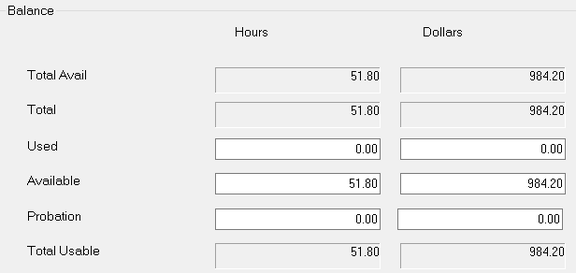
| Field Name | Information |
|---|---|
| Total Avail | Total Available Hours and Dollars |
| Total | Total of Used Hours/Dollars PLUS Available Hours/Dollars |
| Used | Total of Used Hours and Dollars |
| Available | Available Hours and Dollars |
| Probation | Hours/Dollars accrued during the employee's Probation period. When Probation period ends, these values are cleared and added to the Available Hours/Dollars fields. |
| Total Usable | Number of Usable Hours/Dollars. Can vary from Available Hours/Dollars if Max Used is populated on the Company Level Time Off policy. |
The basic order of accrual processing during payroll calculation process is as follows:
1) Use
2) Clear
3) Transfer
4) Accrue
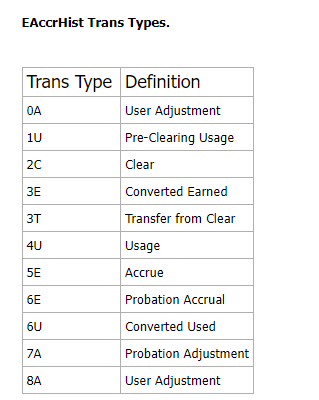
5) Special adjustment (see Trans Types below for further detail)
Reviewing Accrual History transactions
ReadyPay logs a record of each employee's accrual history and related transactions. The Accrual History reports provide the information most people need. The following chart details what each stored Trans Type means.
Most Common Causes of issues with Accruals
1. Last Accrue Date missing or inaccurate. Missing or inaccurate Last Accrue Dates can cause accruing to occur too soon or too late. Missing or inaccurate Last Accrue Dates are the most common cause of Accrual issues. When entering a Last Accrue Date, it should be the date when the accrual would last have occurred. This date can, in some cases, be before the employee start date.
2. Last Clear Date missing or inaccurate: Missing or inaccurate Last Accrue Dates can cause clearing to occur too soon or too late. Missing or inaccurate Last Accrue Dates are the most common cause of Accrual issues. When entering a Last Clear Date, it should be the date when the accrual would last have cleared. This date can, in some cases, be before the employee start date.
3. Use of the Total Max field on the Company Level Accrual table. When used, the employee level accrual stops when the employee's Used Hours plus Available Hours equals the value in Total Max. Unless you have compelling reasons to use it, leave it set to zero.
4. New Emp Filters: The term "New Emp Filter" is misleading. New Emp Filters add employees to a Time Off Policy is the employee qualifies for it based on the filter and is not set up for the time off policy. This is true for ALL employees, not just new hires. If you delete the Time Off Policy from an employee who was added to it by a New Emp filter, the time off policy will be re-added to the employee if they continue to meet the filtering requirements.
5. Use of Employee Override Fields: Override fields are helpful until the fact they are being used is forgotten. Occasionally, a Time off Plan will be changed due to new accrual rates. Unless a change is applied to existing overrides, accruing will occur at the existing rates, resulting in incorrect accrual activity.
6: Incorrect Code Groups on Hourly Accruals: Each time a new earnings code is added to a company, the Code Groups should be reviewed to determine if the mew code should be included in the Code Group. If omitted, accrued benefits and/or usage may be incorrect.
5. Incorrect Frequency in use. For Frequency Based accruals, there should be a custom Frequency in place to control when the Time Off policy accrues. These Tax Frequency codes (A, B, D, M, Q. S, W) should not be used to control accruing.
For information on Master Company Setup > Frequencies, click here.